If Xfinity 10.0.0.1 is not working, the fix may be different from the advice found in older router-login guides.
Xfinity changed how local Admin Tool access works on newer gateways. On models including the XB6, XB7, XB8 and XB10, you may need to enable Admin Tool access in the Xfinity app before 10.0.0.1 will work normally.
There has also been an important password change. Older instructions often tell people to use admin and password. That is not reliable advice for current Xfinity gateways.
Start with the access setting before resetting anything.
First, make sure you are connected to your home Xfinity network
The Xfinity Admin Tool is a local page. Your phone, tablet or computer needs to be connected to the Xfinity Gateway at home.
Do not try to access it while connected only through:
- mobile data
- another Wi-Fi network
- the public xfinitywifi hotspot
- a VPN that is routing traffic away from your local network
If possible, connect directly to your normal home Wi-Fi.
A wired Ethernet connection to the gateway is also a good test if you have a laptop or computer with Ethernet available.
Then enter this directly into the browser address bar:
http://10.0.0.1
Do not search Google for the address. Type it into the address bar.
If the page still does not open and you have a newer Xfinity Gateway, check the next step.
Enable Xfinity Admin Tool access in the app
This is the part many older troubleshooting pages now miss.
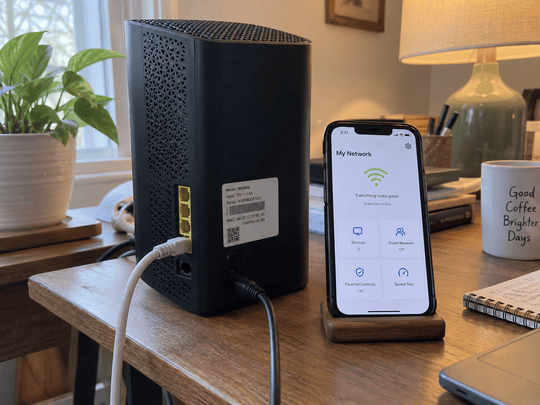
For newer gateways, Xfinity currently provides an Admin Tool access control inside the Xfinity app.
Open the Xfinity app and go to:
WiFi > View WiFi equipment > Advanced settings > Gateway admin tool > Admin Tool online access
Enable Allow Admin Tool access, then save the change.
If this is the first time you have enabled the feature, Xfinity may ask you to create a new password for the Admin Tool.
After saving it, stay connected to your home Wi-Fi and open:
http://10.0.0.1
The username is:
admin
For newer setups, use the Admin Tool password you just created.
This change is particularly important on XB6, XB7, XB8 and XB10 gateways.
Older gateways, including some XB3 and earlier models, do not use the same app toggle.
Do not automatically use admin and password
A lot of Xfinity login pages on the web still repeat:
Username: admin
Password: password
That advice can now send you in the wrong direction.
Xfinity’s current instructions say that users enabling Admin Tool access for the first time create a new password.
Users who had Admin Tool access enabled before February 2026 may still use the password associated with their earlier setup, including the gateway label password in applicable cases.
The safest rule is simple:
Do not keep trying random default passwords.
If your Xfinity app asks you to create an Admin Tool password, use that password with the username admin.
Remember that this Admin Tool password is separate from your normal Wi-Fi password and your Xfinity account password.
10.0.0.1 opens but the password is rejected
If the login screen appears, the network connection to the gateway is working.
That narrows the problem considerably.
Check these in order.
Use the Admin Tool password, not your Wi-Fi password
Your Wi-Fi password connects devices to your wireless network.
The Admin Tool password protects the gateway’s local management page.
They are not necessarily the same.
If you recently enabled Admin Tool access in the Xfinity app and created a password there, use that password.
Check whether someone changed it previously
Another person in the house may have configured the gateway and changed the Admin Tool password.
Do not assume the password printed on an old guide or forum post is still valid.
Check the Xfinity app access setting again
On supported newer gateways, return to the Xfinity app and make sure Admin Tool access is still enabled.
Xfinity also recommends disabling this access when you are finished using the Admin Tool, so it is possible the setting was previously turned off.
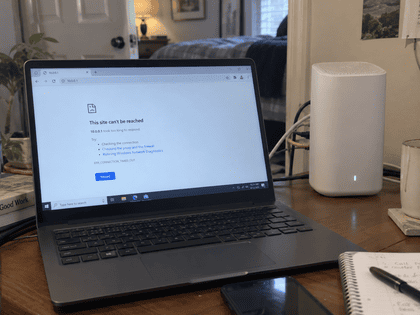
10.0.0.1 does not load at all
If you do not even see the login page, concentrate on the local connection rather than the password.
Try these checks.
Type the full local address
Use:
http://10.0.0.1
Some browsers try to search for numbers entered into the address bar or may prefer HTTPS automatically.
Typing the full address helps make it clear that you are trying to open a local HTTP page.
Try another browser
A cached error, browser extension or privacy feature can occasionally interfere with a local management page.
Try another browser or a private browsing window.
There is no need to install special software.
Temporarily disconnect a VPN
A VPN can change how local traffic is routed.
Disconnect it temporarily and try http://10.0.0.1 again while connected directly to the Xfinity home network.
If it works afterward, the gateway was not the problem.
Try another device
Testing from a second phone, tablet or computer quickly separates a gateway problem from a problem affecting only one device.
If 10.0.0.1 works from another device, avoid resetting the gateway. Troubleshoot the first device or browser instead.
Make sure 10.0.0.1 is actually your Xfinity Gateway
Xfinity Gateways normally use 10.0.0.1 for the local Admin Tool, but home networks can become more complicated when another router is added.
If you installed your own router behind the Xfinity Gateway, your phone or computer may actually be connected to that router instead.
In that case, opening 10.0.0.1 may fail because your device is no longer communicating directly with the Xfinity Gateway in the expected way.
If you are dealing with a general router rather than an Xfinity-specific login problem, see our guide to 10.0.0.1 router login.
Also check which Wi-Fi network your device is currently using. It is easy to accidentally remain connected to a separate router, extender or guest network.
What if the Xfinity Gateway itself has no internet?
The Admin Tool is local, so a working internet connection is not always required simply to reach the gateway interface.
However, if the gateway is restarting, offline or having a service problem, fix that issue first.
Look at the gateway’s status light.
If you are seeing an orange or green connection state along with no internet, our Xfinity router blinking orange guide covers the connection side separately.
Do not mix an Admin Tool login failure with an Xfinity line or activation problem. They are different issues.
Restart the gateway before considering a reset
If Admin Tool access is enabled, the device is on the correct home network and 10.0.0.1 still refuses to load, a normal restart is reasonable.
A restart does not erase your Wi-Fi configuration.
For a manual restart:
- Unplug the gateway’s power.
- Wait about one minute.
- Plug it back in.
- Allow the gateway to finish starting before testing 10.0.0.1 again.
Xfinity notes that a gateway restart can take several minutes, so do not judge the result immediately after reconnecting the power.
If you rent the gateway, you can also restart it from the Xfinity app.
Do not factory reset just to fix a browser problem
A factory reset is very different from a restart.
It can erase customized settings and force you to set the gateway up again.
That makes it a poor first solution for a page that simply will not load.
Before considering a factory reset, confirm all of these:
- you are connected to the correct Xfinity home network
- Admin Tool access is enabled on supported newer gateways
- you tried http://10.0.0.1
- you tried another browser
- you tested without a VPN
- you tried another device
- you performed a normal gateway restart
If the issue is only a forgotten Admin Tool password, check the options available for your exact Xfinity Gateway before resetting it.
Reset procedures differ between gateway generations, so use Xfinity’s instructions for the model you actually have.
You can log in, but some settings are missing
This does not necessarily mean that the Admin Tool is broken.
Xfinity automatically manages some settings on newer gateways.
For example, Xfinity’s current documentation says some Wi-Fi channel and mode controls are not available for XB6 and newer gateways.
So there are two separate questions:
- Can you access 10.0.0.1?
- Does Xfinity allow the particular setting you want to change on your gateway?
Successfully logging in does not guarantee that every setting found in older Xfinity screenshots will still be available.
This is another reason older Admin Tool guides can be misleading.
XB6, XB7, XB8 or XB10 users should check the app first
For these newer gateway families, the fastest troubleshooting path is now:
- Connect to your Xfinity home Wi-Fi.
- Open the Xfinity app.
- Go to the Gateway Admin Tool access setting.
- Enable Admin Tool access.
- Create the Admin Tool password if prompted.
- Open http://10.0.0.1.
- Sign in as admin using the password you created.
If that works, there is no reason to reset the gateway.
If 10.0.0.1 still does not respond, test another browser and another locally connected device before moving to more disruptive troubleshooting.
Official Xfinity sources
Xfinity, Allow WiFi Gateway Admin Tool online access:
Xfinity Admin Tool access instructions
Xfinity, Change WiFi settings using the Gateway Admin Tool:
Xfinity Gateway Admin Tool login guidance
Xfinity, Restart your Gateway:
Xfinity Gateway restart instructions