If your Xfinity Gateway is blinking orange and the internet is down, the important thing is not to assume the color has one exact meaning.
There are plenty of guides online claiming that an orange light always means a firmware update, a downstream signal problem, or a specific cable fault. Xfinity’s own documentation is less specific.
On current Xfinity Gateways, Xfinity describes color combinations outside its normal white, red and blue states as the Gateway connecting to Xfinity systems. Xfinity recommends allowing about 15 minutes for that connection cycle to finish.
That also explains why people sometimes describe the same general problem as an Xfinity router blinking green instead of orange. Gateway models and connection stages can look different, but the practical problem is usually similar: the Gateway has not reached its normal operational state.
If the light keeps blinking for much longer than the normal startup period, start troubleshooting the connection rather than the color itself.
What should the Xfinity Gateway light normally look like?
Most newer Xfinity Gateways, including the XB6, XB7, XB8 and XB10 families, use a main status light rather than the row of separate modem lights found on many older cable modems.
Once an activated Gateway is operating normally, Xfinity documents a steady white light, sometimes with a purple tint depending on the hardware and state.
Other important states include:
- Steady white: Gateway is operational.
- Blinking blue: WPS pairing mode.
- Steady red: The Gateway does not have an internet connection.
- Other colors or combinations: The Gateway is connecting to Xfinity systems.
Xfinity currently lists XB6, XB7, XB8, XB9 and XB10 among its Gateway families, along with older equipment. The exact appearance of the light can therefore vary by model.
This is why treating every orange or green light as a precise modem error is risky.
If you just turned the Gateway on, give it time first
A blinking orange or green light is not automatically a fault if the Gateway has just been plugged in, restarted or activated.
Xfinity says other light combinations can appear while the Gateway connects to its systems and recommends waiting around 15 minutes for that process to complete.
During a new installation, activation itself can take longer. Xfinity’s current activation instructions say the process can take about 20 minutes.
So if you have only just:
- installed the Gateway
- moved it to another coax outlet
- restarted it
- activated new service
- replaced an older Xfinity Gateway
give it enough time to finish before unplugging it again.
Repeatedly power-cycling a Gateway while it is trying to come online can make troubleshooting harder because you keep restarting the connection process.
If the light eventually becomes steady white and the internet starts working, there is probably nothing else to fix.
If it stays orange, green or another non-operational color after the normal startup period, continue below.
Check for an Xfinity outage before touching the cables
This is one of the fastest checks.
Open the Xfinity app using cellular data and check whether Xfinity reports an outage at your address.
The app can show outage information and, when available, an estimated restoration time. Xfinity also provides an online Outage Map.
If Xfinity has already confirmed an outage in your area, changing Wi-Fi settings or resetting the Gateway is unlikely to help.
An outage can leave the Gateway powered on and trying to reconnect to Xfinity’s network, which fits the kind of connecting state represented by an unusual blinking light.
If there is no reported outage, move on to the physical connection.
Check the coax cable
For a normal cable-based Xfinity Gateway, the coax connection matters more than the Wi-Fi settings when the Gateway itself will not come online.
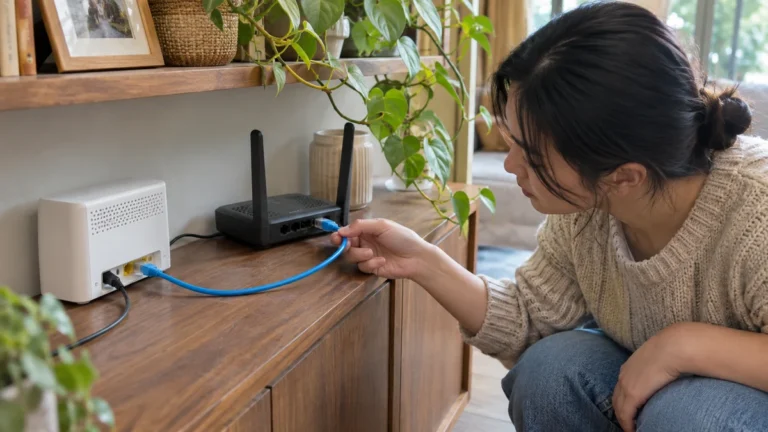
Check the coax cable from the wall outlet to the Cable In or RF In connector on the Gateway.
It should be firmly connected at both ends.
Xfinity’s installation instructions specifically say the coax connector should be finger-tight.
You do not need tools to crush it tighter.
Also look for obvious problems:
- connector barely attached
- damaged cable
- sharply bent or crushed coax
- loose wall plate connection
- unnecessary splitters between the wall and Gateway
If you recently moved the Gateway to another room, the new coax outlet may not actually be active.
That is a common clue when the Gateway worked perfectly in one location and immediately started blinking after being moved.
A coax outlet can exist without carrying Xfinity service
A wall outlet looking correct does not prove that it is connected to the active cable line.
Xfinity’s activation process checks whether the cable outlet is active. If the app cannot detect a connection, Xfinity specifically suggests trying another outlet.
This matters especially in:
- apartments with several old cable outlets
- homes where previous owners changed the wiring
- rooms that were disconnected from the main splitter
- houses that previously had satellite TV or another cable provider
If you’re activating the Gateway for the first time and one outlet never gets past the blinking connection state, test an outlet that you know previously carried Xfinity service.
If this is a new Gateway, make sure it has been activated
A Gateway can have power and broadcast Wi-Fi without being fully activated for your Xfinity account.
For a new or replacement Xfinity Gateway, use the Xfinity app and complete the activation process.
Xfinity’s current activation flow checks the cable connection, confirms whether the outlet is active and provisions the equipment for the account.
For newer single-light Gateways, Xfinity says the device is ready for activation when the light becomes white, either solid or blinking.
Older multi-light devices use a different indicator, with the top three lights becoming solid.
That difference is another reason not to copy LED advice from one Gateway generation to another.
Orange or green after the Gateway was working normally
If your internet was working normally and the Gateway suddenly started blinking orange or green, this is different from a brand-new installation.
Start with three questions:
Did every device lose the internet?
If phones, computers, TVs and wired devices all lost connectivity at roughly the same time, the problem is probably not one phone or one Wi-Fi band.
Focus on the Gateway and Xfinity connection.
Does Xfinity show an outage?
Check this before rebooting equipment.
If an outage is confirmed, there is little value in changing settings.
Did anything physical change?
Think about what happened shortly before the connection failed.
Maybe furniture was moved, somebody cleaned near the Gateway, a coax connector became loose, a splitter was changed, or power briefly dropped.
These simple causes are easy to overlook.
Restart the Gateway once
If there is no reported outage and the cables look normal, a restart is reasonable.
Xfinity recommends running its network troubleshooting first, but it also provides both app-based and manual restart methods.
For a manual restart, Xfinity’s current instructions say:
- Unplug the Gateway’s power cable.
- Wait one minute.
- Plug it back in.
The restart process can take up to about 12 minutes.
That last part matters.
Do not unplug it again after three minutes because the light is still changing.
Allow the Gateway to complete its startup.
If it returns to a steady white light and your connection works, stop there.
Don’t confuse a blue blinking light with the problem
Blue has a much more specific meaning on current Xfinity Gateways.
On XB6, XB7 and XB8 hardware, Xfinity documents a slowly blinking blue light when the Gateway is in WPS pairing mode. Once WPS pairing finishes, the Gateway returns to its normal white operational light.
So if the light is clearly blue rather than orange or green, check whether somebody pressed the WPS button.
That is a different problem from a Gateway that cannot establish service.
What if the Gateway changes from orange to green?
Do not read too much into every color change during startup.
Xfinity’s public LED guide does not assign separate universal meanings to orange and green across the XB6, XB7, XB8 and XB10 families.
Instead, it groups other color combinations into the broader connecting to Xfinity systems state.
The more useful question is whether the Gateway eventually reaches its normal operational light.
If it moves through several colors and becomes steady white within the startup period, that is very different from a Gateway that remains stuck for half an hour with no internet.
If the light keeps blinking after a restart
At this point you have already eliminated several simple possibilities:
- normal startup
- a known outage
- obviously loose coax
- incomplete activation
- a temporary Gateway problem fixed by restarting
Now the connection itself needs more attention.
If possible, check whether the Xfinity app can see the Gateway and run its network troubleshooting.
Xfinity says the app can test the network and determine whether restarting the Gateway is appropriate. The app can also provide outage information and equipment troubleshooting.
If the app cannot detect the Gateway at all despite a good power and coax connection, the problem is less likely to be ordinary Wi-Fi.
Splitters can matter
Cable internet signals can pass through splitters, but unnecessary or damaged splitters create another possible failure point.
If your Gateway’s coax cable runs through several adapters or splitters, check whether anything has recently changed.
Do not start dismantling your home’s cable wiring at random.
But if there is an obviously loose splitter or the problem began immediately after one was installed or moved, that is worth investigating.
A useful test during installation is connecting the Gateway to a known active outlet using the simplest available coax path.
If that works while another outlet does not, the Gateway may be fine.
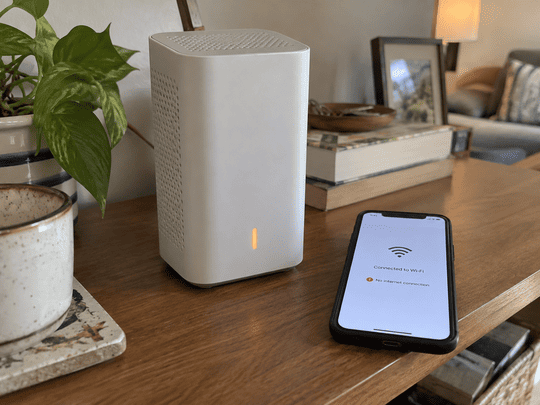
Wi-Fi connected but no internet
Sometimes your phone or laptop will still say it is connected to Wi-Fi even while the Gateway is blinking and Xfinity service is unavailable.
That is normal.
The Wi-Fi connection between your device and the Gateway is only one part of the route.
Your phone can still communicate with the Gateway locally while the Gateway itself is unable to establish its internet connection through Xfinity.
So a device showing Connected to Wi-Fi does not prove that the Gateway is online.
Look at whether websites actually load and whether the Gateway reaches its normal operational state.
Don’t factory reset the Gateway early
A factory reset is much more disruptive than a normal restart.
It can erase customized settings and create additional setup work, while doing nothing to solve an Xfinity outage or a disconnected coax line.
Before considering a reset, you should already have checked:
- Xfinity outage status
- coax connections
- the cable outlet
- activation
- normal restart behavior
- whether the Gateway eventually reaches its operational light
If the problem is upstream from your house, resetting the Gateway will not repair it.
Use a factory reset only when there is a reason to suspect the Gateway’s configuration itself, or when Xfinity’s model-specific troubleshooting calls for one.
Is the Gateway itself failing?
Hardware failure is possible, but it should not be the first assumption.
It becomes more plausible when:
- the Gateway repeatedly loses service while Xfinity reports no outage
- the same active coax line works correctly with another properly activated Gateway
- the unit continually reboots by itself
- it will not complete startup even after the physical connection and activation have been confirmed
- power behavior is abnormal
- Xfinity’s own diagnostics identify an equipment problem
Older hardware can fail, but so can coax connections, splitters, neighborhood lines and service provisioning.
Replacing the Gateway before separating those possibilities can waste time without fixing the real cause.
XB6, XB7, XB8 and XB10 are not identical
Xfinity currently supplies several generations of Gateway.
The XB6 is a Wi-Fi 5 model family, XB7 uses Wi-Fi 6, XB8 uses Wi-Fi 6E, and newer XB10 hardware uses Wi-Fi 7. Xfinity also has other Gateway generations and hardware variants.
That matters because internet guides often talk about “the Xfinity router” as though Xfinity has supplied one unchanged box for years.
It hasn’t.
If instructions involve buttons, admin access, ports, firmware or exact LED behavior, identify the model first.
Xfinity says the model number can be found on the bottom of the Gateway, through the Xfinity app or through your account equipment information.
The quickest troubleshooting order
If your Xfinity router is blinking orange or green and there is no internet, use this order:
- If it just started or restarted, wait about 15 minutes.
- Check the Xfinity app for an outage.
- Make sure the coax connection is finger-tight.
- If this is a new or replacement Gateway, finish activation.
- Confirm the coax outlet is active.
- Restart the Gateway once and allow the startup process to finish.
- Run Xfinity’s network troubleshooting if the light remains stuck.
- Only consider a factory reset or replacement after the connection and activation checks are exhausted.
The main thing is not the exact shade of orange or green.
The real question is whether the Gateway can finish connecting to Xfinity and return to its normal operational state.
Official sources
Xfinity Support: What the lights on your Xfinity Gateways mean
Xfinity Support: Activate an Xfinity Gateway with the Xfinity app
Xfinity Support: How to restart your Xfinity Gateway