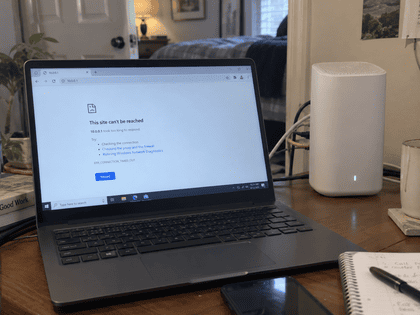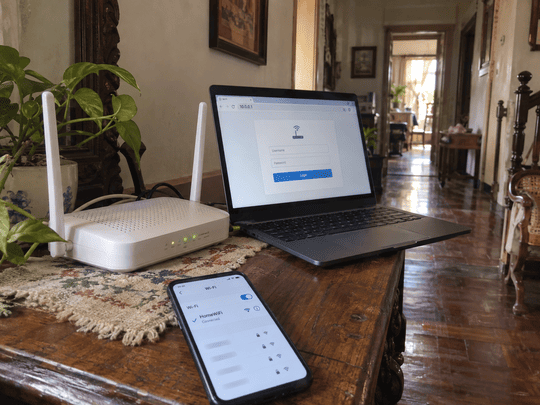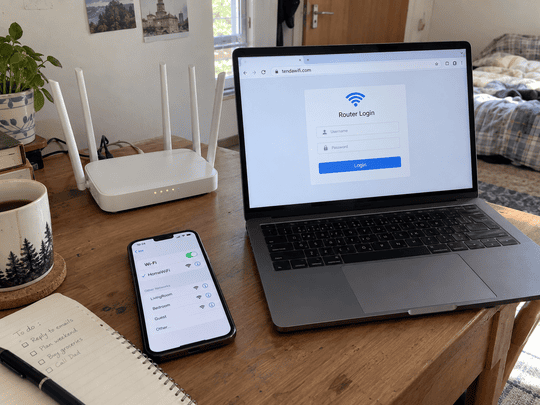
A Tenda router login normally starts with tendawifi.com, but that address only works when your phone or computer is connected to the Tenda router you are trying to manage.
Depending on the router and its configuration, you may also be able to open the settings through 192.168.0.1 or 192.168.1.1.
If the login page will not open, do not assume the router is broken. A wrong network connection, changed gateway address, browser cache, mobile data, VPN or even the way the address was typed can stop the page from loading.
How to log in to a Tenda router
Start with the simplest method.
- Connect your phone or computer to the Tenda router by Wi-Fi or Ethernet.
- Open Chrome, Edge, Firefox or another normal browser.
- Type tendawifi.com directly into the browser address bar.
- Press Enter or Go.
- Enter the router’s management password when the login page appears.
Do not type tendawifi.com into Google or another search engine. It needs to go into the address bar.
Tenda describes tendawifi.com as an internal management address. That means you normally need to be connected directly to the Tenda network before it will work.
Internet access itself is not required just to reach the router’s local settings page.
Should you use tendawifi.com or 192.168.0.1?
tendawifi.com is usually the easiest place to start.
If it does not work, try the router’s actual gateway IP instead.
Tenda currently documents both 192.168.0.1 and 192.168.1.1 as addresses used by its routers. The correct address depends on the model and how the network has been configured.
So this is not a case where every Tenda router can safely be assumed to use 192.168.0.1.
Try:
http://192.168.0.1
If that does not match your router, check the device’s real gateway address rather than repeatedly trying random private IP addresses.
Some Tenda models, older products, ISP-supplied units and routers operating in different network modes can use a different address.
How to find the real Tenda router IP
Finding the gateway address is more reliable than guessing.
Windows
On Windows, open Command Prompt and enter:
ipconfig
Look at the active Wi-Fi or Ethernet connection.
Find Default Gateway. The address beside it is usually the router you are currently using.
For example:
192.168.0.1
or
192.168.1.1
If Windows shows 192.168.1.1, our 192.168.1.1 login guide covers that address in more detail.
Android
Open the details for the Wi-Fi network you are connected to.
Depending on the Android version, the router address may be shown as Gateway, Router or inside the network details.
iPhone or iPad
Open:
Settings > Wi-Fi
Tap the information button beside the connected Wi-Fi network.
Look for Router.
Use that address in your browser.
tendawifi.com not working
A Tenda login page that refuses to open is often a local-network problem rather than an internet problem.
Work through these checks in order.
Make sure you are connected to the Tenda router
This is the first thing to check.
Your phone could still be using mobile data, another nearby Wi-Fi network or a different router in a mesh or multi-router setup.
Connect specifically to the Wi-Fi network broadcast by the Tenda router.
On a computer, Ethernet is also useful because it removes Wi-Fi roaming and connection-selection problems.
If using a phone, temporarily switching mobile data off can prevent the phone from trying another route while you access the local page.
Type the address into the browser address bar
Use:
tendawifi.com
Do not search for:
tenda wifi com
www tendawifi com login
tenda router login
Those searches may take you to websites on the public internet rather than your router.
If you searched for “www tendawifi com login,” the address Tenda currently documents is simply tendawifi.com.
Try the gateway IP directly
If tendawifi.com does not resolve correctly, open the router’s gateway address instead.
For many Tenda routers this will be 192.168.0.1 or 192.168.1.1, but check the actual gateway on your device if neither works.
This also helps when the local hostname is failing even though the router itself is reachable.
Clear the browser cache or use another browser
Tenda specifically documents browser caching as one possible reason tendawifi.com stops working correctly.
Try a private or incognito window first.
If that works, the problem is probably browser data rather than the router.
Otherwise:
- clear browser cache and cookies for the address
- try another browser
- close and reopen the browser
- restart the phone or computer
Tenda also notes that a browser can sometimes retain the wrong public-IP result for tendawifi.com, which prevents the local management page from opening normally.
Turn off VPN connections temporarily
A VPN can send traffic through a route that prevents local router addresses from working normally.
Disconnect the VPN and try tendawifi.com again.
The same applies if the computer has several active network connections at once.
For troubleshooting, keep only the connection that leads to the Tenda router active.
Restart the router
A normal restart is very different from a factory reset.
Power the router off, wait briefly, then power it back on and allow it to finish starting.
Do not press the Reset button during this step.
A restart keeps your Wi-Fi name, passwords and internet configuration.
Why 192.168.0.1 may not open
There are several normal reasons.
The router may actually be using 192.168.1.1.
Someone may have changed its LAN address.
The Tenda device may be operating as an access point, repeater or secondary router and may have received another IP address from the main router.
You may also be connected to a different router entirely.
The most reliable answer is the gateway address reported by the device that is connected to the Tenda network.
Do not change your computer to a manually assigned 192.168.0.x address unless the documentation for your exact model specifically requires it.
Most normal home setups should obtain an IP address automatically.
Tenda login password is not working
Avoid the common advice that every Tenda router uses the same username and password.
Tenda has used different login systems across different models and generations.
Depending on the router, the management password may be:
- a password printed on the router label
- the Wi-Fi password
- a separate management password created during setup
- a password that was changed later by the owner
- a model-specific default on older hardware
Check the label and the manual for the exact model before trying default credentials from random router-login websites.
Older Tenda documentation does exist for products that used simple defaults such as admin, but that does not make admin a safe universal password for current Tenda hardware.
If the page loads but rejects the password, that is a different problem from the page not loading at all.
Is the Wi-Fi password the same as the Tenda admin password?
Sometimes, but not always.
Some Tenda setup flows allow the Wi-Fi password to also be used as the router login password. Other models use a separate management password.
If your normal Wi-Fi password does not work on the login screen, do not keep trying it indefinitely.
Check:
- the router label
- the exact model’s manual
- whether a separate login password was created during initial setup
- whether someone previously changed the management password
This distinction matters because resetting the Wi-Fi password and resetting the router-management password are not always the same operation.
Browser says the Tenda page is not secure
Some Tenda routers support HTTPS access to their local management interface.
Tenda documents that browsers can display a privacy or certificate warning because the router can use a self-signed certificate rather than one issued by a public certificate authority.
Only continue past a certificate warning when you have confirmed all of the following:
- you are connected to your own Tenda router
- the address is the correct local router address
- you intentionally opened the router’s management page
A certificate warning on an unrelated public website should not be treated the same way.
If there is any doubt about where the page came from, close it and verify the gateway IP first.
The Tenda login works but there is no internet
Being able to open tendawifi.com proves that your device can communicate with the router.
It does not prove that the router has a working internet connection.
If the settings page opens normally but websites do not, the problem is farther upstream.
Possible areas to check include:
- the modem or ONT connection
- the cable connected to the router’s WAN or internet port
- ISP outage or service failure
- PPPoE credentials where required by the ISP
- DHCP or static-IP WAN configuration
- whether the router is configured in the intended operating mode
Do not factory-reset the router simply because the internet is down. A reset can remove ISP settings that may be difficult to restore.
What if the router is being used as an access point?
A Tenda router running as an access point or secondary device may not behave exactly like a normal primary router.
Its IP address may be assigned or changed as part of the larger network.
If 192.168.0.1 used to work but stopped after changing the router’s operating mode, check the main router’s connected-device list or find the gateway and device address from the network itself.
tendawifi.com may still work on supported models, but using the actual assigned IP is often the better troubleshooting method when several routers are involved.
When a factory reset is justified
A factory reset belongs near the end of the troubleshooting process.
Consider it only when:
- the login page is reachable but the management password has genuinely been lost
- the router configuration is badly corrupted
- normal access troubleshooting has failed
- the exact Tenda model documentation recommends a reset
A factory reset removes custom settings.
That can include the Wi-Fi name, Wi-Fi password, admin password, internet connection settings, port forwarding, parental controls and other changes.
Reset-button timing and indicator behavior vary between Tenda models, so use the instructions for the exact model instead of following a universal “hold it for ten seconds” rule.
After the reset, the router normally needs to be configured again.
Quick diagnosis
If tendawifi.com will not open at all, first verify that you are connected to the Tenda router and try the actual gateway IP.
If the login page opens but the password fails, check the exact model’s password method rather than guessing admin.
If the page opens and you can log in but there is no internet, troubleshoot the WAN, modem, ONT or ISP connection instead of the login page.
Those are three different problems, and treating them separately usually gets to the cause much faster.
Official sources
Tenda, Why Do I Fail to Access tendawifi.com? Tenda support
Tenda, How to Find Your Tenda Router’s IP Address Tenda support
Tenda, HTTPS Web Management Login Guidance Tenda support