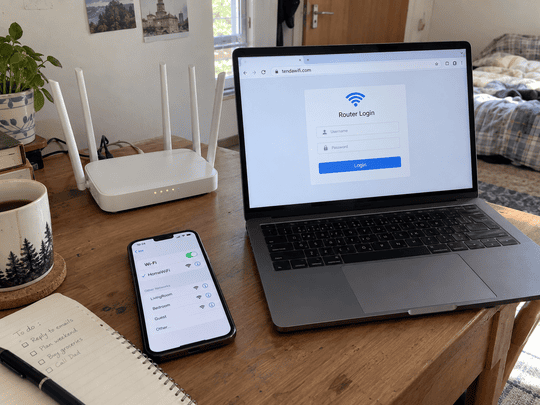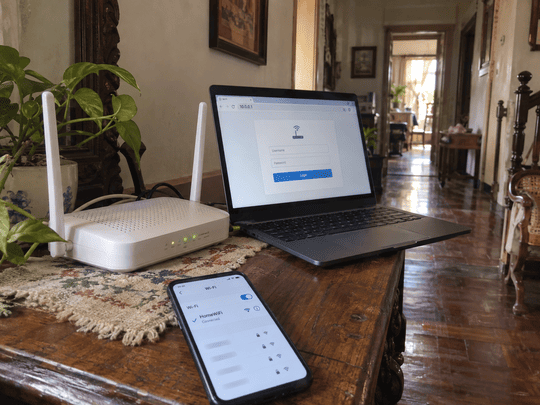
If your router or internet gateway uses 10.0.0.1, you can normally open its settings from a browser while connected to that device.
The basic method is simple:
- Connect to the router by Wi-Fi or Ethernet.
- Open Chrome, Safari, Edge or another browser.
- Type http://10.0.0.1 directly into the address bar.
- Press Enter.
- Sign in with the administrator details for your particular router or ISP gateway.
The important part is that 10.0.0.1 is not the login address for every router.
If the page does not open, do not immediately reset the router or start trying random usernames and passwords. First check whether 10.0.0.1 is actually your gateway address.
What is 10.0.0.1?
10.0.0.1 is a private IPv4 address.
The entire 10.0.0.0/8 address block is reserved for private networks. That means addresses beginning with 10. can be used inside homes, businesses and other local networks, but they are not normal public internet addresses.
Some router and gateway manufacturers or internet providers choose 10.0.0.1 as the local address for their equipment.
Others use addresses such as:
- 192.168.1.1
- 192.168.0.1
- 192.168.1.254
- another private address chosen by the manufacturer, ISP or network administrator
So seeing a guide that says every router can be reached at 10.0.0.1 is misleading.
Your own device’s default gateway is what matters.
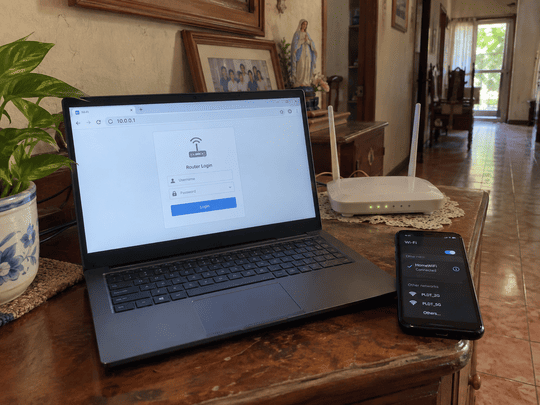
How to open the 10.0.0.1 login page
Start while connected to your own router.
Wi-Fi is fine. Ethernet is usually even better when you are troubleshooting.
Open a browser and enter:
http://10.0.0.1
Put it in the address bar at the top of the browser.
Do not type something like:
10.0.0.1 login
into Google or another search engine. That searches the web instead of opening the router.
If the address is correct for your network, you should reach a local administration page.
The page may ask for:
- an administrator username
- an administrator password
- only a password
- a password you created during initial setup
The exact behavior depends on the router or ISP equipment.
Do not assume the username and password are admin/admin
This is one of the most common problems with generic router-login guides.
There is no universal 10.0.0.1 username and password.
The login may be printed on the router label, provided by the ISP, created during setup or changed by whoever configured the network.
Also, your Wi-Fi password is not necessarily your router administrator password.
They can be completely different credentials.
Before trying random combinations, check:
- the label on the router or gateway
- the original setup card
- the manufacturer’s manual
- your ISP’s current support instructions
- whether you previously changed the administrator password
Repeatedly guessing passwords rarely fixes the real problem.
If 10.0.0.1 does not open, find your actual gateway
This is the most useful check you can make.
Instead of assuming the router is 10.0.0.1, ask your computer which gateway it is actually using.
Find the gateway on Windows
On Windows:
- Press Windows + R.
- Type cmd.
- Press Enter.
- Type:
ipconfig
- Look at the active Wi-Fi or Ethernet connection.
- Find Default Gateway.
Microsoft documents that ipconfig displays the IP configuration of your network adapters, including the default gateway.
If Windows shows:
10.0.0.1
then that is strong confirmation that you are trying the correct address.
But if it shows something such as:
192.168.1.1
you should use that address instead.
NetMovo also has a separate 192.168.1.1 login guide if that is what your network uses.
Find the gateway on a Mac
On a Mac, the router address can be viewed from the current Wi-Fi connection details.
You can also Option-click the Wi-Fi icon in the menu bar on supported macOS versions and look for the router address.
Again, use the address actually shown by your network.
Find it on a phone
On Android or iPhone, open the details for the Wi-Fi network you are currently connected to.
Depending on the phone and software version, the address may be labeled:
- Router
- Gateway
- Default Gateway
Phone menus vary, so the wording will not always be identical.
The important point is to find the gateway assigned to the active Wi-Fi connection.
10.0.0.1 is local, not a normal website
You do not normally need working internet service to open the router page.
You do need to be connected to the local network containing that router.
For example, your internet connection can be down while the router’s local admin page still works.
That makes the page useful for troubleshooting.
If your phone quietly switches to cellular data after Wi-Fi loses internet access, however, the local page may stop working.
When troubleshooting from a phone, make sure you are still connected to the router’s Wi-Fi.
Common 10.0.0.1 typing mistakes
A surprisingly large number of searches for this address are simply typing errors.
The correct format is:
10.0.0.1
Common mistakes include:
10.0.0.0.1
10.0 0.1
10.0.01
10.0.0.q
10.0.0.1.
The address 10.0.0.0.1 is especially common.
That is not a normal IPv4 address because it contains five number groups instead of four.
If you arrived here after typing 10.0.0.0.1, try:
http://10.0.0.1
instead.
But remember that even the corrected address only works if your router actually uses it.
What if the browser searches for 10.0.0.1 instead?
Make sure the address includes only the IP address.
Typing:
http://10.0.0.1
makes your intention clear to the browser.
Also check that you are typing into the browser address bar rather than a search box on the page.
Some browsers combine search and address functions, but a complete IP address should normally be recognized correctly.
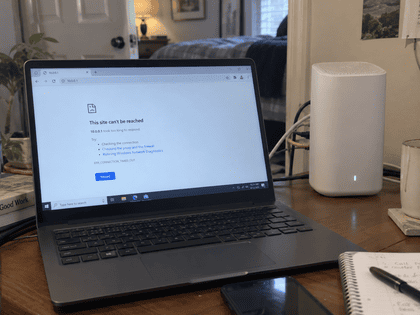
10.0.0.1 says “This site can’t be reached”
There are several possible causes.
Start with the most likely ones.
You are connected to the wrong network
If there are several Wi-Fi networks around you, confirm that you are connected to your own router.
This matters particularly in homes using:
- mesh systems
- Wi-Fi extenders
- a separate modem and router
- ISP equipment plus another personal router
- guest Wi-Fi
Your device may be connected somewhere different from where you think it is.
Check the default gateway again.
Your router does not use 10.0.0.1
This is extremely common.
The router may use 192.168.1.1, 192.168.0.1, 192.168.1.254 or another address.
Do not change your computer’s IP settings simply to force 10.0.0.1 to work.
Find the actual gateway instead.
A VPN is interfering with local access
Some VPN configurations can affect access to devices on your local network.
If you are connected to a VPN and the router page will not open, temporarily disconnect the VPN and try the local address again.
If it works immediately afterward, check the VPN application’s local-network or LAN-access settings.
The router interface is using HTTPS
Some modern routers use HTTPS for local management.
If plain HTTP does not work, the router may redirect automatically.
You can also try:
https://10.0.0.1
Do not automatically ignore security warnings, though.
Local router interfaces sometimes use certificates that browsers do not recognize in the same way as public websites. Make sure you are connected to your own network and that the address is correct before proceeding through any certificate warning.
What if 10.0.0.1 opens but the password is rejected?
A working login page is useful information.
It proves that you reached a device at that address.
Now the problem is authentication rather than network access.
Check the router label and current documentation for the exact device.
Possible situations include:
- the router has a unique password printed on its label
- you created the administrator password during setup
- the ISP assigned a management password
- someone changed the original password
- the device uses a companion app instead of traditional browser settings for some features
Avoid trying credentials copied from a different router model.
Xfinity users need to be especially careful with old instructions
Xfinity is one well-known example of equipment that uses 10.0.0.1.
However, its current gateway behavior is more complicated than many old router-login pages suggest.
For newer Xfinity gateways such as the XB6, XB7, XB8 and XB10, Xfinity says users may need to enable Admin Tool online access through the Xfinity app before the local 10.0.0.1 Admin Tool can be used.
Users enabling it for the first time may also be asked to create a new Admin Tool password.
So if you have an Xfinity gateway and 10.0.0.1 suddenly does not behave the way an old guide says it should, do not assume the gateway is broken.
Xfinity has changed the access process.
We will cover that separately because Xfinity’s current login procedure is different enough to need its own troubleshooting guide.
10.0.0.1 opens the wrong router
This can happen when a home has more than one routing device.
For example:
Internet → ISP gateway → personal router
The ISP gateway could be using one private subnet while your personal router uses another.
If your device is connected behind the personal router, the default gateway shown on your computer usually points to that router first.
The 10.0.0.1 address might belong to another device elsewhere in the network.
This is another reason to trust the gateway information from your connected device instead of guessing addresses.
10.0.0.1 versus 192.168.1.1
Neither address is automatically better.
They are simply private addresses that different networks use.
If your router is 10.0.0.1, use that.
If your router is 192.168.1.1, use that instead.
Changing addresses without understanding the network can create more problems than it solves.
If your gateway is 192.168.1.254, see NetMovo’s 192.168.1.254 login guide for that address.
The login page works but there is no internet
Opening 10.0.0.1 does not prove that your internet service is working.
It only proves that your device can communicate with the router or gateway locally.
If the router page opens but websites do not, look at the internet or WAN status inside the router.
Depending on your setup, check:
- modem or ONT status
- WAN cable
- ISP outage
- PPPoE connection where used
- DHCP or WAN IP assignment
- router internet-status page
- service activation or provisioning
This is a different problem from being unable to reach the router login page.
Should you restart the router?
A normal restart is reasonable if the admin page suddenly stopped responding.
Turn the router off using its normal power method, wait briefly, then power it back on and allow it to finish starting.
After it reconnects, check the gateway address again before trying 10.0.0.1.
A restart normally keeps your settings.
A factory reset is different.
Do not factory reset just because 10.0.0.1 does not load
A factory reset can erase:
- Wi-Fi names
- Wi-Fi passwords
- administrator passwords
- ISP connection settings
- port forwarding
- parental controls
- custom DNS settings
- other network configuration
If 10.0.0.1 does not open because your router actually uses 192.168.1.1, resetting it solves nothing and creates extra work.
Consider a factory reset only after you have confirmed the correct gateway, checked the exact device documentation and ruled out normal connection problems.
If you eventually need to reset the router, follow the instructions for the exact model. Reset-button timing and recovery procedures vary.
Quick way to diagnose a 10.0.0.1 problem
If 10.0.0.1 will not open:
- Confirm you are connected to your router’s Wi-Fi or Ethernet.
- Enter http://10.0.0.1 directly in the browser address bar.
- Check your actual default gateway.
- If the gateway is different, use the address your device reports.
- Temporarily disconnect VPN software if local access is being blocked.
- Try another browser or private/incognito window.
- Restart the router once if the interface appears frozen.
- Check the exact router or ISP instructions before trying passwords or resetting anything.
If the page opens but the password fails, stop troubleshooting the IP address. You have already reached the router.
At that point, the administrator credentials are the problem.
And if your gateway is not 10.0.0.1, use the address your network actually provides instead of trying to force this one to work.
Official sources
IANA IPv4 Special-Purpose Address Space
Xfinity: Allow Gateway Admin Tool access