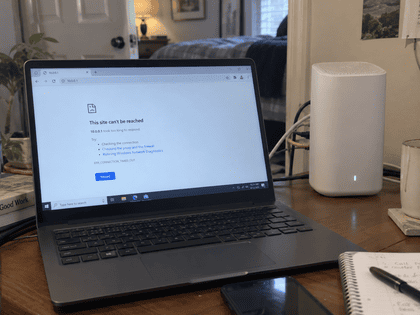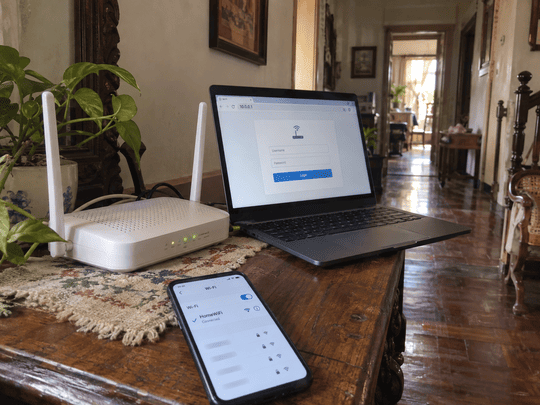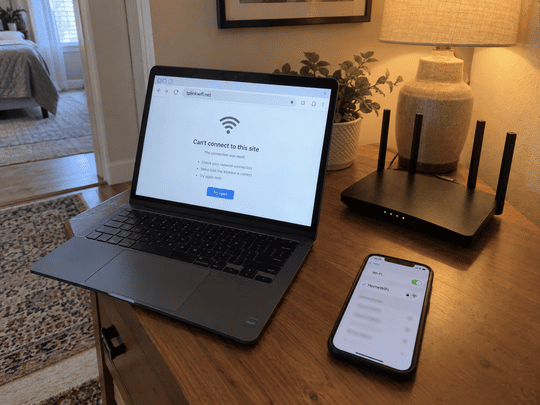
If tplinkwifi.net is not working, don’t reset your TP-Link router yet.
The address is not a normal internet website. It is a local shortcut that opens the management page inside many TP-Link routers. That means your phone or computer needs to be connected to the right router before it can work.
In many cases the router itself is fine. The problem is the network you’re connected to, the browser, DNS, a VPN, or simply using the wrong TP-Link address for the type of device you own.
Work through these checks in order.
First, make sure tplinkwifi.net is the right address
TP-Link does not use tplinkwifi.net for every product it sells.
For current TP-Link equipment, the local addresses are generally separated by device family:
- Archer and Aginet routers use tplinkwifi.net
- Deco systems use tplinkdeco.net
- DSL, 4G and 5G modem routers use tplinkmodem.net
- Mobile Wi-Fi devices use tplinkmifi.net
- Range extenders use tplinkrepeater.net
- Access points use tplinkap.net
- Powerline products use tplinkplc.net
So if you have a TP-Link extender and keep trying tplinkwifi.net, the problem may simply be the address.
For a range extender, our TP-Link extender setup guide covers the browser, Tether and WPS setup methods separately.
If you have an Archer Wi-Fi router, tplinkwifi.net is normally the right place to start.
You must be connected to the TP-Link router
This is the most important check.
Your device needs a local connection to the TP-Link router, either through Wi-Fi or Ethernet.
You do not need working internet service just to open the router’s management page.
For example, your modem could be offline and websites could be completely unavailable, while the TP-Link admin page still works because it is inside your own network.
Check the Wi-Fi name on your phone or computer.
If you’re connected to:
- a neighbor’s Wi-Fi
- another router in the house
- a guest network that restricts local access
- mobile data instead of Wi-Fi
- a different mesh or access point network
tplinkwifi.net may not lead to the TP-Link router you’re trying to manage.
On a laptop, using an Ethernet cable directly to one of the router’s LAN ports is also a good test.
Type tplinkwifi.net into the address bar
Use the browser’s address bar at the top of the screen.
Do not search Google for “tplinkwifi.net.”
A search can take you to search results or a third-party router-login site instead of your local router.
Enter:
tplinkwifi.net
and press Enter.
If that does not work, you can also try the HTTPS version if your browser does not automatically switch to it.
If the page still fails to load, move on to the router’s IP address.
Try 192.168.0.1 instead
For many TP-Link Archer routers, the local gateway is 192.168.0.1.
Enter this directly in the browser’s address bar:
192.168.0.1
This bypasses the tplinkwifi.net name and connects to the router by IP instead.
If the IP works but tplinkwifi.net does not, you have already learned something useful: the router’s web interface is running, but the local domain name is not resolving correctly.
Do not assume that every TP-Link router must use 192.168.0.1, though.
The LAN address can vary by model and configuration, and it may have been changed manually.
If your network actually uses 192.168.1.1, our 192.168.1.1 login guide also explains how to identify the real default gateway instead of guessing addresses.
Find the router’s real gateway address
If neither tplinkwifi.net nor 192.168.0.1 opens the page, check what gateway your device is actually using.
On Windows:
- Press
Windows + R. - Type
cmd. - Press Enter.
- Type
ipconfig. - Look for Default Gateway under the active Wi-Fi or Ethernet connection.
You might see something such as:
192.168.0.1
or:
192.168.1.1
Enter that address directly into your browser.
On a phone, the router or gateway address is normally visible in the details for the Wi-Fi network you’re currently connected to.
This is more reliable than trying a list of common router IP addresses one after another.
If you see “Oops! It looks like you aren’t connected to your TP-Link network”
TP-Link documents this exact type of failure.
Sometimes a browser has cached information for tplinkwifi.net and keeps sending you somewhere other than the local router.
Try a private or Incognito window first.
If that works, clear the browser’s cached data and cookies before trying normally again.
You can also test another browser.
For example, if Chrome refuses to open the page, try Edge or Firefox before changing anything on the router.
A browser problem is much easier to fix than rebuilding the whole network.
Disconnect VPNs before trying again
VPN software can interfere with local router access.
When a VPN is active, some or all browser traffic can be routed through the VPN instead of directly through your home network.
Disconnect the VPN temporarily and reload tplinkwifi.net.
The same applies when a computer has several active network connections at once.
For troubleshooting, simplify things.
If you’re using Wi-Fi, disconnect unnecessary Ethernet, VPN and virtual network connections.
If you’re testing through Ethernet, you can temporarily turn Wi-Fi off.
The goal is to give the computer one clear path to the TP-Link router.
Secure DNS can stop tplinkwifi.net from opening
This one is easy to miss.
Modern browsers can use Secure DNS, also called DNS over HTTPS.
Normally, tplinkwifi.net is resolved locally by your router.
But if the browser sends its DNS request to an outside DNS provider instead, the local TP-Link name may fail even though your router is working normally.
TP-Link specifically documents this as a possible cause.
Chrome, Edge and Firefox all have Secure DNS or DNS-over-HTTPS settings.
You do not necessarily have to change that setting permanently.
An easier test is to use the router’s IP address directly.
If 192.168.0.1 works while tplinkwifi.net does not, local name resolution is the part that needs attention.
“Your connection is not private” does not necessarily mean the router is unsafe
You may reach the TP-Link page and then see a browser warning such as:
“Your connection is not private”
or:
“Not secure”
That can look alarming, but on the TP-Link local management page it can be normal.
TP-Link uses a self-signed certificate for local HTTPS management on supported equipment. Browsers cannot verify that certificate through the normal public certificate-authority system, so they can display a warning.
Only continue if you have deliberately opened the correct local TP-Link address while connected to your own router.
Do not use that advice as a reason to ignore certificate warnings on random public websites.
For your own router’s local page, however, the warning alone does not mean somebody has hacked the connection.
The page loads but your password does not work
That is a different problem from tplinkwifi.net not working.
If you can see the TP-Link login screen, then access to the management interface is already working.
Now you have a login-credential problem.
Many newer TP-Link routers ask you to create a local administrator password during the first setup.
Some models can also use a TP-Link ID after the router has been bound to an account.
Older TP-Link equipment may behave differently.
This is why generic advice telling everybody to enter the same default username and password is unreliable.
Use the login method for your exact router and hardware generation.
Also remember that the router’s admin password is not necessarily the same as the Wi-Fi password.
One controls access to router settings. The other connects devices to Wi-Fi.
Try the TP-Link Tether app
If your router supports TP-Link Tether, the app can be another way to see whether the router itself is reachable.
Connect the phone to the TP-Link Wi-Fi first, then open Tether.
If Tether finds and manages the router but your browser cannot open tplinkwifi.net, the problem is probably browser or local-name related rather than a dead router.
If neither the app nor a browser can see the router, check the network connection again.
The exact features available through Tether vary by router model.
Reboot the router once
If the correct local address still will not load, rebooting the router is reasonable.
This means restarting it, not factory resetting it.
Use the router’s normal power control if available, or disconnect its power, then reconnect it.
Allow the router to boot fully before testing the login page again.
Also restart the phone or computer you’re using if the problem has survived several browser and connection changes.
A reboot can clear a temporary local network or web-interface problem without erasing your settings.
Internet works, but tplinkwifi.net still does not
This situation is possible.
The router can continue forwarding internet traffic while its local domain is not resolving correctly in a particular browser or device.
If websites work normally but tplinkwifi.net fails:
- Try the router’s gateway IP.
- Open a private browser window.
- Try another browser.
- Disconnect VPN software.
- Check for multiple active network connections.
- Test without Secure DNS.
- Try another device connected to the same router.
If another device opens the admin page normally, there is little reason to reset the router.
The problem is probably on the original computer or phone.
tplinkwifi.net works on one device but not another
This is another useful clue.
If your laptop can open the router page but your phone cannot, the router’s management page is obviously running.
Check the phone for:
- mobile data taking priority
- VPN software
- Private DNS or another encrypted DNS service
- a browser cache problem
- connection to the wrong Wi-Fi network
The opposite applies too.
If the phone works and the computer does not, check the computer’s VPNs, Ethernet connection, security software and browser.
This kind of comparison can save a lot of unnecessary router troubleshooting.
What if 192.168.0.1 opens another router?
Stop there.
Homes sometimes have more than one router, mesh system or ISP gateway.
If the address opens equipment from another brand, you have reached a different device on the network.
The TP-Link router may have a different IP address, particularly if it is connected behind another router or configured differently from its original setup.
Find the TP-Link’s current local address rather than entering random login credentials into the other device.
Firewall or antivirus blocking the page
TP-Link also lists local firewall or antivirus software as a possible reason the management page cannot be reached.
This should come fairly late in troubleshooting.
First try the easier checks:
- correct Wi-Fi
- direct gateway IP
- another browser
- another device
- no VPN
If those fail and security software appears to be blocking local access, temporarily testing without that software can help isolate the cause.
Turn the protection back on after the test.
Do not leave your security software disabled just to make router management easier.
Don’t factory reset just because tplinkwifi.net will not open
A factory reset should be near the bottom of the list.
It erases the router’s configuration and means you’ll need to set the network up again.
A reset also will not fix:
- being connected to the wrong Wi-Fi
- a browser cache problem
- an active VPN
- Secure DNS bypassing local name resolution
- entering the wrong TP-Link domain
- using the wrong router IP
TP-Link itself recommends working through the normal access fixes before resorting to a factory reset.
If a reset eventually becomes necessary, use the instructions for your exact router model.
Do not assume every TP-Link router uses the same button or reset timing.
The quickest way to diagnose it
If tplinkwifi.net is not working, this order usually gets you to the real cause fastest:
- Confirm that you actually have an Archer or compatible TP-Link router.
- Connect directly to its Wi-Fi or LAN.
- Enter tplinkwifi.net in the browser address bar.
- Try 192.168.0.1 or your actual default gateway.
- Try Incognito mode or another browser.
- Disconnect VPN and other unnecessary network connections.
- Check Secure DNS if the IP works but tplinkwifi.net does not.
- Reboot the router once.
- Try another device.
- Leave factory reset until the end.
The most useful distinction is simple.
If the router’s IP address opens but tplinkwifi.net does not, the router is reachable. You’re dealing with a local domain, DNS or browser problem.
If neither the domain nor the correct gateway IP works from any device connected directly to the router, then it makes sense to investigate the router itself more closely.
Sources
TP-Link Support: How to Fix TP-Link Device Domain Name Login Issues
TP-Link Support: How to Log In to Your TP-Link Router
TP-Link Support: Understanding the TP-Link HTTPS Not Secure Warning