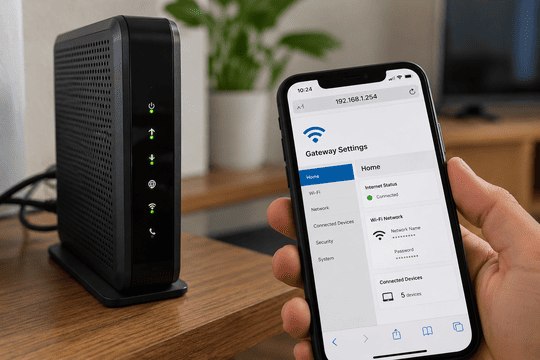
192.168.1.254 is a local address used by some routers, modems and ISP gateways to open their settings page.
It is especially common with AT&T gateways in the US and some Telmex equipment in Mexico. But the address does not have one universal username and password. The correct login depends on the equipment and ISP.
If you just want to get into your gateway, start here.
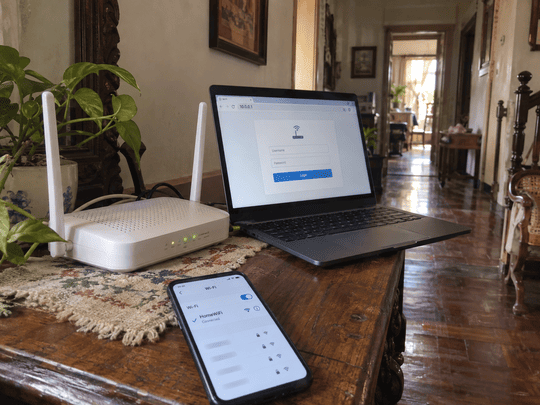
How to open 192.168.1.254
- Connect your phone or computer to the gateway’s Wi-Fi or Ethernet.
- Open a browser.
- Type 192.168.1.254 directly into the address bar.
- Press Enter.
- If your gateway uses this address, its local settings page should open.
- Follow the login instructions shown by your gateway.
You normally do not need working internet access to open a local gateway page. You do need to be connected to the correct local network.
Make sure you typed the address correctly
One of the most common mistakes is replacing the number 1 with the letter l.
This is wrong:
192.168.l.254
This is correct:
192.168.1.254
There are no letters in the correct IP address.
Also type it into the browser’s address bar, not into Google or another search engine.
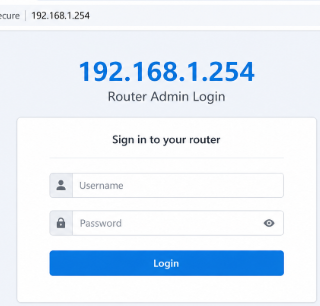
AT&T 192.168.1.254 login
AT&T officially uses 192.168.1.254 for the management interface on many of its internet gateways. AT&T calls this the Gateway User Interface, or GUI. AT&T
For many AT&T gateways, simply connect to your AT&T network and open:
192.168.1.254
You may be able to view basic gateway information immediately, while changing protected settings can require the gateway’s Device Access Code.
That code is not the same thing as your normal Wi-Fi password.
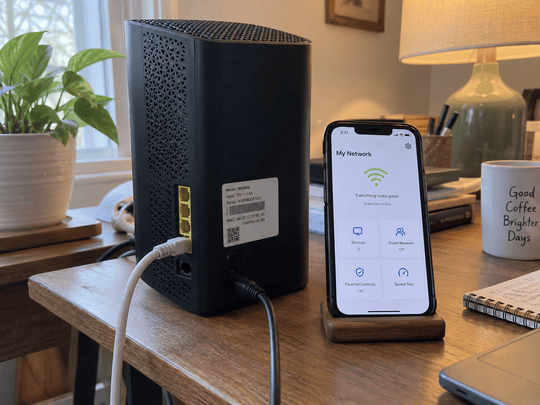
On newer equipment such as the AT&T BGW830, AT&T specifically instructs users to open https://192.168.1.254 and enter the Device Access Code printed on the back of the device. AT&T
So if you have an AT&T gateway, do not start trying combinations such as admin/admin.
Check the device label first.
AT&T Device Access Code vs Wi-Fi password
These passwords have different jobs.
Your Wi-Fi password connects your phone, laptop and other devices to the network.
The Device Access Code protects administrative settings inside the AT&T gateway.
If 192.168.1.254 opens but refuses your Wi-Fi password, that may be completely normal.
Look for the Device Access Code on the gateway label.
AT&T’s documentation for both older gateways and current equipment confirms that protected settings can require this code. AT&T
Telmex 192.168.1.254 login
Telmex also uses 192.168.1.254 on a number of its modem and ONT models.
The login details are more model-dependent, so avoid assuming every Telmex modem uses identical credentials.
For example, an official Telmex guide for some fiber ONT equipment instructs users to open http://192.168.1.254, enter TELMEX as the username, and use the WPA password shown on that particular modem’s label. Telmex Downloads
Other Telmex equipment can behave differently.
Current Telmex support also lets customers change their Wi-Fi name and password through Mi Telmex or the Telmex app, so you may not even need to enter the local modem interface for a simple Wi-Fi password change. Telmex
If you have Telmex equipment, checking the model label is better than copying credentials from a random router-login website.
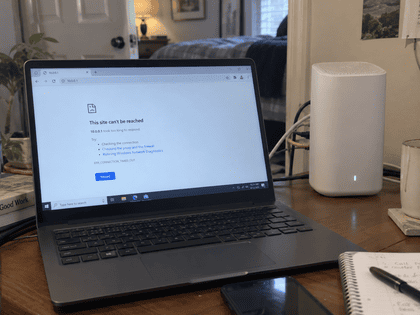
192.168.1.254 not working?
If the page will not open, do not reset the gateway yet.
Go through these checks first.
Check your Wi-Fi connection
Make sure you are connected to the router or gateway you are trying to manage.
If your laptop is connected to another router, guest network or mobile hotspot, 192.168.1.254 may not reach the device you expect.
Check the address again
Use:
192.168.1.254
not:
192.168.l.254
It is easy to miss the difference on a phone screen.
Your gateway might use another IP
Not every router uses 192.168.1.254.
Common alternatives include:
192.168.1.1
192.168.0.1
10.0.0.1
If your actual gateway uses another address, repeatedly refreshing 192.168.1.254 will not help.
If your router turns out to use 192.168.1.1 instead, see the NetMovo 192.168.1.1 router login guide.
192.168.1.1 router login guide
How to find your actual gateway address on Windows
If you are not sure which IP to use:
- Open Command Prompt.
- Type ipconfig.
- Press Enter.
- Find the network connection you are currently using.
- Look for Default Gateway.
If Windows shows 192.168.1.254, you know you are trying the right address.
If it shows something else, use the address Windows gives you.
Try HTTP or HTTPS
Older gateway interfaces often use:
Some newer equipment uses:
AT&T’s newer BGW830 documentation, for example, uses HTTPS. AT&T
Usually the gateway will redirect you correctly, but if the page refuses to open, checking the documentation for your exact model can save time.
The page opens but the password is rejected
That is a different problem from the page not loading.
If you can see the gateway interface, the IP address is probably correct.
Now check what type of password the gateway actually wants.
For AT&T equipment, it may be the Device Access Code.
For certain Telmex models, it can be information printed on the modem label.
For another router brand, it could be a password created during the original setup.
Do not assume that:
admin / admin
or:
admin / password
will work.
There is no universal 192.168.1.254 password.
What if someone changed the admin password?
If the gateway previously belonged to someone else, or another person configured your network, the default credentials may have been changed.
Check for a password recovery option before considering a factory reset.
With ISP-supplied equipment, it is also worth checking the ISP’s app or support system first.
A reset can create more work than it solves.
Browser says the connection is not private
Local router interfaces sometimes trigger browser security warnings.
Before continuing, confirm that:
- you are connected to your own home network
- you typed the local IP yourself
- the address really belongs to your gateway
- you did not arrive through an unfamiliar search result
Do not ignore certificate warnings on normal public websites just because your router’s local interface may show one.
Can 192.168.1.254 work when the internet is down?
Usually, yes.
The management page is hosted on the gateway itself.
Your ISP connection can be offline while the local gateway page still works.
This is useful for troubleshooting because you can check the gateway even when websites will not load.
If 192.168.1.254 opens normally but there is still no internet, the problem is probably not simply access to the gateway interface.
Should you restart the gateway?
A normal restart is reasonable if the settings page used to work but suddenly stopped responding.
Restart the gateway, let it fully reconnect, then try again.
A restart normally keeps your settings.
A factory reset does not.
Do not factory-reset just to reach 192.168.1.254
A factory reset should be near the end of the troubleshooting process.
It can erase custom Wi-Fi names, passwords, network settings and other configuration.
Before resetting anything:
- identify the exact gateway model
- check the ISP or manufacturer’s instructions
- make sure you know how to set it up again
- understand which settings will be erased
If the only problem is that 192.168.1.254 will not open, find your actual Default Gateway first.
That solves a surprising number of cases without changing anything on the router.
Quick checklist
If 192.168.1.254 is not working:
- Connect directly to your gateway’s network.
- Check that you typed 1, not the letter l.
- Enter the address directly into the browser.
- Find your actual Default Gateway.
- Try the protocol recommended for your model, HTTP or HTTPS.
- Check the gateway label for the correct access information.
- Restart the gateway if necessary.
- Reset only after you have ruled out the simpler problems.
Sources
AT&T Gateway User Interface documentation
AT&T BGW830 Management Website guide
Telmex modem and Wi-Fi support