192.168.1.1 is a local address used by many routers for their administration page.
If your router uses this address, you can open it to change Wi-Fi settings, check connected devices, update some router settings and manage the network.
But there is one important point:
192.168.1.1 is not the login address for every router.
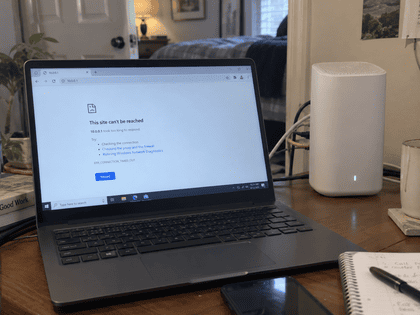
If it does not open, do not reset your router immediately. First confirm that you are connected to the correct network and that 192.168.1.1 is actually your router’s gateway.
How to log in to 192.168.1.1
Start with these steps:
- Connect your phone or computer to the router’s Wi-Fi, or connect by Ethernet.
- Open a web browser.
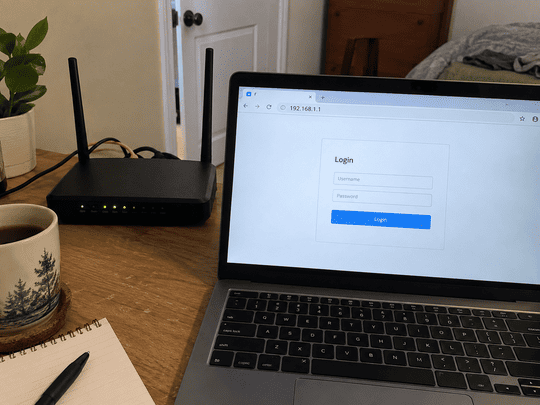
- Type 192.168.1.1 directly into the browser address bar.
- Press Enter.
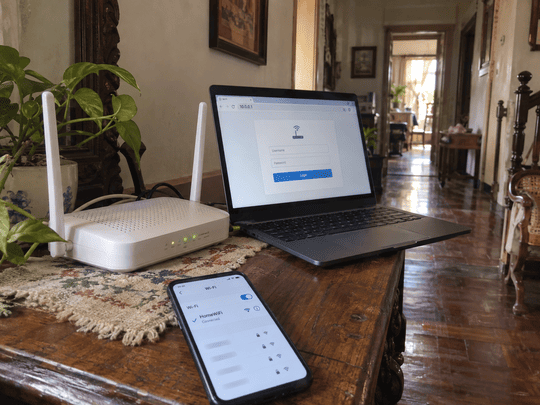
- If your router uses this address, its login or setup page should appear.
- Enter the router’s administrator credentials.
Do not type the address into Google or another search engine.
If the browser searches for 192.168.1.1 instead of opening it, make sure you entered it in the browser’s address bar.
192.168.1.1 is numbers, not letters
A surprisingly common problem is typing a lowercase letter l instead of the number 1.
These are wrong:
192.168.l.1
192.168 l l
192 l.168.1.1
The correct address is:
192.168.1.1
It contains four groups of numbers separated by periods.
Typing l instead of 1 can send you to a search engine or simply produce an error because it is not the same IP address.
What username and password should you use?
There is no universal username and password for 192.168.1.1.
That is one of the biggest problems with many router-login guides.
Your login depends on:
- router manufacturer
- exact model
- ISP
- whether the router has already been configured
- whether someone previously changed the admin password
For example, NETGEAR currently documents admin as the administrator username on supported home routers, but the password is the password created during setup. It is not automatically password on every current router. Netgear Knowledge Base
Linksys also uses 192.168.1.1 on many routers, but login behavior varies by product generation. Some unconfigured Linksys Smart Wi-Fi routers use admin as the initial router password, while newer mesh equipment can use different recovery and authentication methods. Linksys
So do not repeatedly try random combinations such as:
admin / admin
or:
admin / password
unless the documentation for your exact router says to use them.
Admin password vs Wi-Fi password
These are not always the same password.
Your Wi-Fi password lets your phone, laptop or other device connect to the wireless network.
Your router admin password protects the router settings page.
You can therefore have perfectly working Wi-Fi while the password you use at 192.168.1.1 is rejected.
Check your router label, setup documentation or manufacturer instructions before assuming the Wi-Fi password should also work as the admin password.
192.168.1.1 not working?
If nothing loads, work through these checks before resetting anything.
Make sure you are connected to the router
You normally need to be connected to the router you are trying to manage.
If your laptop is connected to another Wi-Fi network, a guest network, another access point or a mobile hotspot, 192.168.1.1 might point somewhere else or fail completely.
Connect directly to your normal home router and try again.
Check the address carefully
Use:
192.168.1.1
Not:
192.168.l.1
The first address uses the number 1.
Your router may use a different address
192.168.1.1 is common, but it is not universal.
Other routers can use addresses such as:
192.168.0.1
10.0.0.1
or another local gateway address.
Some manufacturers also provide a local hostname instead of requiring users to remember the IP address.
The safest solution is to find the actual gateway assigned to your device instead of guessing.
How to find your router IP on Windows
On Windows:
- Open Command Prompt.
- Type ipconfig.
- Press Enter.
- Find the network connection you are currently using.
- Look for Default Gateway.
That address is usually the router or gateway your computer is currently using.
Microsoft specifically documents this method for identifying the Wi-Fi network’s default gateway. Microsoft Support
If Windows shows something such as:
192.168.0.1
then trying to force 192.168.1.1 is unlikely to help.
Use the Default Gateway address instead.
The login page appears but the password does not work
This is different from the page not opening.
If you can see the router login page, then you have probably reached the router successfully.
The problem is now authentication.
Try to determine:
- whether you previously created an admin password
- whether someone else configured the router
- whether your ISP supplied the router
- whether the password is printed on the router label
- whether the manufacturer provides password recovery
Do not factory-reset the router until you know what the reset will erase.
A reset can remove the Wi-Fi name, Wi-Fi password, ISP settings, port forwarding, parental controls and other configuration.
Browser says the connection is not private
You may occasionally see a certificate or privacy warning when opening a router’s local administration interface.
This can happen because local router interfaces sometimes use certificates that your browser cannot validate in the same way as a normal public website.
Before proceeding, make sure:
- you are connected to your own router
- the address really is your router’s local IP
- you did not reach the page through a search result or unfamiliar website
Do not treat browser security warnings on random internet sites the same way as a known local router administration page.
Internet is down, can 192.168.1.1 still work?
Often, yes.
The router administration page is normally inside your local network rather than on the public internet.
That means you may still be able to open the router settings while your internet connection is down.
If 192.168.1.1 opens but websites do not, the router itself may be reachable while the modem, ISP connection or upstream internet service has a problem.
Is 192.168.100.1 the same thing?
No.
192.168.1.1 is commonly used as a router or gateway address.
192.168.100.1 is commonly associated with cable modem or other equipment diagnostic interfaces and can behave very differently.
If you actually meant 192.168.100.1, use our 192.168.100.1 modem status and login guide instead.
Should you restart the router?
A normal restart is reasonable if:
- the admin page previously worked
- the router is behaving strangely
- local connections are unstable
- the router has been running for a long time
Restarting is very different from performing a factory reset.
A restart normally preserves your settings.
A factory reset normally erases them.
Try a restart before considering a reset.
When should you factory-reset?
Factory reset should be one of the last steps, not the first.
Consider it only when you have confirmed the exact router model and have a real reason, such as an unrecoverable administrator password.
Before resetting:
- know your router model
- know how it will be set up again
- make sure you have the Wi-Fi and ISP information you may need
- follow the manufacturer’s instructions for that exact device
Reset button locations and required hold times vary between models.
Quick fix if 192.168.1.1 will not open
Work through this order:
- Confirm you are connected to your own router.
- Enter 192.168.1.1, using numbers rather than the letter l.
- Make sure you typed it into the browser address bar.
- Check your device’s actual Default Gateway.
- Temporarily disconnect a VPN or proxy if it is interfering with local network access.
- Try another browser.
- Restart the router.
- Check the manual or manufacturer support page for your exact model.
- Factory-reset only if you understand what settings will be erased.
The most important step is number four.
If your real gateway is not 192.168.1.1, repeatedly trying the address will never solve the problem.
Sources
NETGEAR, How do I log in to my NETGEAR home router?
NETGEAR router login documentation
Linksys, How to access a Linksys router’s web interface
Linksys router login documentation
Microsoft, Fix Wi-Fi connection issues in Windows
Microsoft Default Gateway instructions