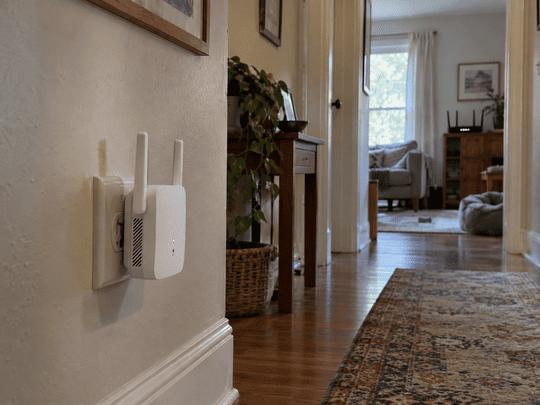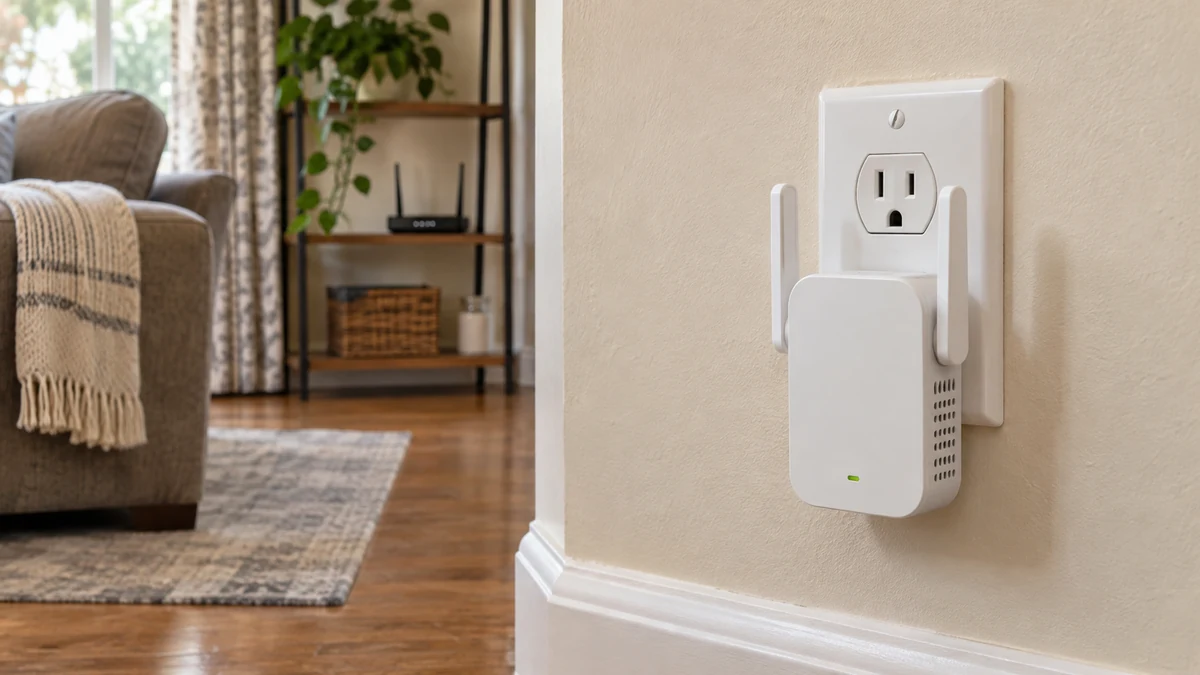
Start your WiFi repeater setup in the same room as the router. Get the repeater connected, make sure a phone or laptop can load a website through it, then move it toward the room with weak Wi-Fi. The outlet inside the dead zone is usually too far. Try the hallway outlet where your router’s signal still works.
If your router has no WPS button, look for a browser or app setup option in the repeater’s manual. Either can work without WPS if your model supports it.
Find the setup method for your repeater
Look for the model number on the side or back of the unit. “Wi-Fi Repeater” or “300 Mbps” on the front is often just a description. Search the manufacturer’s support site for the model so you can confirm the setup network, address or app before entering your Wi-Fi password.
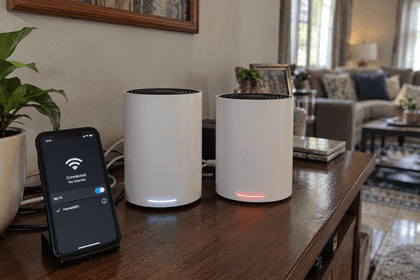
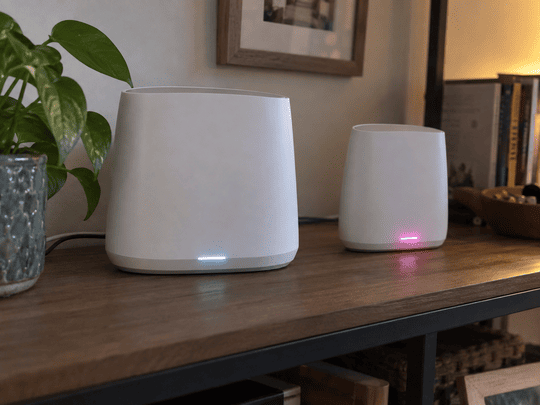
A plug-in range extender connects wirelessly to your existing router in Repeater or Extender mode. If the unit also has Access Point or AP mode, that’s the option for a wired connection back to the router. A mesh satellite normally pairs through its own mesh system’s setup process.
For the details on those brands, use the TP-Link extender setup guide or the NETGEAR MyWiFiExt setup guide.
How to set up a Wi-Fi repeater without WPS
Use the repeater’s setup page
- Plug the repeater in near the router and give it time to start. If it has a mode switch, choose Repeater or Extender.
- On your phone or laptop, join the setup Wi-Fi shown on the device label or in the manual. If your phone says the setup network has no internet, stay connected while you finish the setup.
- Open the address listed in the manual. Type it into the browser’s address bar. If a setup wizard opens by itself, check that you’re still connected to the repeater’s setup network.
- Choose your home Wi-Fi from the list and enter the password you normally use to join that network. If the wizard asks you to create an admin password too, that one is for managing the repeater.
- Save your settings. The temporary setup network may disappear while the repeater switches over. Join the extended network shown at the end of setup and try loading a website.
Use the manufacturer’s app
If the model’s quick-start guide lists an app, use that app and choose the option to add a range extender. Follow the prompts to select your home Wi-Fi and complete setup. Some apps ask you to join the repeater’s temporary network partway through. The app can walk you back to the extended network when the repeater is ready.
How to pair a Wi-Fi repeater with WPS
Use WPS if both devices support push-button pairing and it’s enabled on the router. Follow the button order in the repeater’s manual. The pairing window and the way the unit shows success can vary, so check the manual for the router-link indicator or confirmation screen.
If WPS fails in the same room, move on to the supported browser or app method. You’ll be able to see which home network the repeater detects and enter its password directly.
Move it to an outlet where the router still reaches
Try an outlet partway toward the room with bad Wi-Fi. Before plugging in the repeater there, connect your phone to the router’s Wi-Fi and open a couple of pages from that spot. If they barely load there, try an outlet closer to the router.
After moving the repeater, give it time to reconnect. Check its router-link light or the signal reading in its app, if it has one. A strong Wi-Fi icon on your phone only tells you about the link your phone is using. Your phone can have a strong signal from the repeater while the repeater itself has a weak link back to the router.
Say the router is downstairs and the bedroom connection drops. Try the landing first if the router still reaches it. Then test from the bed or desk where you actually use Wi-Fi.
Check whether it helped
If your model lets you name the extended network, a separate name such as Home_EXT makes testing easier. You can pick that network on purpose. If the router and repeater share a name, check the extender’s connected-device list if it has one. A phone can hang on to the router’s signal after you walk into the next room.
Use the same device in the same spot to compare the router connection with the repeater connection. Turn off cellular data during the test if you’re using a phone. Try the thing that was failing, such as loading a page, streaming a video or staying on a call. A steadier connection in that room is a useful result even if speeds are lower than they are beside the router.
If setup gets stuck
- The setup page won’t open. Check your phone’s Wi-Fi settings. It may have switched back to your home network when it noticed the setup network had no internet. Rejoin the setup network and use the address for your exact model.
- The repeater can’t find your home Wi-Fi. Try in the same room as the router. If the manual lists only 2.4 GHz, check that your router has that band enabled. If the network shows up but won’t connect, verify the Wi-Fi password and check which security modes the repeater supports.
- It works near the router but drops after you move it. Try the next outlet back toward the router. If there’s no usable spot between the router and the room, a wired access point can help where you can run Ethernet.
- It still has someone else’s settings. If you can’t get into a used repeater or switch it back to setup mode, follow the model’s factory-reset steps on the repeater itself. A reset clears its saved Wi-Fi and admin settings, so have the setup instructions and your home Wi-Fi password handy.
Official setup and placement guides
- NETGEAR range extender setup by browser, app or WPS
- TP-Link range extender placement
- Linksys browser setup and Spot Finder