If your Orbi satellite has suddenly gone offline, refuses to sync, or sits there with a magenta light, avoid resetting the whole system straight away.
First work out whether the problem is actually the satellite.
If the main Orbi router still has internet and devices near the router work normally, the fault is probably somewhere between the router and that satellite. That connection is called the backhaul.
If the entire house has lost internet, including devices connected near the main router, fix the router, modem, or internet connection first. A satellite showing offline can simply be a side effect of the main connection being down.
Check what the Orbi satellite is actually doing
The light on the satellite gives a useful clue, but it is easy to misread it.
On many Orbi systems:
- Blue means the satellite has connected and the backhaul connection is good.
- Amber means it has connected, but the backhaul connection is only fair.
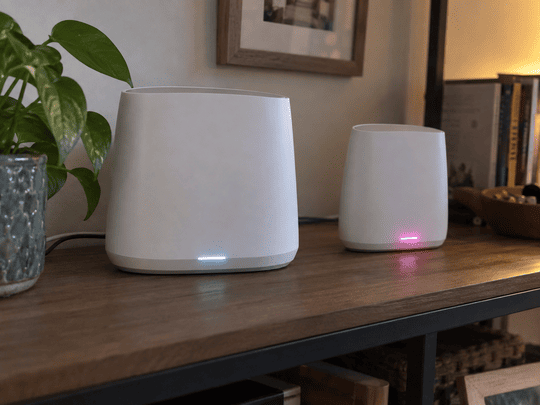
- Magenta means the satellite does not have a working backhaul connection to the router, or it has not received an IP address.
- Pulsing white normally appears while the satellite is starting or trying to connect.
- No light can be completely normal after a successful connection. Many Orbi satellites turn the status light off after a few minutes.
NETGEAR uses the same basic blue, amber and magenta connection states on many Orbi generations, including newer systems, but the LED position and exact behavior can vary by model.
So if the satellite worked yesterday and now has no light, do not assume it is dead. Check the Orbi app or Network Map before touching anything.
First, see if the satellite is really offline
Open the Orbi app while connected to your home Orbi network.
Go to Network Map and check whether the satellite appears online or offline. NETGEAR’s Network Map shows the router, satellites and how devices are connected through the system.
This helps separate two different problems:
Satellite shows online, but devices near it have poor Wi-Fi:
The satellite may still be connected, but its placement or backhaul quality may be poor.
Satellite shows offline or disappears from the network:
Concentrate on power, placement, sync, compatibility and firmware.
If the app is behaving strangely, it is also worth checking again after reconnecting your phone to the Orbi Wi-Fi rather than mobile data.
Move the satellite closer before changing settings
This is one of the easiest checks and one of the most useful.
Temporarily move the satellite into the same room as the Orbi router, or at least much closer than its normal location.
Do not worry about finding the perfect permanent position yet. The goal is to find out whether distance or interference is preventing the satellite from establishing its backhaul connection.
NETGEAR specifically recommends moving a satellite closer when it shows amber or magenta during connection attempts. It also recommends keeping Orbi equipment away from cabinets, large metal objects, microwaves, fish tanks and other sources of wireless interference.
Power the satellite at the closer location and give it time to start.
If it reconnects there, the satellite itself is probably fine.
The problem is more likely its original location.
A satellite placed too far from the router is not very useful even if it technically connects. Ideally it should sit somewhere that still receives a strong connection from the router while extending useful coverage farther into the house.
Putting a satellite directly inside the room with terrible Wi-Fi can sometimes be too far. Moving it halfway back toward the router can work much better.
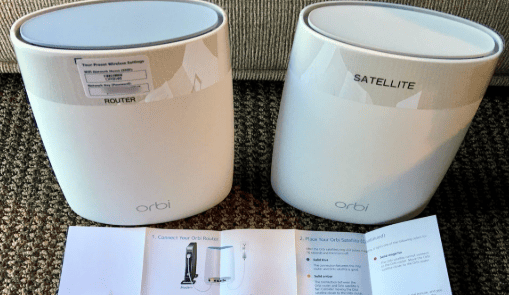
Manually sync the Orbi satellite
If moving it closer does not bring it back, try a manual sync.
For many Orbi home systems, NETGEAR’s normal procedure is:
- Make sure both the router and satellite are powered on.
- Press the Sync button on the Orbi router.
- Within two minutes, press the Sync button on the satellite.
- Give the units time to complete the connection attempt.
The exact Sync button location varies by model.
A successful sync commonly produces a blue light for roughly three minutes before the light turns off. Amber means the connection was established but is weaker. Magenta means the sync failed.
Do not repeatedly press the buttons every few seconds. Start one sync attempt and allow it to finish.
Newer Orbi systems can also add a satellite through the Orbi app using Add Satellite and the on-screen setup process.
If manual syncing works while the satellite is beside the router but fails after you return it to the original room, placement is almost certainly the main issue.
A magenta Orbi satellite is usually a backhaul problem
Magenta gets a lot of attention because it looks like a serious fault, but it does not automatically mean the satellite is broken.
NETGEAR documents solid magenta on many Orbi satellites as a missing backhaul connection or a failure to obtain an IP address.
Work through these in order:
- Move the satellite closer to the router.
- Try the manual Sync process again.
- Check that the main router itself is online.
- Check whether this satellite model is compatible with your router.
- Check firmware only after the basic connection tests.
That order matters.
Changing firmware, performing resets, replacing equipment or digging through advanced settings makes little sense if the satellite is simply too far away.
Check the model numbers if this is an added or replacement satellite
This is especially important with a satellite bought separately, bought used, or moved from another Orbi system.
Not every Orbi satellite works with every Orbi router.
The fact that both devices say Orbi does not guarantee compatibility.
NETGEAR maintains separate compatibility tables covering Wi-Fi 5, Wi-Fi 6, Wi-Fi 6E and Wi-Fi 7 Orbi families. Some router and satellite combinations are supported, while others are not.
Check the exact model printed on the labels.
Router models commonly begin with letters such as:
RBR, RBE, or CBR
Satellite models commonly use:
RBS or related RBE-series numbers on newer Wi-Fi 7 systems.
The exact model is more useful than the marketing name on the box.
For example, knowing that you own an “Orbi 750 system” is useful, but RBR750 and RBS750 tell you exactly which router and satellite you have.
If the satellite came in the original kit and previously worked with this router, compatibility is unlikely to be the problem.
If it is a newly purchased add-on satellite, check compatibility before spending another hour troubleshooting it.
Restart the Orbi system once
If the satellite previously worked and simply dropped offline, a normal restart is reasonable before changing configuration.
Restart the satellite and the main Orbi router, then allow the system to finish booting before checking Network Map again.
Avoid unplugging and reconnecting things repeatedly while the router or satellite is still starting.
Orbi mesh systems can need several minutes to rebuild their connections after a restart.
If the main router returns online but one satellite stays offline, continue troubleshooting that satellite rather than repeatedly restarting the whole network.
Check firmware, but use the exact model
Firmware matters more when:
- the satellite started disconnecting after an update
- the router and satellite show noticeably different firmware states
- an automatic satellite update failed
- the satellite syncs but repeatedly drops offline afterward
- NETGEAR lists a relevant fix for your exact Orbi series
The Orbi app includes a firmware update check under the router settings on supported systems. NETGEAR also provides model-specific firmware through its support site.
Do not download firmware simply because the filename looks similar.
Orbi router and satellite firmware files are model-specific.
Manual firmware updates should be treated as a troubleshooting step, not something to try blindly because the satellite will not connect.
This is particularly important with systems such as the 750, 850, 770 and 970 families, where different generations and hardware have their own firmware.
NETGEAR has also published specific firmware advisories for some Orbi families. For example, it issued a 2026 advisory covering firmware update problems affecting certain 750, 840 and 850 systems. That does not mean every disconnected 750 or 850 satellite has a firmware problem. It simply means the exact model and firmware version matter.
If you use Ethernet backhaul
Some Orbi installations connect the satellite to the router through Ethernet instead of using wireless backhaul.
If yours has always been wired, check the wired path before trying wireless troubleshooting.
Look for:
- a loose Ethernet connector
- a damaged cable
- a switch that has lost power
- the cable being connected to the wrong network equipment
- the wired backhaul no longer appearing in the Orbi attached-device information
NETGEAR says Orbi satellites can use Ethernet backhaul on supported systems. It also notes that after initially connecting Ethernet backhaul, or after some firmware updates, a router reboot can be required before the wired connection is detected.
If the satellite was never configured for Ethernet backhaul, there is usually no reason to introduce it just to solve a simple sync problem.
Get the normal wireless connection working first unless your installation specifically requires wired backhaul.
What if the satellite connects but keeps going offline again?
A successful sync followed by another disconnect is a different problem from a satellite that never connects at all.
Start with placement.
A satellite that connects when sitting beside the router but repeatedly goes offline in another part of the house is telling you something useful. The permanent location may simply be asking too much from the backhaul connection.
Also look at what is between the router and satellite.
Concrete walls, reinforced floors, metal cabinets, large appliances and several walls in a straight line can make a location much worse than the distance alone suggests.
An amber connection is also worth paying attention to. NETGEAR describes amber as a successful but fair connection and recommends moving the satellite closer.
If the satellite has a good connection close to the router and still disconnects there, placement becomes less likely. At that point, firmware, power, hardware or an exact-model problem deserves more attention.
If the Orbi router itself has no internet
Do not spend an hour trying to sync the satellite if the main router is offline too.
Connect near the main Orbi router and test the internet there.
If there is no connection, check the modem or ONT before blaming the satellite.
For homes using an ARRIS SB8200, NetMovo’s guide to ARRIS SB8200 light meanings can help determine whether the modem has actually established a connection with the ISP.
Once the main Orbi router has a working internet connection, return to the satellite.
If you cannot open the Orbi settings
A satellite problem sometimes turns into a second problem because the router’s local management page will not open.
Make sure the device you are using is connected to the Orbi network.
If you are trying a local IP address and are unsure whether 192.168.1.1 is actually your router, NetMovo’s 192.168.1.1 login and gateway guide explains how to find the real gateway instead of repeatedly trying the wrong address.
Do not assume every Orbi installation will always stay on the same LAN address. Another gateway, access point mode, or a changed network configuration can alter how you reach it.
Factory reset should be near the end
A reset can solve configuration problems, but it also creates more work.
Do not reset the whole Orbi system because one satellite temporarily disappeared.
Before resetting anything, confirm that:
- the main router works
- the satellite has reliable power
- the satellite has been tested close to the router
- manual sync has failed
- the router and satellite models are compatible
- firmware is appropriate for the exact models
If only one satellite is causing trouble, there is usually no reason to wipe a working router and every other satellite at the same time.
If a reset finally becomes necessary, use the instructions for the exact Orbi model rather than following a generic reset time copied from another model.
When the satellite may actually have a hardware problem
Hardware becomes more likely when the satellite:
- will not power on reliably
- cannot complete startup
- fails to connect even while beside a known-working compatible router
- has already been tested with the correct model and firmware
- repeatedly drops from the mesh regardless of placement
- behaves differently from another identical satellite tested in the same location
At that stage, replacing the satellite can make more sense than repeatedly rebuilding the entire mesh.
But reach that conclusion after eliminating compatibility, placement and sync problems, not before.
The useful shortcut
For an Orbi satellite that is not connecting, the fastest troubleshooting path is usually:
Check whether the main router works, move the satellite close to it, read the satellite light, manually sync it, then verify the exact router and satellite models are compatible.
If it works close to the router but not in its normal location, focus on placement and backhaul quality.
If it still refuses to connect beside the router, start looking at compatibility, firmware and finally the satellite itself.
A factory reset belongs near the bottom of that list, not the top.
Official sources
NETGEAR Support: How do I sync my Orbi router and satellite?
NETGEAR Support: What do the LEDs on my Orbi router and satellite mean?
NETGEAR Support: Which Orbi routers and satellites are compatible?