A TP-Link router that disconnects once every few weeks isn’t unusual. A router that drops your connection several times a day is different.
The annoying part is that “the router keeps disconnecting” can describe several completely different problems.
Your Wi-Fi might actually be dropping. Your device might remain connected to Wi-Fi while the internet disappears. Every device in the house might go offline together. Or it might be one stubborn laptop while everything else works perfectly.
Those problems can feel identical when you’re in the middle of a video call, but they don’t have the same fix.
So don’t factory-reset the router yet. Spend a few minutes figuring out what is really disconnecting first.
Start with one simple test
The next time the connection drops, look at the Wi-Fi symbol on your phone or computer.
If the device actually disconnects from the Wi-Fi network, or the network name disappears for a while, you’re probably dealing with a wireless problem.
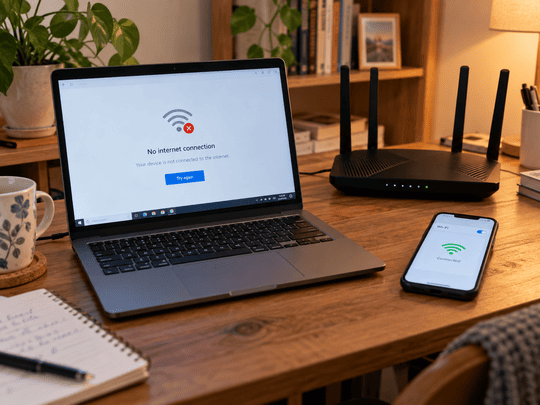
If the device still shows that it is connected to Wi-Fi but says No Internet, the wireless connection may be fine. The router could be losing its connection to the modem or ISP instead.
And if you have a computer connected to the TP-Link router by Ethernet, check that too.
This gives you three useful clues very quickly:
Wi-Fi drops but Ethernet still works: concentrate on the wireless side of the router.
Wi-Fi and Ethernet both lose internet: look at the modem, WAN connection, ISP or the router’s internet connection.
Only one device disconnects: check that device before changing the whole network.
TP-Link makes the same distinction in its own troubleshooting guidance. Its Wi-Fi-specific advice applies when wireless devices drop while wired devices remain stable. If wired connections are also failing, TP-Link sends users down a different troubleshooting path. TP-Link
That distinction saves a lot of wasted time.
If Wi-Fi drops but Ethernet keeps working
This is probably the most useful situation to identify because it tells you that the internet connection is still reaching the router.
Your modem may be fine. Your ISP may be fine. The Ethernet side of the TP-Link may also be fine.
Now you can focus on Wi-Fi.
Before changing settings, do two easy tests.
First, use the problem device in the same room as the router for a while.
If the disconnecting stops when you’re close to it, weak coverage or interference becomes much more likely.
Second, if your router has both 2.4 GHz and 5 GHz Wi-Fi, try each band separately.

Try 2.4 GHz for a while
5 GHz is usually the better choice when you’re close to the router because it can provide higher speeds and often has less interference.
But it doesn’t travel through walls as well as 2.4 GHz.
That difference becomes obvious in some homes. A laptop might be completely stable on 5 GHz in the living room and constantly reconnect when you take it into a bedroom several walls away.
If your TP-Link gives the two bands separate names, connect to the 2.4 GHz network and use it normally for a while.
If your router uses one name for both bands through Smart Connect, you may need to temporarily separate them.
TP-Link’s Smart Connect feature allows supported routers to use the same Wi-Fi name and password across multiple bands and steer devices between them. TP-Link also specifically recommends disabling Smart Connect as a troubleshooting test in some cases of intermittent Wi-Fi. TP-Link
Don’t read that as “Smart Connect is bad.”
It usually isn’t.
You’re temporarily turning it off because you want to know whether one band is stable and the other isn’t.
If 2.4 GHz works all evening but 5 GHz disconnects several times, you have learned much more than you would from resetting the router.
Check the router’s position before digging into settings
This sounds basic, but router placement can cause very real problems.
If your router is sitting behind a television, inside a closed cabinet, underneath a desk or right beside other electronics, move it into the open for a test.
You don’t need to permanently rearrange the house yet.
Just give the router a fair chance for an hour or two.
A reasonably central position, off the floor and away from large metal objects, is usually better than hiding it somewhere because the cables look untidy.
Interference matters too.
Microwave ovens, Bluetooth equipment and other nearby radio devices can affect Wi-Fi, particularly around the 2.4 GHz band. TP-Link includes interference and router placement among the things to check when wireless connections repeatedly drop. TP-Link
If your disconnects mostly happen in one part of the house, this is especially worth testing.
If the problem is worse at certain times of day
Suppose the Wi-Fi is fine in the morning but unreliable every evening.
That can point toward congestion rather than failing hardware.
In an apartment building, your router may see many neighboring Wi-Fi networks. More people arrive home, more routers become busy, and the available wireless spectrum gets crowded.
Automatic channel selection normally handles this reasonably well, so I wouldn’t immediately start changing channels.
But if you’ve already confirmed that Ethernet is stable and wireless is the problem, trying another channel becomes a sensible test.
Change one thing at a time.
Use the network normally.
If there is no improvement, put it back before changing something else.
This is important because changing five wireless options at once gives you no idea which one helped, or which one made things worse.
Channel width can matter too
On 2.4 GHz, a 20 MHz channel can be worth testing if you live somewhere with lots of nearby Wi-Fi networks.
You may give up some theoretical bandwidth compared with wider settings, but stability is more useful than a large number on a settings page.
TP-Link’s own unstable Wi-Fi troubleshooting includes testing narrower channel widths when dealing with repeated wireless drops. TP-Link
That doesn’t mean everyone should permanently set every band to the narrowest option.
It’s a test.
If the connection becomes noticeably more reliable, wireless congestion was probably part of the problem.
What if only one phone or laptop disconnects?
This is where people often spend an evening fixing the wrong thing.
Imagine that your TV streams normally, two phones stay connected, another laptop works all day, but one Windows laptop keeps dropping Wi-Fi.
The router might not be the problem.
Start with that laptop.
Forget the saved Wi-Fi network and reconnect to it.
Restart the computer.
Check for an updated Wi-Fi adapter driver.
If it supports both bands, try the other band.
If possible, use the laptop on another Wi-Fi network for a while.
If it disconnects there too, that’s a very strong clue that the problem is following the laptop rather than your TP-Link router.
Power-saving settings can also make some wireless adapters behave badly. If the issue happens mainly on a laptop after it has been idle or running on battery, the adapter’s power settings are worth checking.
The point isn’t to run through every obscure Windows setting you can find.
It’s simply this:
One bad device on an otherwise stable network should be treated as a device problem until you have evidence otherwise.
Don’t reconfigure twenty other devices because one laptop is misbehaving.
What if every Wi-Fi device disconnects together?
Now the router deserves more attention.
If two phones, a laptop and a television all lose Wi-Fi at roughly the same time, watch the router when it happens.
Does the Wi-Fi network disappear completely?
Do the router lights change?
Does the router look like it is rebooting?
Does Ethernet keep working?
If Ethernet continues working but all Wi-Fi devices drop together, you’re still looking mainly at the wireless side of the TP-Link router.
If Ethernet also dies, move on to the internet connection itself.
If Wi-Fi stays connected but the internet disappears
This is an important difference.
Your phone might still show full Wi-Fi bars, but webpages stop loading.
In that situation, changing the Wi-Fi channel may do absolutely nothing because the wireless link between the phone and router is still working.
Check whether several devices lose internet at the same time.
If they do, look at the modem or ISP gateway.
If you use a separate modem, check its status lights.
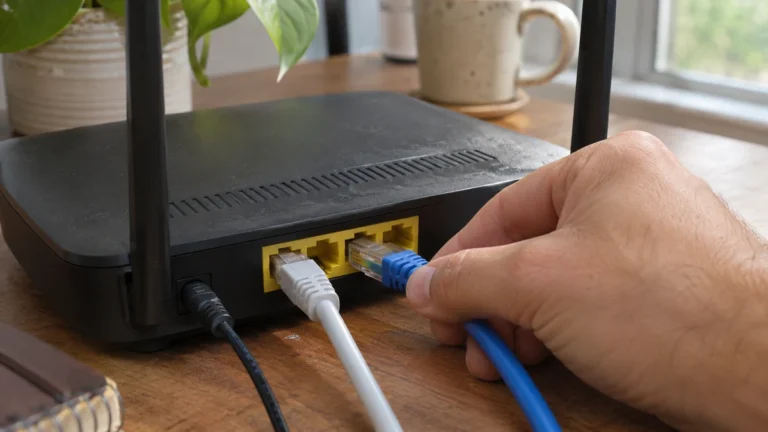
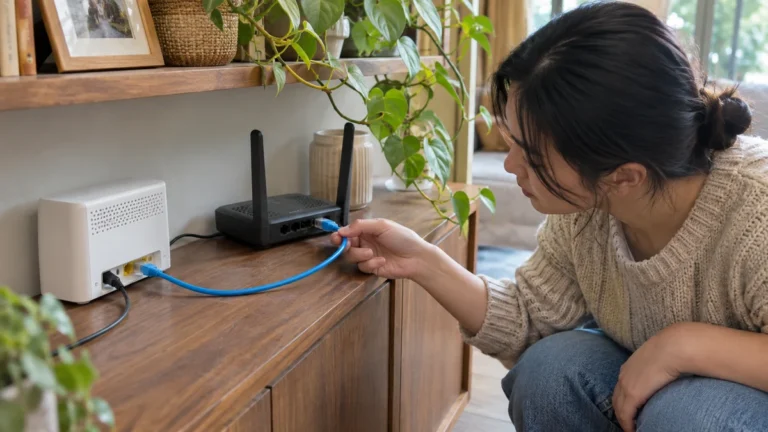
Then check the Ethernet cable running from the modem to the TP-Link router’s WAN or Internet port.
Unplug it and reconnect it firmly.
If you have another known-good Ethernet cable, swapping it is a cheap and easy test.
TP-Link recommends checking and, when possible, replacing the WAN cable when the general internet connection is unstable. TP-Link
If both Wi-Fi and Ethernet devices attached to the TP-Link lose internet together, the WAN side becomes much more interesting than the wireless settings.
Test the internet without the TP-Link router if your setup allows it
With a normal separate cable modem, you may be able to connect a computer directly to the modem temporarily.
If the internet still drops with the TP-Link completely removed from the path, you have saved yourself hours of router troubleshooting.
The problem is upstream.
That could mean the modem, cable line or ISP service.
TP-Link recommends this kind of direct test when troubleshooting a general unstable connection. TP-Link
Not everyone can do it.
Some fiber connections, ISP gateways and authentication setups don’t work this way.
If bypassing the router isn’t practical, you can still check the ISP equipment’s status page or contact the provider.
The goal is simply to establish whether the TP-Link is actually causing the failure.
Don’t overlook the modem
A router often gets blamed because it’s the box people can see and interact with.
But if your modem loses its connection for thirty seconds, every device behind the router will obviously lose internet too.
The router can’t fix an internet connection that never reached it.
This is why the wired-vs-wireless test near the beginning matters so much.
If the modem or provider connection is unstable, finish that problem first.
Then come back to the router only if the disconnecting continues.
Check for a firmware update
Once you’ve ruled out the obvious signal, device and ISP problems, firmware is worth checking.
TP-Link releases firmware updates for many models, and updates can include stability fixes.
But there is one important warning here:
Do not download firmware based only on the router’s model name.
TP-Link routers can have different hardware revisions.
You might own an Archer router marked Ver: 1.0, while somebody with what looks like the same model owns another hardware version.
TP-Link tells users to verify the hardware version before manually installing firmware and to use firmware from the appropriate regional TP-Link site. It warns that using incorrect firmware can damage the device. TP-Link
You can normally find the hardware version on the router label.
On supported cloud-connected models, updating through the router interface or TP-Link Tether app is easier because the router can check for the appropriate update itself. TP-Link
If you’re updating manually, read the instructions for your exact model first.
And don’t cut the power during the update.
What if the problem started after a firmware update?
Make a note of the firmware version you’re running and check the release notes for your exact model and hardware version.
Don’t immediately download an old firmware file from an unofficial website.
And don’t install firmware intended for another region because somebody online said it worked for them.
If a recent update appears to be involved, check TP-Link’s support page or contact TP-Link with the exact model, hardware version and firmware version.
That’s much safer than experimenting with firmware files.
A separate issue: your extender may be dropping, not the router
If you use a TP-Link range extender, make sure you’re troubleshooting the right device.
A common pattern is:
Wi-Fi near the main router works fine.
Wi-Fi in another part of the house keeps dropping.
The devices having problems are connected through the extender.
In that case, the main router may be completely healthy. The extender could have a weak connection back to it.
Try using the same phone or laptop close to the main router.
If it becomes stable there, investigate the extender and its placement before changing the router.
If you’re still configuring one, our TP-Link extender setup guide covers the normal setup and connection process.
What about DNS?
DNS gets mentioned in almost every internet troubleshooting discussion, but it matters only in certain cases.
If your device remains connected to Wi-Fi and some or all websites stop resolving, DNS becomes worth checking.
If the Wi-Fi network itself disappears and your laptop reconnects thirty seconds later, DNS is not your main problem.
TP-Link does include changing DNS as one option in its general unstable-internet troubleshooting, but that applies to internet connectivity, not to a wireless radio dropping devices. TP-Link
That’s an important distinction.
Don’t change DNS because your phone physically disconnects from Wi-Fi.
Make sure the router can breathe
If the router is inside a cabinet or stacked on top of another warm device, give it some space.
It should have airflow around it.
A router becoming slightly warm is normal.
A router sitting in a very hot enclosed space is different.
Also check whether the router is actually restarting when you think the Wi-Fi is dropping.
If its lights go through a complete startup sequence each time, you’re dealing with more than an ordinary wireless disconnect.
Check the power connection.
Make sure the adapter is firmly connected.
If possible, avoid a loose or questionable extension socket while testing.
If the router keeps rebooting by itself, firmware, power or hardware problems deserve more attention than Wi-Fi channels.
Should you turn off Smart Connect?
Not automatically.
Smart Connect is useful. TP-Link designed it to let supported routers manage compatible devices across bands without making you manually choose between separate 2.4 GHz and 5 GHz networks. TP-Link
But it is useful to disable temporarily when diagnosing instability.
Separating the bands lets you answer a simple question:
Does the device disconnect on both bands, or just one?
If both are stable separately, but trouble returns when Smart Connect is enabled, you’ve found something worth investigating.
If both bands still disconnect, Smart Connect probably isn’t the reason.
After testing, you can turn it back on if it wasn’t involved.
Don’t factory-reset the router yet
A factory reset appears far too early in a lot of troubleshooting guides.
I would leave it near the end.
Before resetting a TP-Link router, you should already have checked:
- whether Ethernet is stable
- whether the ISP connection is stable
- whether one device or all devices are affected
- whether distance and interference matter
- 2.4 GHz and 5 GHz separately
- the WAN cable
- firmware for the correct hardware version
- whether an extender is actually involved
If all of that looks normal and the router still behaves badly, a clean reset becomes more reasonable.
Before doing it, make sure you know how to set the router up again.
If your ISP requires special connection details, have them ready.
A reset removes configuration. It doesn’t simply “restart harder.”
After resetting, configure the basic internet and Wi-Fi settings first and test the router before adding lots of custom options.
If the router becomes stable with a clean configuration, something in the previous setup may have been contributing.
When I would start suspecting the router itself
Eventually, hardware does fail.
I’d start looking seriously at the router when several things line up:
The modem or ISP connection is stable.
Multiple devices are affected.
The problem happens even close to the router.
Both Wi-Fi bands have trouble.
The power connection is good.
The firmware is appropriate and current.
A clean factory configuration doesn’t fix it.
Or the router is clearly rebooting or losing its wireless radios by itself.
At that stage, replacing the router becomes a reasonable possibility.
But don’t buy another one until you’ve ruled out the modem and ISP.
It’s surprisingly easy to replace a perfectly good router and then discover that the new one disconnects in exactly the same way.
The order I’d actually troubleshoot this in
If my own TP-Link router started disconnecting tonight, I wouldn’t change twenty settings.
I’d do this:
- Wait for the next drop and check whether Wi-Fi disconnects or only the internet stops.
- See whether another device has the same problem.
- If possible, check an Ethernet-connected device.
- Restart the router and modem normally.
- Test close to the router.
- Try 2.4 GHz and 5 GHz separately.
- If necessary, temporarily disable Smart Connect so the bands can be tested properly.
- Check router placement and obvious interference.
- Only then experiment with the Wi-Fi channel or channel width.
- If wired and wireless internet both drop, check the WAN cable and modem.
- Check firmware for the exact model and hardware revision.
- Factory-reset only if the problem still points back to the router.
The main thing is not to guess.
A Wi-Fi dropout, an ISP outage and one faulty laptop can all look like “my TP-Link keeps disconnecting.”
Once you know which one you actually have, the list of possible causes gets much shorter.
Sources
TP-Link, Router Keeps Disconnecting? Fix Unstable Wi-Fi. TP-Link Wi-Fi troubleshooting guide
TP-Link, Router Unstable Connection: Troubleshooting Guide. TP-Link unstable internet troubleshooting
TP-Link, How to Update Firmware on TP-Link Wi-Fi Routers. TP-Link firmware update guide