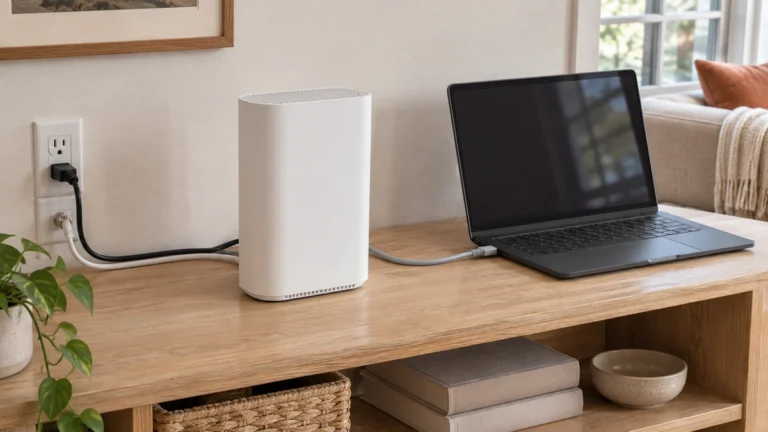
If your Archer AX55 keeps disconnecting, leave it running during the next drop and look at the Internet light. Test a computer plugged into an AX55 LAN port at the same time. If the wired computer goes offline too, start with the connection coming into the router. If the wired computer keeps working, start with Wi-Fi.
If the AX55 Internet light turns orange
TP-Link’s AX55 manual describes orange as a connected Internet port with no internet service. An unlit Internet indicator points toward the port or cable connection if the router is powered and its lights are enabled. Check the lights on the modem or fiber box too. If that box reports a connection problem at the same time, make a note of it before restarting anything.
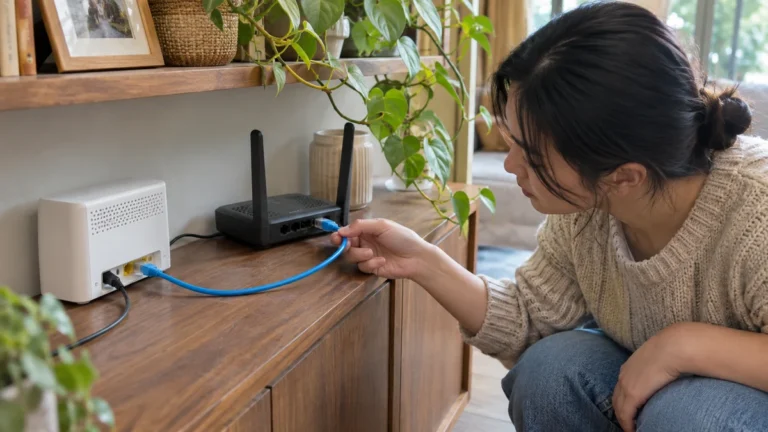
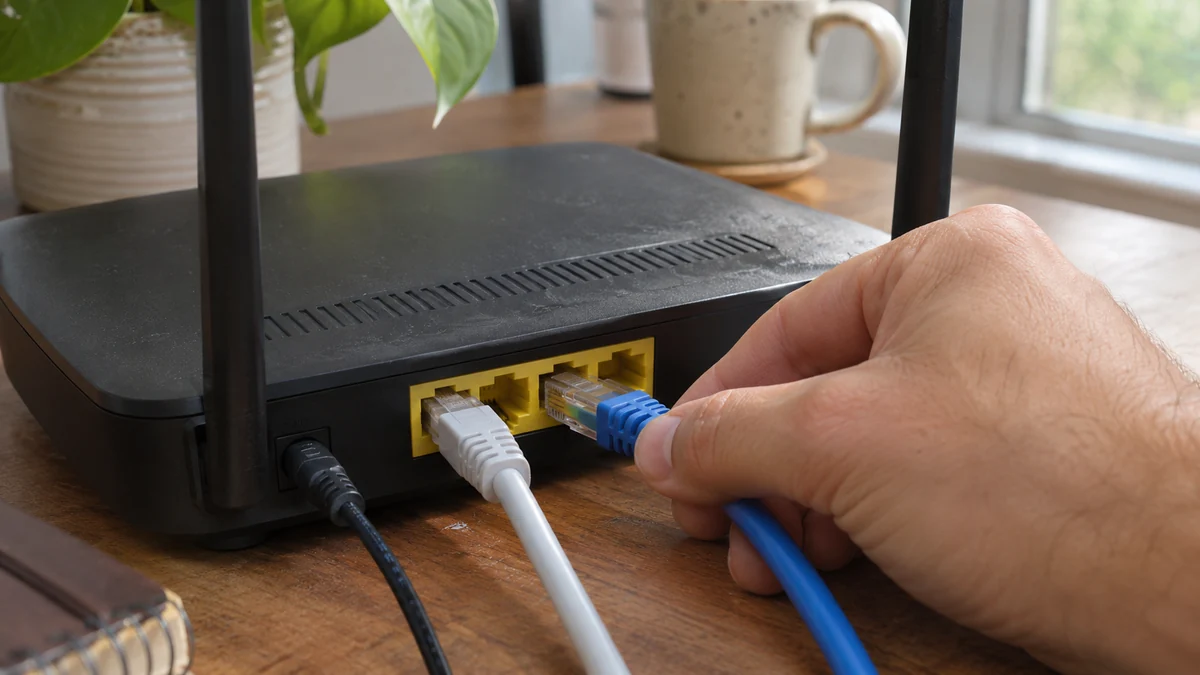
Unplug and firmly reconnect the Ethernet cable between the modem or fiber box and the AX55’s WAN port. If you have a spare cable, use it for long enough to catch the next drop. One brief successful speed test can miss a fault that only happens once a day.
If the AX55 sits behind an ISP gateway with its own Wi-Fi, test that gateway’s network while the AX55 is down. If both lose internet, talk to the provider first. If the gateway stays online and the AX55 loses internet on both wired and wireless devices, focus on the WAN cable, AX55 settings, or the router itself.
If Ethernet works while Wi-Fi drops
Test two wireless devices in the same room as the AX55. A phone that disconnects in the back bedroom and works normally beside the router gives you a different clue from two devices that drop within a few feet of it.
The AX55 can use Smart Connect to put both bands under one network name. If you can afford a short disruption, turn it off temporarily in Wireless Settings and give the 2.4 GHz and 5 GHz networks different names. Connect the problem device to each in turn. If it stays stable on one, you have a practical workaround and know which band needs a closer look. Make a note of your original names and settings first.
If only one device drops on both bands, forget the network on that device, reconnect, and check for a device or Wi-Fi driver update. If more than one device drops, use the TP-Link router disconnection guide for the next wireless checks.
Check the AX55 hardware version before updating
Read the version from the router label before you download anything. TP-Link lists different files by hardware revision and purchase region. Match both to your unit, and read the release notes. Use a wired connection during the update when you can, and keep the router powered until it finishes.
If the problem started immediately after an update, note the installed version and the date it began before contacting support. Include whether the wired connection failed and what the Internet light showed. Those two observations are more useful than reporting a general Wi-Fi drop.
If you need to get back into the router first, see how to open tplinkwifi.net.
If the whole router seems to restart
A router boot is different from a momentary internet drop. Watch whether the Wi-Fi name vanishes and the Power light goes through its startup sequence. If that happens while the modem stays online, check that the AX55’s own power adapter is firmly connected. If it’s on a switched power strip, try a known-good wall outlet. If the Power light is blinking during a firmware update, leave power connected until the update finishes.
Write down whether the router’s wireless network disappeared. That detail will help distinguish a restart from an outage that merely interrupted the WAN connection.
Sources
- TP-Link Archer AX55 user guide
- TP-Link Archer AX55 firmware and hardware versions
- TP-Link support discussion on AX55 connection drops