TP-Link router not connecting to the internet? Open its Internet status page. See whether the router detects the Ethernet cable in its WAN port and whether it has a WAN IP address. Those two answers tell you whether to check the cable, check the settings from your internet provider, or look further upstream. You can do this even when the internet is down.
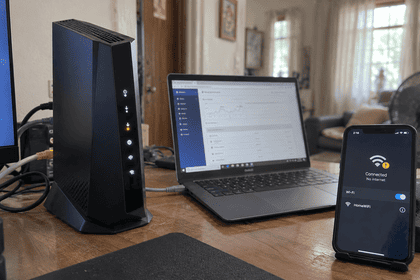
If your phone says “Connected, no internet,” it has joined the Wi-Fi network. Try one other device before changing router settings. When two devices on the main TP-Link network both fail, check the router’s incoming connection. When just one fails, start with that device.
First, find where the connection stops
If you have a computer with an Ethernet port, plug it into a LAN port on the TP-Link and turn off Wi-Fi on the computer. Leave the cable from your provider’s equipment plugged into the TP-Link’s WAN or Internet port. Try opening two sites you normally use. Testing a single app or website can send you in the wrong direction when that service itself is down.
- Ethernet works, but Wi-Fi doesn’t. Try the main TP-Link Wi-Fi network while standing near the router. That helps you tell whether the signal or an extender is involved. If the main network works there, reconnect through the extender to see whether the failure follows it.
- One device fails, but another works on the same Wi-Fi. Reconnect the problem device to the network. If it has a VPN or a custom DNS setting, check whether the problem started after that setting changed. Keep router-wide settings as they are while other devices are working.
- Ethernet and Wi-Fi both fail. The router’s WAN status is the next useful check. If there’s no Ethernet-capable computer handy, use two devices on the main Wi-Fi. Switch off mobile data on your phone during the test so you can tell which connection is carrying traffic.
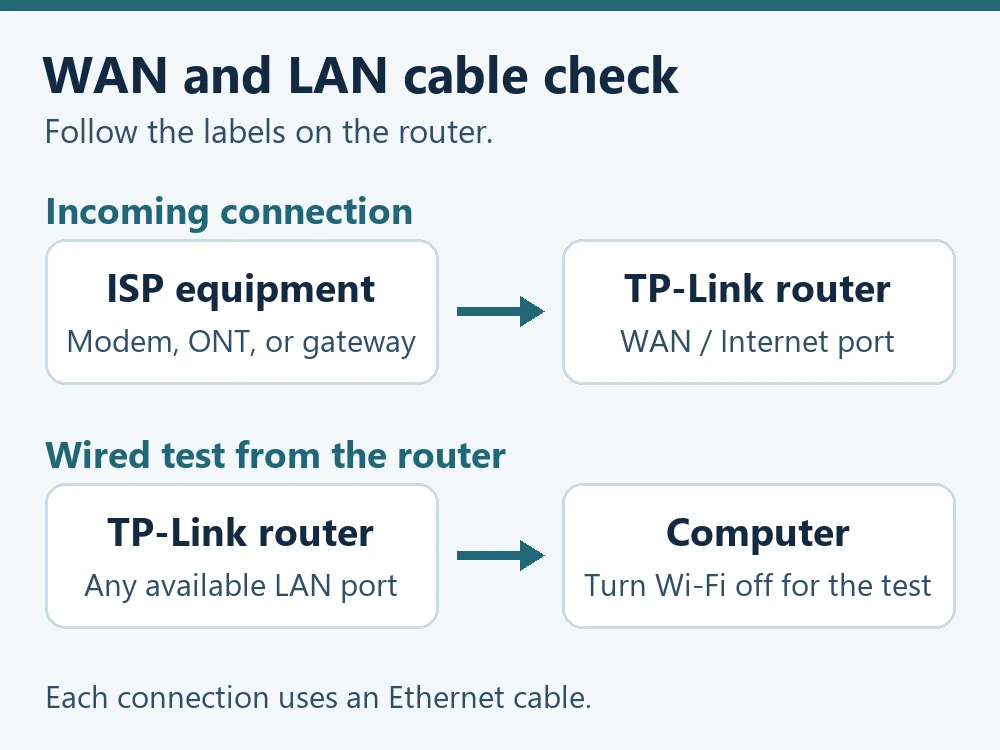
This wiring applies when your TP-Link has a separate modem, fiber ONT or provider gateway upstream. If the TP-Link itself takes a DSL phone line or uses a SIM, look up the DSL or mobile connection status for that model. It has a different way of getting online.
Open the TP-Link status page
Stay connected to the TP-Link by Wi-Fi or a LAN cable. Type tplinkwifi.net into the browser’s address bar. The local page can open while your internet connection is down. If it doesn’t, try the router’s local IP, such as 192.168.0.1 or 192.168.1.1. A computer connected to it can usually show the current address as Default Gateway or Router. See what to try when tplinkwifi.net won’t open if you still can’t get in.
On many Archer routers, open Advanced → Status and look for Internet or WAN. You may find the Internet status on the network map or under Advanced → Network → Internet, depending on the model and firmware. Write down the connection type and whether the status shows a cable connected, an IP address, or an error.
The Internet light can give you a clue. Some Archer models show orange when they detect a cable connection but have no internet. Use the status page to find out which condition applies to your setup.
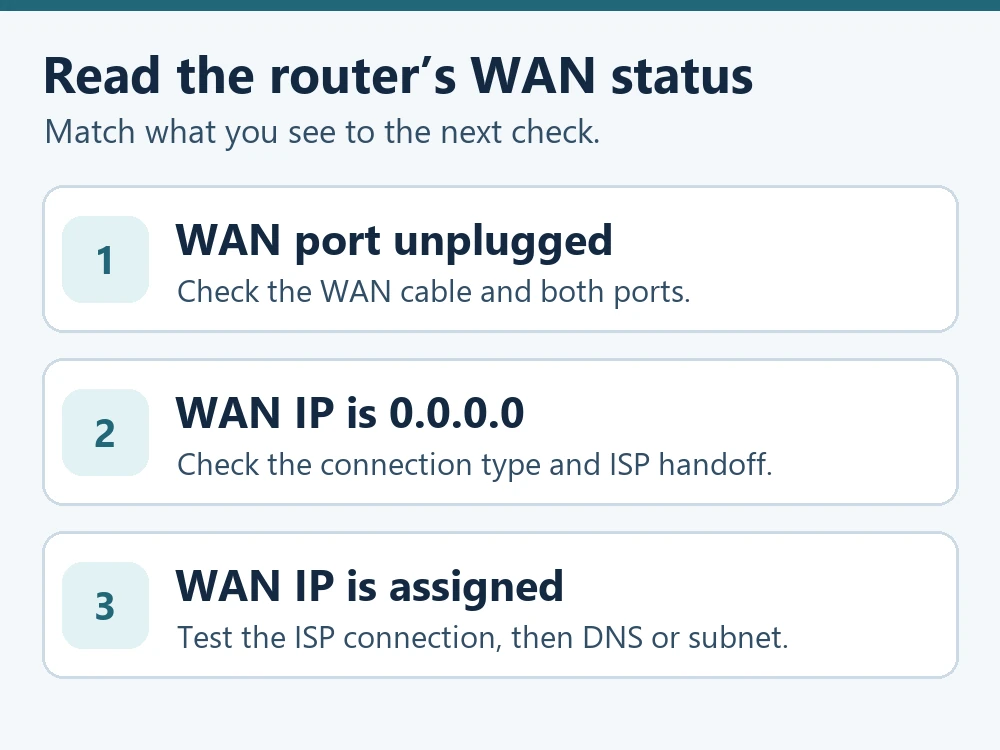
If it says “WAN port unplugged”
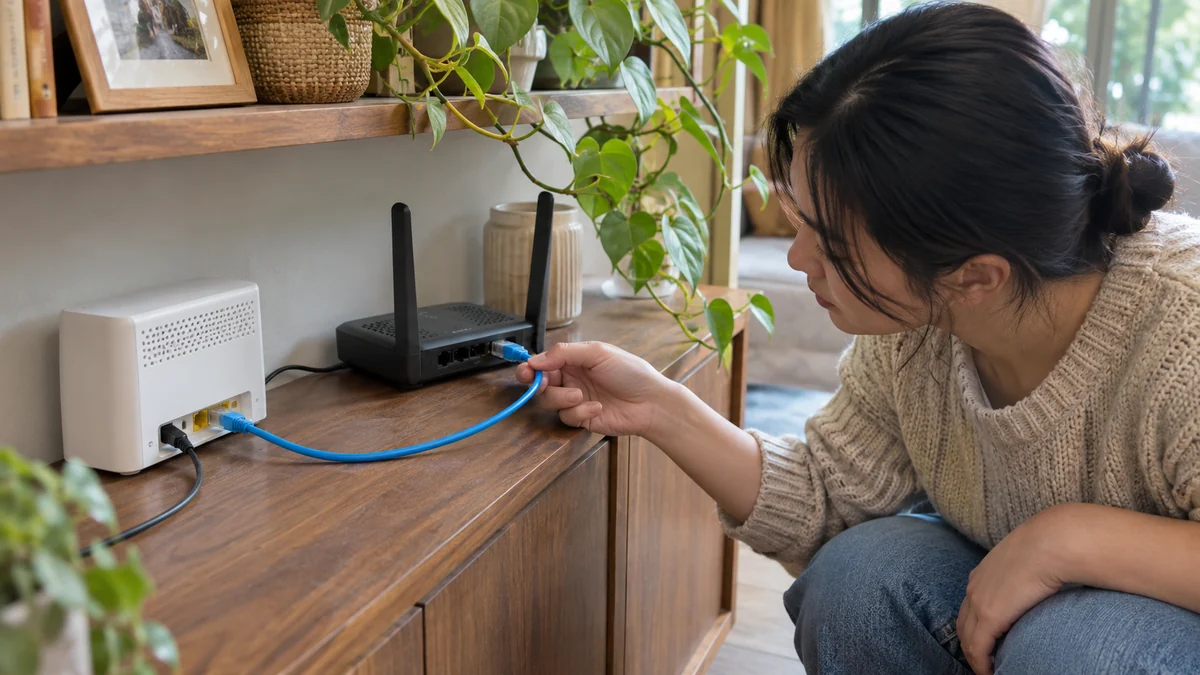
Follow the cable with your hand from end to end. It should go from an Ethernet port on the modem, ONT or provider gateway to the TP-Link’s WAN or Internet port. Some models have a port labeled WAN/LAN that can change roles. Check that the port you’re using is assigned to WAN if your model offers a choice. On the provider box, use the port where the previous router was connected. On some fiber installations, only a particular port is provisioned.
Unplug and reseat both ends of the Ethernet cable. Then swap in a cable that you know works, ideally one you’ve just used for another wired connection. Check whether the warning disappears. If a cable change brings the link back, see whether the router gets an IP address before making any other change.
Check whether the upstream box is powered and whether its own connection indicators show a problem. A modem that hasn’t come online or a fiber box showing an optical signal fault gives you something to report to the provider. Leave the coax or fiber cable in place during this Ethernet test.
If the same upstream port and cable work with your old router, but the TP-Link still shows “WAN port unplugged,” include that test when you contact TP-Link. If neither router can establish an Ethernet link with that port, ask the provider to check the port and its equipment. Changing your Wi-Fi name, DNS server or PPPoE password won’t restore an Ethernet link.
If the cable is connected but the WAN IP is 0.0.0.0
On a typical IPv4 home connection in Router mode, 0.0.0.0 means the TP-Link hasn’t obtained a usable IPv4 address on its WAN interface. The cable can be connected correctly and still leave you here. Look at Internet Connection Type and compare it with the old router or the settings your provider gave you. Don’t use this IPv4 check by itself if your provider uses an IPv6-only service or your TP-Link is in Access Point mode.
If your provider uses Dynamic IP
Select Dynamic IP if your provider uses DHCP. It’s common when you connect the TP-Link to a LAN port on an existing gateway that still handles the internet connection. Save and check the status again. If the router offers a Renew button, try it once. An address should appear when the upstream device responds with a lease.
If you’ve just swapped routers and the old one still works on the same port, tell your provider you’re changing equipment. Ask whether the modem or account needs to learn the new router’s WAN MAC address. Some cable setups need a modem restart after a swap. Follow your provider’s restart order and give its modem time to come online. Use MAC Clone only if the provider confirms it expects the previously registered address or explicitly tells you to clone an address. Cloning a random computer’s address adds another variable without fixing the handoff.
If your provider uses PPPoE or Static IP
For PPPoE, enter the broadband username and password supplied by the provider. Your Wi-Fi password and the password you use to open the TP-Link settings are separate. If the router reports an authentication error, ask the provider to verify the credentials and whether a third-party router can sign in on your connection. If it reports a timeout, check whether the provider also requires a VLAN or expects you to use a specific port on its equipment.
For Static IP, copy the provider’s IP address, subnet mask, default gateway and DNS details exactly. Avoid copying the old router’s LAN address into the WAN settings. If you’ve only been told you have a “fixed public IP,” confirm how it’s delivered. Your provider may still require you to select DHCP or PPPoE for the router to receive that address.
If your provider requires a VLAN
Some providers tag internet traffic with an 802.1Q VLAN. You can have an Ethernet link and the right connection type, but still get no service if the tag is missing. On many TP-Link models the field is under Advanced → Network → IPTV/VLAN. Ask for the Internet VLAN ID, plus priority if required, for your exact service and installation. The values for IPTV or phone service can differ. A value from another customer’s forum post is a poor substitute for the provider’s settings.
If the provider gateway is staying in place and still does the broadband login, check how it hands off the connection to your TP-Link. It may already handle the VLAN on its side. Re-entering that VLAN on the TP-Link can break an otherwise normal Ethernet handoff.
If the WAN has an address but websites still won’t load
An assigned IP confirms that the TP-Link has an address to use. If its WAN address starts with 192.168 or 10 and it’s plugged into a provider gateway that also acts as a router, that alone is normal. Check the upstream connection before changing DNS or putting equipment in bridge mode.
See whether the provider gateway itself can get online
If your provider’s gateway has its own Wi-Fi and still works as a router, connect your phone or computer to that gateway and test two sites. If that connection is down too, check the provider’s service status from mobile data and report the result. If the gateway works and the TP-Link doesn’t, you’ve narrowed the issue to the connection between the two devices or the TP-Link’s settings.
You can also test a computer directly on the modem’s Ethernet handoff if your provider supports it. Keep the computer’s firewall on and follow the provider’s instructions for switching the connected device. A laptop plugged straight into a bridged fiber ONT may get no connection simply because the line requires PPPoE or a VLAN the laptop isn’t using. In that setup, a previously working router with the correct settings makes a better comparison.
Check for matching address ranges
Compare the WAN address and subnet mask with the TP-Link’s LAN address and mask. For example, a WAN address of 192.168.1.20 with a 255.255.255.0 mask and a TP-Link LAN of 192.168.1.1 with the same mask are both in 192.168.1.0/24. The TP-Link needs separate networks on either side to route correctly.
If you need the TP-Link to remain your router, choose a LAN range that the upstream equipment isn’t using, such as 192.168.50.1/24 if that range is free. Check for devices with fixed addresses, DHCP reservations or port forwards before changing it. Reconnect your devices afterward so they get addresses on the new network. If you only need the TP-Link for Wi-Fi and want the provider gateway to keep doing the routing, Access Point mode may suit the setup. Check the instructions for your model because the port and available features can change in that mode.
Test DNS on one computer
If the provider connection works and the TP-Link has an address on a separate network, check DNS before replacing the router. On a computer connected through the TP-Link, run nslookup example.com. Then run nslookup example.com 1.1.1.1. If the first lookup repeatedly times out and the second returns an address, the default DNS path is a reasonable suspect. Try a known working DNS resolver on that one computer and check whether ordinary websites now load.
If neither lookup works, the router could still have an upstream routing or connectivity problem. A timeout alone doesn’t establish that DNS is the cause. If both lookups work and only one browser fails, test another browser on the same device before changing anything for the whole house. If it’s the Wi-Fi signal itself that vanishes or drops and returns, use the TP-Link router disconnecting guide to troubleshoot that pattern.
What to tell support if you’re still offline
Give support the exact model and hardware version, the device in front of it, and what the WAN status says. Say whether a second device had the same problem and whether the old router or provider gateway could connect. You can give them the WAN IP state without posting the address itself, and you don’t need to share a password or a screenshot containing credentials.
Use the example that matches your test results.
- “It says WAN port unplugged. I tried two Ethernet cables in the same upstream port, and my old router sees a link there.” That gives TP-Link a physical connection problem to investigate.
- “The cable shows connected, but the WAN IP stays at 0.0.0.0. The previous router works, and I’m using Dynamic IP.” Ask your provider whether the line needs equipment registration or a different handoff setting.
- “The TP-Link gets a WAN IP, but neither wired nor Wi-Fi devices can load sites. I tested the provider gateway on its own and it works.” That makes the TP-Link’s network configuration a more useful place to look than the incoming line.
Leave the factory reset until you know how to restore the WAN settings. A reset can erase the PPPoE login, internet VLAN and other settings you may need to get back online. If the old router still works, you can reconnect it for now and use its settings as a reference when you try the TP-Link again.
Sources
- TP-Link’s guide to a Wi-Fi router with no internet access
- TP-Link’s WAN port unplugged troubleshooting guide
- TP-Link’s guide to internet VLAN tagging
- TP-Link’s guide to an assigned WAN IP with no internet access
- TP-Link’s guide to Router and Access Point modes