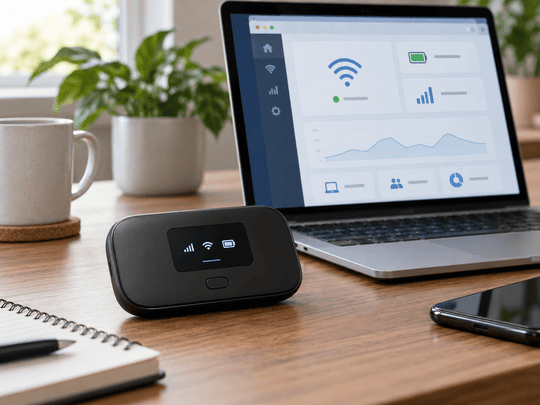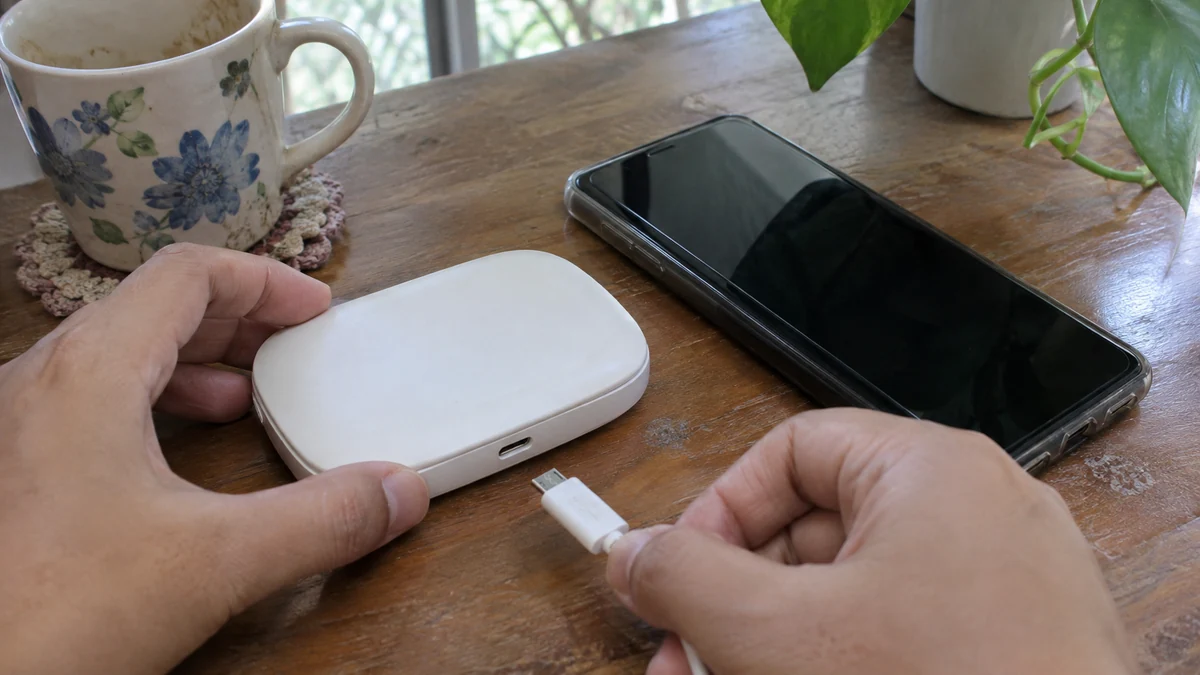
The 192.168.8.1 login for Huawei Mobile WiFi works from a device connected to the hotspot’s own Wi-Fi. Join that network first, then type 192.168.8.1 into the browser’s address bar. If the hotspot came from a mobile carrier, check its label for a different address or admin password.
Connect to the hotspot before you open the page
- Turn the Mobile WiFi on and look up its network name. Some models show it on the display. Others print it on the device label.
- Join that Wi-Fi from your phone or computer. If the phone warns there is no internet and offers to switch networks, stay connected to the hotspot for this check.
- Type
192.168.8.1directly into the address bar. If the label lists a different management address, use the one on the label.
The settings page is on the hotspot itself. You can usually reach it while the SIM is out of data or the mobile signal is weak, provided the hotspot’s local Wi-Fi is working.
Where to find the Huawei admin password
Huawei says that Mobile WiFi units with a display may show the initial login password in the device menu. On supported models with a removable rear cover, the label may be underneath it. Look for a management or login password. The Wi-Fi key gets your phone onto the network, while the management password opens the settings.
A carrier-branded model can use different details. If you only see the Wi-Fi key or the label is worn, use the carrier’s setup guide for your model. If you previously changed the management password, use the one you set.
The page still won’t load
Check which network the phone is actually using. Some phones reconnect to the home router when a hotspot has no data. If this keeps happening, temporarily turn off mobile data and connect to the Huawei Wi-Fi again. Re-enable mobile data when you finish.
If the label address still times out, try a second browser or another device connected to the hotspot. You can also look up the Router or Default Gateway in the connected Wi-Fi network details and try that address if it belongs to your hotspot. A login screen that rejects the password confirms you’ve reached a management page. Go back to the printed login details before changing network settings.
Before you reset a hotspot with a forgotten password
A factory reset can clear the Wi-Fi name and settings such as the carrier APN. Check the instructions for the exact model or ask the carrier first, especially if the Wi-Fi works and the only problem is a forgotten admin password.
If the device is an AT&T hotspot that lists a different address, see the ATTWiFiManager guide for that separate login.
You can log in, but the hotspot has no internet
Once the management page loads, you’ve confirmed the local connection from your phone to the hotspot. Look for mobile signal and data status next. If all devices joined to the hotspot are offline, check whether the SIM is active and has data. If only one phone is affected, try a second device on the same hotspot before editing its mobile settings.
If you just changed SIMs, check whether the new carrier requires a specific APN. The APN tells the hotspot how to connect to the carrier’s data network. Get the correct value from the carrier and note the current value before changing it. Changing the admin password or Wi-Fi name won’t activate a SIM or fix a data plan.
On a shared hotspot, the connected-devices list can help you tell whether the laptop you’re testing is actually attached. Huawei documents that view in the management page, though the exact menus depend on the model.
Sources
- Huawei Mobile WiFi management login and carrier settings
- Huawei guide to finding the initial login password
- Huawei’s guide to viewing connected devices