
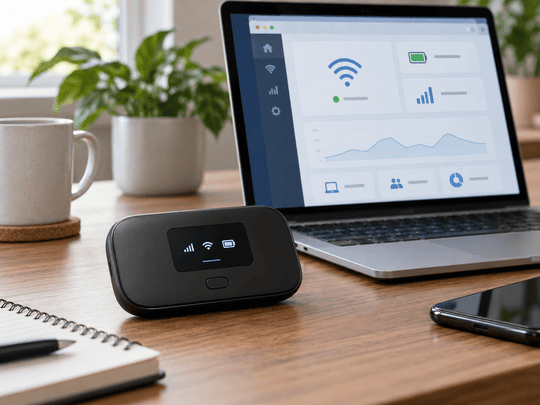
ATTWiFiManager is the local management page used by many AT&T mobile hotspots, especially NETGEAR Nighthawk models.
If you are connected to the hotspot, you can usually open a browser and enter:
attwifimanager
Some models also allow access through a local IP address such as 192.168.1.1.
The important part is that this is a local page. You normally need to be connected to the hotspot’s Wi-Fi before it will open.
How to open ATTWiFiManager
Start with the simplest method:
- Turn on your AT&T hotspot.
- Connect your phone, laptop or tablet to the hotspot’s Wi-Fi.
- Open a web browser.
- Type attwifimanager into the address bar.
- Open the page.
- Enter the hotspot’s administrator password when requested.
Do not search for ATTWiFiManager in Google. Enter it directly into the browser address bar.
AT&T’s instructions for devices including the Nighthawk MR1100, MR5100 and M6 Pro use the local ATTWiFiManager address while the device is connected to the hotspot network.
Can I use 192.168.1.1 instead?
On many AT&T Nighthawk hotspots, yes.
For example, AT&T documents both:
attwifimanager
and:
192.168.1.1
for the Nighthawk MR1100. Current AT&T documentation for the Nighthawk M7 Pro also shows 192.168.1.1 as a local management address.
But do not assume every AT&T hotspot uses 192.168.1.1.
Some hotspot models use a different address. The correct address depends on the model and sometimes the carrier-specific firmware.
So if 192.168.1.1 does nothing, that does not automatically mean your hotspot is broken.
Try ATTWiFiManager first, then check the AT&T support page or manual for your exact model.
What is the ATTWiFiManager password?
This is where many guides become inaccurate.
There is no safe rule that every AT&T hotspot will always use the same administrator password.
For the AT&T version of the older NETGEAR Nighthawk MR1100, AT&T and NETGEAR documentation identify attadmin as the factory-default admin password.
AT&T also documents attadmin as the default management login on some later Nighthawk models.
However, newer devices may ask you to create an administrator password during initial setup.
For example, AT&T’s current setup instructions for the Nighthawk M7 Pro include a step where the user creates an admin password.
So use this rule:
If you previously created an admin password, use that password instead of blindly trying attadmin.
The administrator password is also separate from the Wi-Fi password used to connect your phone or laptop to the hotspot.
Wi-Fi password vs admin password
These two passwords do different jobs.
Your Wi-Fi password connects a device to the hotspot.
Your administrator password opens ATTWiFiManager and lets you change hotspot settings.
It is possible to be connected to the hotspot successfully but still be unable to log in to ATTWiFiManager because the admin password is wrong.
That does not mean the Wi-Fi password is wrong.
ATTWiFiManager not working
If ATTWiFiManager will not open, do not reset the hotspot immediately.
Work through these checks first.
1. Make sure you are connected to the hotspot
ATTWiFiManager is a local management page.
Your phone or computer needs to be connected to the AT&T hotspot’s Wi-Fi network.
If your laptop is connected to your home router instead, ATTWiFiManager will not lead to the hotspot you are trying to manage.
AT&T specifically tells users to connect to the Nighthawk hotspot network before opening the management website.
2. Enter the address directly
Type:
attwifimanager
directly into the browser address bar.
Do not type it into a search box.
If your exact hotspot supports it, you can also try its documented local IP address.
For many AT&T Nighthawk models that address is:
192.168.1.1
But verify your model before assuming that address is correct.
3. Stay connected even if there is no internet
The ATTWiFiManager page is inside the hotspot itself.
That means the hotspot does not necessarily need a working cellular internet connection for you to access its local settings.
Your phone may show a warning that the Wi-Fi network has no internet. Stay connected while you try to open the local management page.
4. Try another browser
If the hotspot is connected correctly but the page still refuses to load, try another browser or reopen the browser.
You can also disconnect from the hotspot Wi-Fi, reconnect, and try again.
5. Check the exact model
Look at the hotspot model number.
Common AT&T NETGEAR models include devices such as:
- Nighthawk M1, MR1100
- Nighthawk 5G Mobile Hotspot Pro, MR5100
- Nighthawk M6 Pro, MR6500
- Nighthawk M7 Pro, MR7400
The management interface, password setup and available settings can change between generations.
Do not copy reset or password instructions from one model to another.
ATTWiFiManager opens but the password is wrong
First make sure you are entering the administrator password, not the hotspot’s Wi-Fi password.
If the hotspot was previously configured, its factory password may no longer work.
This is particularly common with used hotspots.
Someone may have changed the admin password during the original setup.
For the MR1100, AT&T’s setup process allows the mobile-router password to be changed.
Newer models may also ask for a custom administrator password during setup.
Do not factory-reset the device merely because attadmin failed.
First establish whether your model originally used that password and whether a custom password was previously created.
What can you change in ATTWiFiManager?
The available settings depend on the hotspot model.
Typical options include:
- Wi-Fi network name
- Wi-Fi password
- connected devices
- cellular network information
- data usage
- security settings
- access controls
- firmware or software updates
- advanced network settings
For example, AT&T’s MR1100 management interface includes network information, device information and advanced settings.
Current M6 Pro documentation also uses ATTWiFiManager for network information and administrative settings.
How to change the hotspot Wi-Fi password
After logging in to ATTWiFiManager, look for the Wi-Fi or wireless settings.
The wording varies by model.
On the MR1100, AT&T documents the path through:
Settings → Setup → Wireless
From there you can edit the Wi-Fi network name and password.
After changing the Wi-Fi password, your connected devices will normally disconnect.
Reconnect them using the new password.
How to check for hotspot updates
Software updates are also model-specific.
For example, AT&T’s current M6 Pro instructions allow software updates from its management website through the administration settings.
Do not download firmware intended for a different Nighthawk model or carrier version.
Use the update function built into your hotspot or the official instructions for your exact model.
Should you factory-reset the hotspot?
Only use a factory reset when there is a real reason.
A reset can erase:
- your custom Wi-Fi name
- Wi-Fi password
- administrator password
- network settings
- other preferences
If ATTWiFiManager simply will not load, troubleshoot the connection and correct the management address first.
A reset becomes more reasonable when you have confirmed that the administrator password has been changed and genuinely cannot be recovered.
Even then, use the reset procedure for your exact hotspot model.
AT&T provides separate reset instructions by device.
ATTWiFiManager still will not open?
At this point, check these four things:
- You are connected directly to the hotspot Wi-Fi.
- ATTWiFiManager was entered directly into the browser address bar.
- You tried the local IP documented for your exact hotspot model.
- You confirmed the hotspot model and its correct management instructions.
If the hotspot itself is functioning normally but the management page remains unavailable, restart the hotspot before considering a factory reset.
The main mistake to avoid is assuming every AT&T hotspot uses identical IP addresses, passwords and reset procedures. They do not.
Sources
AT&T, Nighthawk MR1100 Access Web Manager.