A yellow light on a Verizon router usually points to an internet connection problem, but there is one important catch: Verizon routers and Verizon Wi-Fi extenders do not always use yellow the same way.
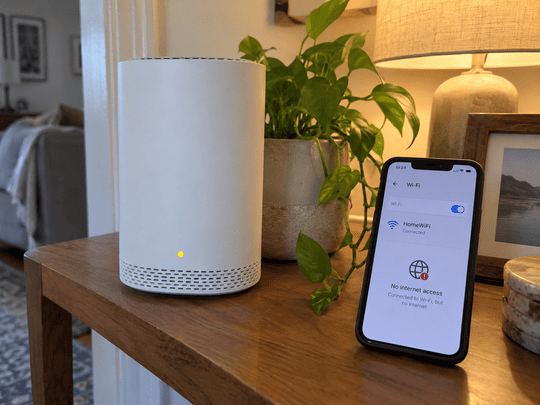
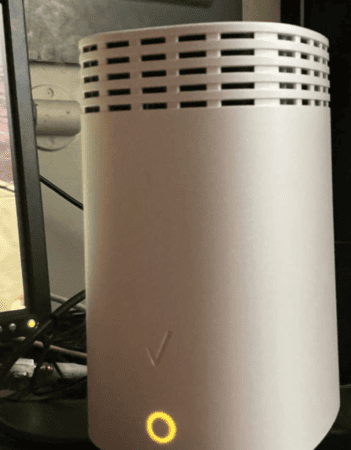
On the current Verizon Router, a solid yellow status light means the router does not have an internet connection. Normal operation is shown by a solid white light.
If the yellow light is actually on a Verizon extender, the meaning can be different. A blinking yellow extender light may simply mean the extender is too close to or too far from the router.
So before unplugging cables or resetting anything, identify which device is showing yellow.
First check: is the yellow light on the router or an extender?
This sounds obvious, but it prevents a lot of unnecessary troubleshooting.
Verizon has several pieces of hardware that can look fairly similar in a home network:
- Verizon Router, including current CR1000-series hardware
- Fios Router
- Wi-Fi Extender
- Wi-Fi Extender Mini
- older Fios routers and extenders
The model number is normally printed on a label on the device.
If the yellow light is on the main router, start with the internet connection steps below.
If it is on an extender, skip down to the extender section. Moving an extender can solve a blinking yellow light, but moving the main router around the room usually will not fix a lost Verizon internet connection.
What a solid yellow light means on a Verizon router
For the current Verizon Router, Verizon lists solid yellow as a no-internet condition.
That distinction matters because the router itself can still be powered on and broadcasting Wi-Fi.
Your phone or laptop may therefore show that it is connected to Wi-Fi while websites refuse to load. The wireless connection between your device and the router is working, but the router has lost its path to the internet.
Changing your Wi-Fi password, forgetting the network on your phone, or changing wireless channels will not normally fix that situation.
The problem is further upstream.
1. Check whether the whole home is offline
Try two or three devices before changing anything.
For example:
- open a website on your phone while connected to Wi-Fi
- try a laptop
- try an Ethernet-connected device if you have one
If every device has lost internet and the Verizon router is solid yellow, concentrate on the router’s internet connection.
If only one phone or laptop has a problem while other devices work normally, the router’s yellow light may not be the only issue you are dealing with.
It is useful to separate a service problem from a single-device Wi-Fi problem before rebooting equipment.
2. Check for a Verizon service outage
A router can be working perfectly and still turn yellow because it cannot reach Verizon’s network.
Before doing anything destructive, check your Verizon account or Verizon’s service-status tools for an outage in your area.
This becomes especially important if the connection stopped suddenly after working normally and you did not change any cables, router settings, or equipment.
If there is a confirmed outage, repeatedly restarting or resetting the router will not restore the connection.
3. Check the WAN connection
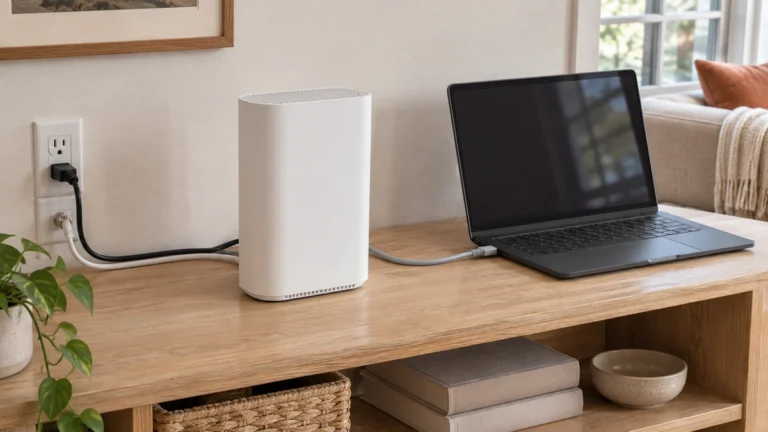
For Fios service, the router needs a working connection back toward Verizon’s Optical Network Terminal, or ONT.
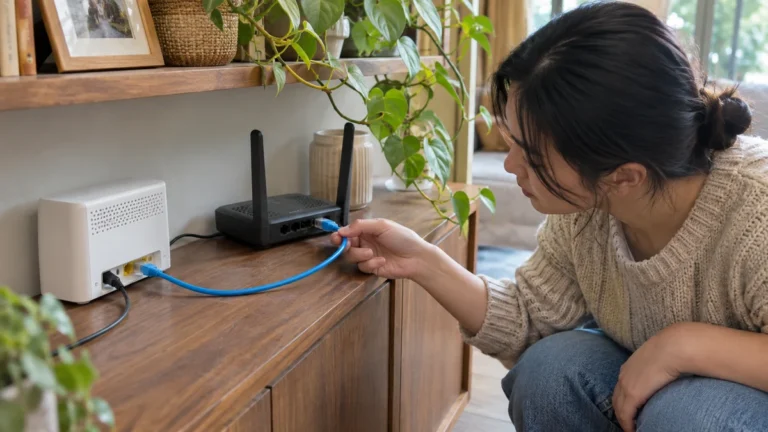
Verizon’s current no-connection guidance specifically recommends checking that the incoming Ethernet cable is firmly connected to the router’s Ethernet/WAN port.
Check the cable at both ends if you can access them.
Look for:
- a loose Ethernet plug
- a cable that was accidentally moved while cleaning or rearranging equipment
- a damaged connector
- a cable plugged into a LAN port instead of the WAN port
- an ONT that has lost power
Do not start moving every LAN cable. Concentrate on the connection that brings service into the router.
If the WAN connection disappeared immediately after someone moved the router or changed cables, this is one of the first places to look.
4. Restart the router once
A normal restart is worth trying before a factory reset.
Disconnect the router’s power, wait about one minute, then reconnect it. Verizon recommends this basic power cycle in its connectivity troubleshooting guidance.
Give the router time to start fully.
You are looking for the status light to settle to solid white.
A temporary series of changing or blinking lights during startup is not the same as a router that finishes booting and remains solid yellow.
If it returns to white and your devices regain internet access, the problem was probably temporary.
If it returns to yellow again, continue diagnosing the internet path instead of restarting it over and over.
5. Check the ONT and the cable path
With Fios, the router is not the first Verizon device connected to the fiber network. The ONT converts the incoming fiber service for your home network.
If the router has power but cannot establish its WAN connection, the problem can be somewhere between the router and ONT, or further upstream on Verizon’s network.
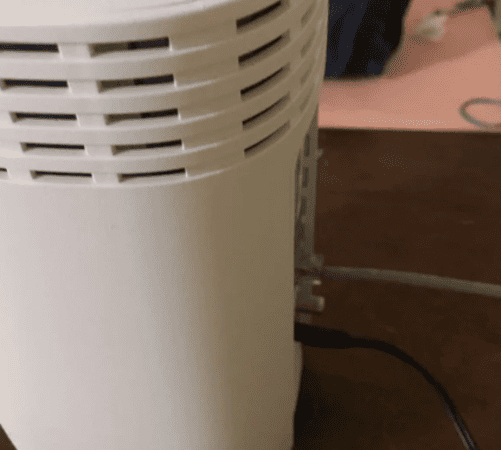
Check that the ONT has power and that the Ethernet connection between the ONT and router has not been disturbed.
If you recently had:
- a power outage
- electrical work
- furniture moved around the router
- a router replacement
- a cable replacement
pay particular attention to the physical connection.
A solid yellow router after one of those events does not automatically mean the router itself has failed.
6. Yellow light after a power outage
Power outages can make this slightly confusing because different parts of the connection may come back at different times.
The router may power up before the ONT or Verizon service path is ready.
After power returns:
- Make sure the ONT and router both have power.
- Check the WAN cable.
- Allow the equipment a few minutes to reconnect.
- Restart the router once if it remains yellow.
- Check Verizon’s outage information if service still does not return.
Avoid doing a factory reset simply because the router came back yellow after an outage.
A reset does not repair an external Verizon service problem.
What if Wi-Fi still appears while the router is yellow?
That can be completely consistent with a no-internet condition.
Wi-Fi and internet access are not the same thing.
Your phone connects over Wi-Fi to the router. The router then needs a separate working connection to Verizon.
So you can have:
phone → Wi-Fi → router
working normally, while:
router → Verizon → internet
is down.
This is why phones sometimes say “Connected without internet” or something similar while the router is showing yellow.
Changing the Wi-Fi name or password will not normally help.
Verizon extender blinking yellow is a different problem
This is where a lot of online advice gets mixed up.
On Verizon Wi-Fi extenders, blinking yellow can describe the quality of the connection between the extender and router rather than a Verizon service outage.
For the Verizon Wi-Fi Extender Mini, Verizon currently specifies:
- slow blinking yellow: extender is too far from the router
- fast blinking yellow: extender is too close to the router
- solid white: placement is good
Verizon recommends placing the extender between the router and the area with weak Wi-Fi coverage.
The newer CE1000A extender uses the same basic placement logic. A slow yellow blink means it is too far away, while a fast yellow blink means it is too close.
Slow blinking yellow extender
Move the extender closer to the Verizon router.
Do not move it all the way next to the router. The goal is to place it somewhere that still receives a strong connection while extending coverage farther into the home.
After moving it, give the extender time to reconnect.
A solid white light is the state you want.
Fast blinking yellow extender
Move the extender farther away from the router.
An extender sitting almost beside the main router provides little benefit and, on supported Verizon extenders, can trigger the fast yellow placement indication.
Move it gradually toward the weak coverage area until the light settles to white.
Solid yellow extender
Be more careful with this one because Verizon extender behavior varies by model and setup state.
On current Verizon extender documentation, solid yellow can indicate no internet connectivity. Some extender models can also show yellow during setup or before pairing is complete.
Identify the exact extender model before assuming the light means the same thing as the main router.
If both the router and extender are showing an internet-related warning, fix the router’s Verizon connection first. An extender cannot restore internet access when the main router itself is offline.
Do not confuse restart with factory reset
A restart turns the router off and back on while keeping your network configuration.
A factory reset is much more destructive.
Verizon warns that restoring its router to factory defaults removes configuration changes and can require connected devices to be set up again.
A factory reset should therefore be near the end of troubleshooting, not the first thing tried for a yellow light.
Do not factory reset just because:
- the router has been yellow for a few minutes
- Verizon is having an outage
- the ONT has lost power
- a WAN cable is disconnected
- an extender is positioned badly
None of those problems requires wiping the router configuration.
When a factory reset may actually make sense
A reset becomes more reasonable after you have already confirmed:
- there is no Verizon outage
- the ONT has power
- the WAN connection is correct
- a normal restart did not help
- the router continues behaving incorrectly
- you understand that customized settings will be lost
If Verizon service is reaching the home but the router still cannot operate correctly, use the reset procedure for your exact Verizon router model rather than following a random reset time from an unrelated router guide.
Can you still open 192.168.1.1 with a yellow light?
Sometimes.
The router’s local management page does not require the public internet in the same way a normal website does. If your device is still connected to the Verizon router, its local admin interface may remain reachable even when Verizon service is down.
Current Verizon Router models can use 192.168.1.1 for local management.
If the router is back online but you cannot reach its settings page, see the NetMovo 192.168.1.1 login guide for gateway and local-access troubleshooting.
Do not change random WAN, VLAN, DNS, DHCP, or advanced network settings just to make the yellow light disappear. That can turn a simple service problem into a configuration problem as well.
When the yellow light probably is not a Wi-Fi problem
A useful shortcut is to look at how widespread the problem is.
If the main router is solid yellow and every device has lost internet, investigate Verizon service, WAN connectivity, the ONT, and the router itself.
If the main router is white but one room has weak Wi-Fi, investigate coverage or extender placement.
If an extender is blinking yellow while the main router is white and working normally, concentrate on the extender’s position or pairing.
Those are three different problems, even though users often describe all of them as “the Verizon router has a yellow light.”
If the Verizon router stays yellow
After checking the outage status, WAN cable, ONT power and completing one normal restart, a router that continues returning to solid yellow has not restored its internet connection.
At that point the remaining possibilities include the Verizon service path, ONT connection, provisioning, cabling, or the router itself.
Use Verizon’s connection diagnostic tools before wiping the router configuration.
The main thing is not to treat every yellow Verizon light as the same problem. On the main Verizon Router, solid yellow points to lost internet connectivity. On supported Verizon extenders, blinking yellow often points to placement instead.
Identifying the device first usually cuts the troubleshooting in half.
Sources
Verizon Router LED Status Indicators
Verizon No Internet Connection FAQs
Verizon Wi-Fi Extender Mini Support
Verizon Router Factory Reset Guidance