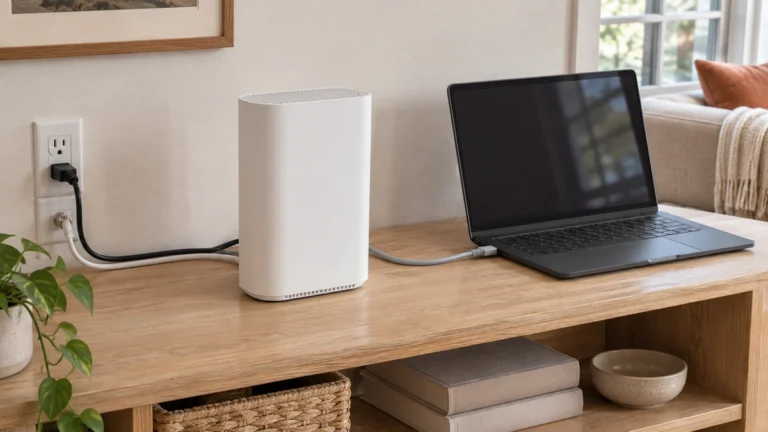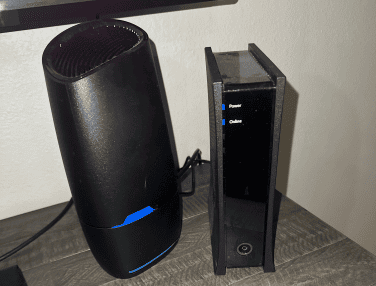
A blinking blue light on a Spectrum router is usually normal for a short time. The router is either starting up or trying to establish its internet connection.
The problem is when it keeps blinking and never settles into a solid connected state.
Before resetting anything, give the router a little time. Spectrum says its WiFi router may take up to 10 minutes to finish connecting during setup.
If it is still blinking after that, start with the modem. In many cases, the router is fine and is simply waiting for an internet connection that the modem isn’t providing.
First, look at how the blue light is behaving
Spectrum has supplied several generations of routers, and the light patterns are not exactly the same on all of them.
On older Spectrum WiFi 5 Wave 2 routers, a blinking or pulsing blue light means the router is establishing its internet connection. Solid blue means it is connected.
On Spectrum WiFi 6 routers, the distinction is a little more specific:
- Flashing blue or green means the router is booting.
- Pulsing blue or green means it is trying to connect to the internet.
- Solid blue or green means it is connected.
On Spectrum WiFi 6E routers:
- Flashing blue means the router is booting.
- Pulsing blue means it is connecting to the internet.
- Solid blue means it is connected.
You don’t need to sit there trying to measure the exact blink speed. The useful question is simpler:
Has the router been doing it for less than 10 minutes, or has it been stuck like this much longer?
If you just plugged it in, wait.
If it has been blinking for 15 or 20 minutes with no internet, start troubleshooting.
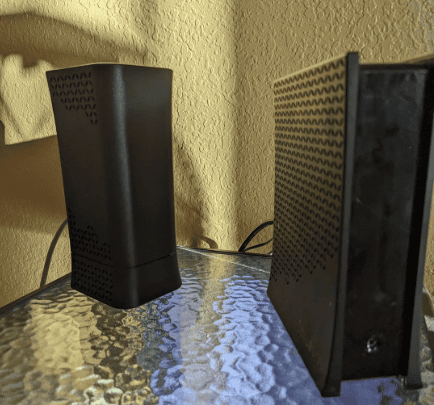
1. Check the modem before touching the router
This is the first thing I would check.
Your Spectrum router gets its internet connection from the modem. If the modem isn’t properly online, the router can keep trying to connect forever.
Look at the modem’s Online light.
If the modem is still flashing, changing colors, or isn’t showing a stable Online status, deal with the modem first.
If your modem is flashing blue and white, see our Spectrum modem flashing blue and white guide.
If the modem looks fully online, continue to the next step.
2. Check the Ethernet cable between the modem and router
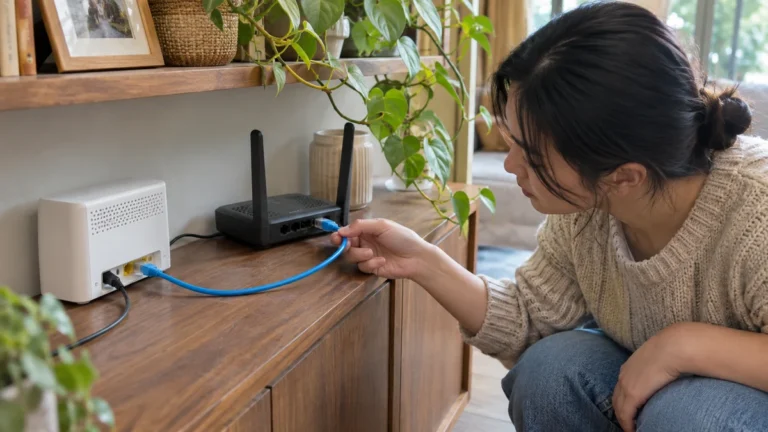
There should be an Ethernet cable running from the modem to the router’s Internet port.
Make sure it hasn’t come loose.
Unplug the cable from both ends and reconnect it firmly. You should feel or hear the connector click into place.
Also check that the cable is actually connected to the router’s Internet port rather than one of its regular Ethernet ports.
This sounds basic, but it matters. A router with power but no working connection from the modem can sit there trying to get online.
If you have another known-good Ethernet cable nearby, trying it is also reasonable.
Don’t start buying cables just for this test, though. Work through the free checks first.
3. Check whether Spectrum has an outage
If everything was working normally and suddenly the router started blinking blue, check Spectrum’s service status.
Use mobile data on your phone and open the My Spectrum app or your Spectrum account.
If Spectrum reports an outage in your area, leave the router alone. There isn’t much you can fix inside the house until service comes back.
Once the outage is over, the router may reconnect by itself.
If it doesn’t, restart the equipment in the order below.
4. Restart the modem and router in the right order
Don’t just unplug both devices and immediately plug them back in together.
For normal Spectrum cable internet equipment:
- Unplug power from the modem.
- Unplug power from the router.
- Wait about 30 seconds.
- Plug the modem back in first.
- Give the modem about two minutes to reconnect.
- Once the modem connection lights have settled, plug the router back in.
- Give the router several minutes to boot and connect.
Watch the router light.
It may blink while starting. What you want is for it eventually to settle into its normal connected state.
Spectrum’s self-install instructions say this process can take up to 10 minutes for the router.
Important if you have Spectrum Fiber
Spectrum specifically says not to use the normal manual modem/router troubleshooting procedure on fiber equipment.
If you have Spectrum Fiber rather than cable internet, use the My Spectrum app or Spectrum support instead of treating the equipment exactly like a cable modem setup.
5. If this is a new router, check activation
If you’ve just installed a Spectrum router, replaced an old one, or picked up new equipment from Spectrum, don’t assume blinking blue means something is broken.
The equipment may still need activation.
Open the My Spectrum app and check whether Spectrum is asking you to finish setting up or activating the new equipment.
Spectrum’s self-install process walks through the modem and router separately, then completes activation.
If this router has never successfully connected since you installed it, activation is more likely to be relevant than a random factory reset.
6. Don’t confuse a normal blue light with a firmware update
This is one place where knowing the light pattern helps.
On Spectrum’s current WiFi 6 documentation, a red and blue or green alternating light indicates a firmware update.
On WiFi 6E, red and blue pulsing together indicates a firmware update.
That is different from a router simply blinking blue.
If you see the red and blue update pattern, don’t unplug the router midway through the update. Spectrum says the device will restart automatically when the update is complete.
If the light has turned red instead, see our Spectrum router red light guide.
7. What if the modem is online but the router still blinks blue?
This narrows things down.
If the modem is clearly connected, you’ve checked the Ethernet cable, there’s no reported outage, and the router still won’t finish connecting after a proper restart, the problem is now more likely to be around the router’s connection, provisioning, or the router itself.
At this point, open the My Spectrum app and check the router’s equipment status.
If Spectrum can see the modem but can’t communicate properly with the router, their troubleshooting tools may identify it.
Restart the modem and router once using the correct sequence. If the problem continues, move to the next troubleshooting step.
What if it turns solid blue, then starts blinking again?
That’s different from a router that only blinks once while starting.
If the router becomes solid blue, works briefly, then repeatedly goes back to blinking blue, something is causing the connection to drop and restart.
First check the modem at the exact moment this happens.
If the modem’s Online light also changes or starts flashing, the problem may be upstream of the router.
If the modem remains completely stable while only the router keeps reconnecting, that is useful information to give Spectrum support.
Also make sure the Ethernet cable between the modem and router isn’t loose.
Spectrum router blinking blue but WiFi name still appears
This can happen.
Seeing your WiFi network on your phone does not necessarily mean the router has internet access.
Your phone can connect wirelessly to the router while the router itself is still trying to reach the internet through the modem.
That is why changing WiFi passwords, forgetting the network on your phone, or restarting your laptop usually isn’t the best first move for this problem.
Look at the modem and router connection first.
Should you factory reset a Spectrum router that keeps blinking blue?
Not as the first step.
A factory reset can remove personalized settings and adds another variable while you’re trying to work out what actually failed.
Start with:
- modem status
- Spectrum outage status
- Ethernet connection
- normal modem-first restart
- activation status
If all of those look right and Spectrum support specifically recommends a reset, then it becomes reasonable.
But I wouldn’t factory reset a router simply because it blinked blue for a few minutes after startup.
When should you contact Spectrum?
I’d contact Spectrum if:
- the router has been blinking for well over 10 minutes
- the modem is online but the router still won’t connect
- you’ve checked the Ethernet cable
- there is no reported outage
- you’ve completed one proper modem-first restart
- activation is complete
- the problem keeps coming back
Contact Spectrum if the modem is online but the router continues pulsing blue after the checks above. Note whether the modem stayed online, whether an outage was reported, and whether the router ever reached a solid light.
Spectrum router blinking blue after a power outage
Give it a few minutes first.
After power returns, the modem has to reconnect to Spectrum before the router can establish its own internet connection.
If both devices came back on at the same time, the router may be waiting while the modem reconnects.
If it stays blinking, use the modem-first restart sequence above.
Spectrum router blinking blue after unplugging it
That’s normally expected.
The router has to boot every time it loses power. Depending on the model, flashing blue can mean it is booting and pulsing blue can mean it is establishing the internet connection.
Don’t troubleshoot it immediately.
Give it several minutes and see whether the light becomes solid.
The short answer
If your Spectrum router is blinking blue for a few minutes after starting, it is probably doing exactly what it should.
If it never turns solid, check the modem first, then the Ethernet cable, outage status, activation, and finally restart the modem and router in the correct order.
And if the modem is solid and healthy but the router still refuses to finish connecting after all of that, it’s time to let Spectrum check the equipment rather than repeatedly resetting things.
Sources
Spectrum WiFi 5 Wave 2 Router User Guide
Spectrum WiFi 6 Router User Guide
Spectrum WiFi 6E Router User Guide
Spectrum Advanced WiFi Self-Installation
Spectrum Outage and Equipment Reboot Instructions