If your ARRIS G36 keeps disconnecting, the most useful thing you can do first is work out what is actually dropping.
A G36 combines the cable modem, router and Wi-Fi access point in one box. That means a problem that looks like “the internet keeps going out” can come from several very different places.
Sometimes the cable connection itself is dropping. Sometimes the G36 stays online but its Wi-Fi becomes unstable. And sometimes only one phone, laptop or smart device is having trouble.
Those situations need different fixes.
ARRIS groups the G34 and G36 together in much of its official troubleshooting documentation, so some of the procedures below apply to both gateways. This guide is focused specifically on the G36.
First, find out what disconnects
Before changing settings, check what happens the next time the connection drops.
There are three useful possibilities.
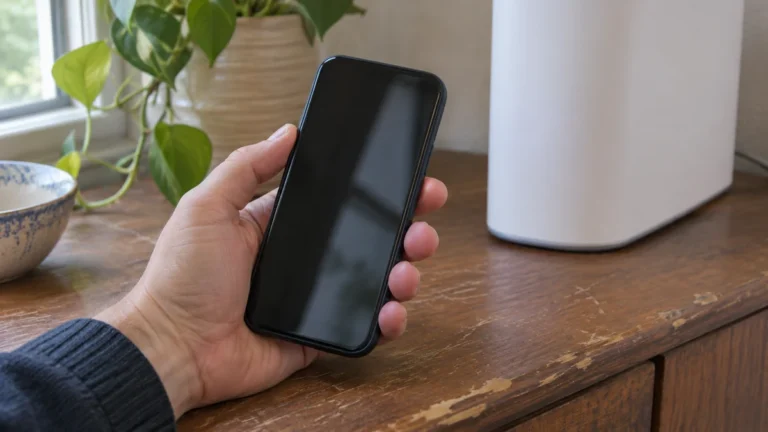
Only one device disconnects
If one laptop or phone loses its connection while everything else keeps working normally, the G36 probably is not losing its internet connection.
The problem may be with that device, its Wi-Fi adapter, saved network settings or its connection to one of the G36’s Wi-Fi bands.
Test another phone or computer in the same location before changing the gateway.
Wi-Fi devices disconnect, but Ethernet still works
This points much more strongly toward the wireless side of the G36.
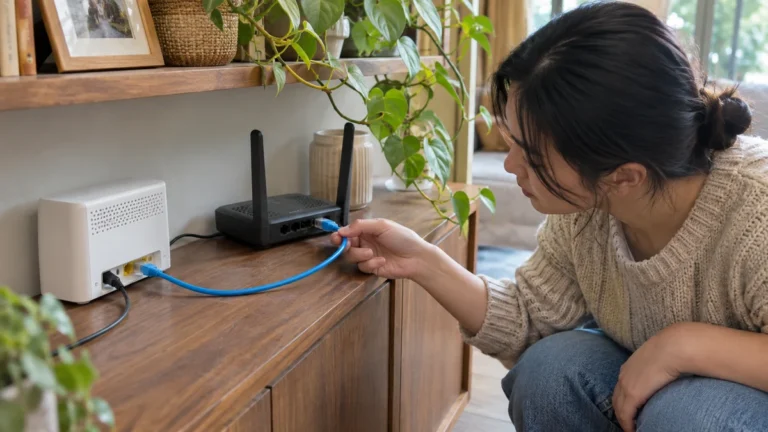
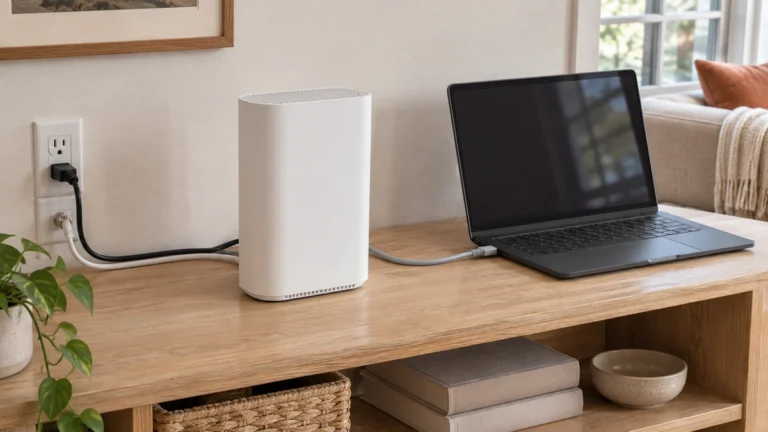
A desktop connected by Ethernet is particularly useful here. If Ethernet remains online while phones and laptops lose Wi-Fi, there is little reason to start with the coax line or call the cable provider.
ARRIS has a separate troubleshooting path specifically for intermittent Wi-Fi on the G34 and G36. It includes checking interference, gateway placement, Wi-Fi channels and Band Steering.
Wi-Fi and Ethernet both lose internet
This changes the diagnosis.
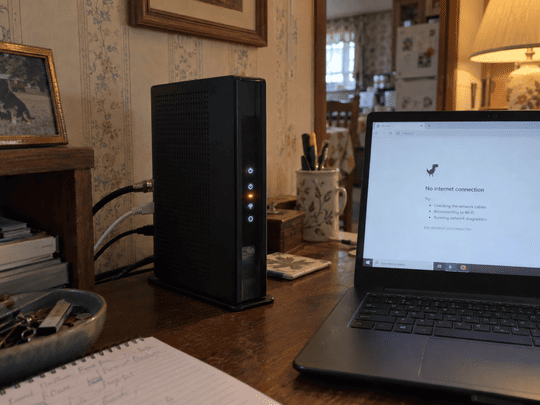
If every device loses internet at roughly the same time, including devices connected directly by Ethernet, the problem may be farther upstream.
Possible causes include the coax connection, cable signal quality, gateway registration, provisioning or an ISP-side interruption.
ARRIS specifically separates intermittent wired problems from Wi-Fi-only problems for the G34 and G36.
That distinction can save a lot of unnecessary Wi-Fi tweaking.
Check the G36 light while the connection is down
Look at the front status light before restarting anything.
A solid green light represents an online DOCSIS 3.0 connection, while solid blue represents an online DOCSIS 3.1 connection. A blinking green light means the gateway is trying to acquire its downstream or upstream cable connection.
That gives you a useful clue.
If the G36 remains solid blue or green while Wi-Fi devices disconnect, concentrate on the wireless network first.
If the light changes from its normal solid state and starts trying to reconnect when the outage happens, concentrate on the coax connection, signal levels and cable service.
Do not restart the gateway immediately every time it fails. Checking the light while the problem is actually happening gives you information that disappears after a reboot.
Restart the G36 properly
For an occasional unexplained disconnect, a normal power cycle is reasonable.
Disconnect power from the G36, wait about a minute, then reconnect it.
ARRIS says the gateway can take approximately four minutes to become fully operational after a reboot, so give it time to reconnect before deciding that the restart failed.
A normal restart does not erase your Wi-Fi name, password or other settings.
If the G36 begins disconnecting again shortly afterward, repeated restarting is not a real fix. Move on to identifying whether the failure is Wi-Fi or cable-related.
If only Wi-Fi keeps dropping
When Ethernet remains stable, concentrate on the wireless network.
Check the gateway’s location
The G36 should not be hidden inside a cabinet, squeezed behind a television or placed on the floor beside a collection of other electronics.
ARRIS recommends placing the gateway in an open area and several feet above the floor when possible. It also identifies nearby radio-producing devices and physical obstructions as possible causes of intermittent wireless connectivity.
A gateway that worked well for months can still develop problems if its environment changes.
A new wireless camera, baby monitor, neighboring access point or even moving the gateway behind furniture can alter Wi-Fi performance without affecting the cable connection itself.
See whether both Wi-Fi bands fail
The G36 supports both 2.4 GHz and 5 GHz Wi-Fi.
If one band becomes unreliable while the other remains stable, that is useful evidence.
The 2.4 GHz band generally reaches farther but operates in a more crowded part of the radio spectrum. The 5 GHz band usually has more capacity but loses signal more quickly through walls and distance.
Do not assume that changing bands permanently fixes the gateway. Use it as a diagnostic test.
If devices repeatedly fail on only one band, investigate that band’s channel, interference and signal conditions.
Try a different Wi-Fi channel
ARRIS specifically recommends changing the wireless channel when nearby networks may be interfering with the G36.
This is more useful than simply rebooting the gateway because a reboot may temporarily move things around without addressing a congested radio environment.
If your neighborhood has many visible Wi-Fi networks, channel congestion becomes a more plausible cause.
Make one change at a time and use the connection normally for a while. Changing several wireless settings together makes it difficult to know what actually helped.
Test Band Steering if it is enabled
Band Steering allows compatible devices to move between the G36’s 2.4 GHz and 5 GHz networks.
That can be useful, but ARRIS also acknowledges that clients can experience interruptions while moving between bands. Its G34/G36 intermittent Wi-Fi guide specifically recommends testing with Band Steering disabled when wireless drops continue.
This does not mean Band Steering is defective or should always be disabled.
It means that if your G36 stays online while Wi-Fi clients repeatedly disconnect, it is a worthwhile diagnostic test.
After disabling it, keep the 2.4 GHz and 5 GHz networks distinguishable and see whether the affected devices remain stable on one band.
If the whole G36 loses internet
If Ethernet and Wi-Fi disappear together, Wi-Fi settings become much less important.
Start with the cable side.
Check the coax connection
Check the coax connector at the back of the G36 and at the wall outlet.
It should be secure and finger-tight.
If the line passes through splitters, adapters or unnecessary extensions, inspect those too. A marginal cable connection can work most of the time and still produce intermittent failures.
ARRIS specifically recommends checking coax connections and splitters when the G34 or G36 begins dropping its cable connection.
Avoid repeatedly disconnecting and reconnecting the coax while the gateway is operating. Inspect it once, secure it properly, then observe whether the problem returns.
Check whether the front light changes during the failure
This is where the earlier LED check becomes useful.
If the normal online light changes to a reconnecting state whenever the internet drops, there is stronger evidence that the cable connection itself is being interrupted.
If the light remains in its normal online state and only one device is affected, the cable line is much less likely to be the problem.
Check the G36’s cable signal information
The G36 provides connection information through its local Web Manager.
From a device connected to the G36, open 192.168.0.1 and sign in with the Web Manager credentials already configured for your gateway.
ARRIS provides downstream power, downstream signal-to-noise ratio and upstream power information in the Connection section of the Web Manager. These values can help identify a marginal cable line.
Do not rely on one snapshot alone.
ARRIS recommends refreshing the signal information multiple times because intermittent problems may appear as changing levels rather than one permanently bad reading.
The official G34/G36 documentation lists downstream power between -15 dBmV and +15 dBmV as its acceptable range. SNR and upstream limits vary depending on modulation, channel count and symbol rate, so use ARRIS’s model-specific table rather than a generic number copied from another modem.
A signal sitting close to a limit can also be more suspicious when the connection is intermittent.
If the signal values repeatedly move outside ARRIS’s stated ranges, the problem is unlikely to be solved by changing Wi-Fi settings.
Check whether the problem follows heavy usage
Another useful test is whether the connection fails during particular activity.
For example:
- several simultaneous video streams
- large game or software downloads
- cloud backups
- many active devices
- heavy traffic through one Ethernet device
This does not automatically mean the G36 is overloaded.
Instead, disconnect unnecessary clients and test with a smaller number of devices. ARRIS recommends isolating devices during intermittent wired troubleshooting to see whether the problem follows one particular client or network load.
If the gateway loses its cable connection even with one computer connected directly by Ethernet, that is much stronger evidence against ordinary Wi-Fi congestion.
Do not confuse the G36 with an SB8200
ARRIS sells both gateways and standalone cable modems, but their troubleshooting paths are not identical.
The G36 contains its own router and Wi-Fi system.
The SB8200 is a standalone cable modem and normally needs a separate router for Wi-Fi.
If you actually have an SB8200 rather than a G36, use the ARRIS SB8200 lights guide instead. The LED layout and diagnosis are different.
Checking the exact model before changing settings prevents a surprising amount of bad troubleshooting advice.
Should you factory reset the G36?
A factory reset belongs near the end of the process, not the beginning.
It erases customized gateway settings and returns the G36 to its factory configuration.
ARRIS also places factory reset after its other troubleshooting steps and warns that custom settings will be lost. For the G34/G36, the documented hardware reset procedure is to press the recessed Reset switch on the back for at least 20 seconds.
Before doing that, make sure you have already checked:
- whether Ethernet also disconnects
- the front LED during an outage
- coax connections
- Wi-Fi interference and placement
- Band Steering, if enabled
- cable signal information
- whether only one client is affected
A reset will not repair a damaged coax line, an ISP signal problem or failing hardware.
When the cable provider needs to investigate
The cable provider becomes the next logical step when the evidence points beyond the home Wi-Fi network.
That includes situations where:
- Wi-Fi and Ethernet fail together
- the G36 repeatedly loses its online state
- coax connections are secure
- signal readings are outside ARRIS’s specified ranges
- the connection continues dropping after a normal restart
- the problem occurs with a single computer connected directly by Ethernet
ARRIS’s own G34/G36 troubleshooting guidance recommends involving the cable provider when signal levels are outside acceptable limits or when provisioning and signal-related problems remain after local troubleshooting.
At that point, replacing Wi-Fi settings or repeatedly factory-resetting the G36 is unlikely to address the actual failure.
When the G36 itself may be the problem
Hardware failure is possible, but it should not be the first assumption.
The G36 becomes more suspicious when the cable line tests normally, multiple devices experience the same failure, Ethernet and Wi-Fi behavior cannot be explained by signal loss, and the gateway continues failing after normal configuration troubleshooting.
Heat can also make intermittent electronics problems harder to diagnose. Keep the gateway upright with ventilation around it rather than enclosing it in a cabinet or stacking other equipment against it.
If a factory reset, stable cable signal and confirmed ISP service still leave the G36 repeatedly dropping connections, replacement becomes more reasonable than endlessly repeating the same reboot cycle.
The important distinction
An ARRIS G36 that keeps disconnecting does not have one universal cause.
The fastest diagnosis comes from separating the problem into two sides.
If Ethernet continues working while Wi-Fi drops, investigate wireless interference, channels, placement, client devices and Band Steering.
If Ethernet and Wi-Fi disappear together and the front light shows the G36 reconnecting, investigate coax, cable signal levels and the service connection.
That one distinction usually tells you which half of the gateway actually needs attention.
Official sources
ARRIS Consumer Care: G34/G36 Troubleshooting Intermittent Wi-Fi Connections
ARRIS Consumer Care: G34/G36 Troubleshooting Intermittent Wired Connections
ARRIS Consumer Care: G34/G36 Troubleshooting Internet Connection