
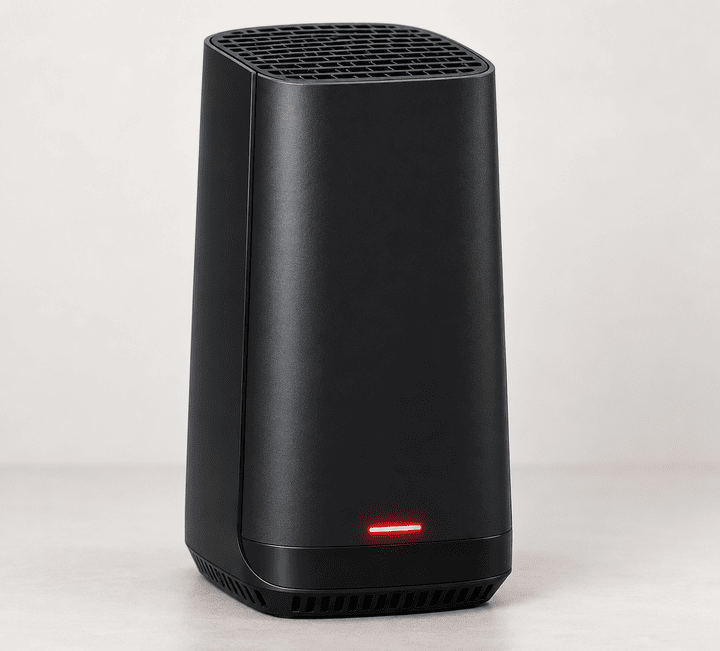
A red light on a Spectrum router does not mean exactly the same thing on every Spectrum router.
On a Spectrum WiFi 5 Wave 2 router, blinking or pulsing red means the router is disconnected from the internet. On a Spectrum WiFi 6 router, pulsing red means there is a connectivity problem and no internet connection. But on a WiFi 6E router, Spectrum defines pulsing red differently: the router has connectivity but does not have management access. Drupal CMS
So before resetting anything, check which router you have and exactly how the red light is behaving.
Quick answer: what does the red light mean?
| Router / light pattern | Spectrum’s documented meaning | What to do |
| WiFi 5 Wave 2, blinking or pulsing red | Disconnected from the internet | Check outage, modem, Ethernet cable and restart |
| WiFi 6, pulsing red | Connectivity issue, no internet | Check modem and Spectrum service, then restart |
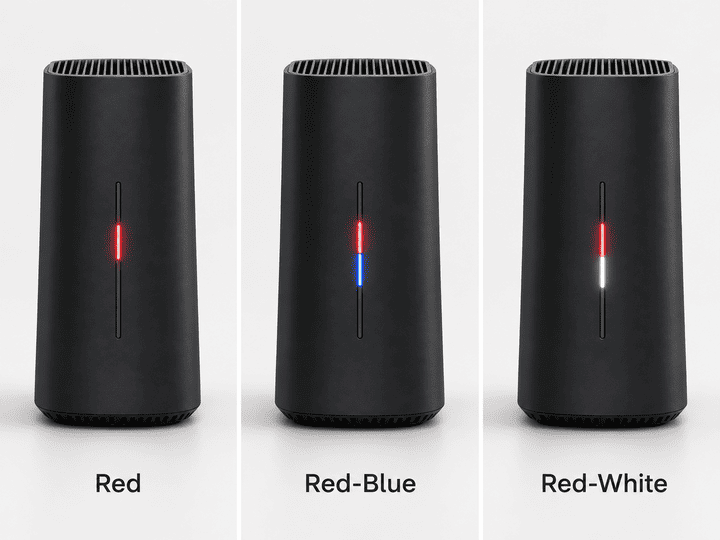
| WiFi 6, red and blue/green alternating | Firmware update | Leave the router powered on |
| WiFi 6, red and white alternating | Router is overheating | Improve airflow and let it cool |
| WiFi 6E, pulsing red | Connectivity exists but there is no management access | Test the internet first, then troubleshoot management/app access |
| WiFi 6E, red and blue pulsing | Firmware update | Do not interrupt it |
| Solid red | Not listed as a standard state in the current Wave 2, WiFi 6 or WiFi 6E guides checked | Identify the exact model, restart it, then contact Spectrum if it remains red |
The last point matters. A lot of troubleshooting pages say that a solid red Spectrum router always means a “critical hardware failure.” Spectrum’s current manuals for the three router families above do not document solid red that way. Treat it as an abnormal state rather than assuming the router is dead. Drupal CMS
First, look at the pattern, not just the color
Before unplugging the router, watch the light for 20 to 30 seconds.
If it is switching between red and blue, you may be looking at a firmware update rather than an internet failure. Spectrum says its WiFi 6 and WiFi 6E routers automatically restart after the update finishes. Interrupting an update is not a good troubleshooting step. Drupal CMS
If you have a WiFi 6 router and the light alternates red and white, Spectrum documents that as overheating. Check that the router is upright, uncovered and in an open area rather than inside a cabinet or behind other hot equipment. Drupal CMS
For a normal red pulse or blink, continue below.
1. Check whether Spectrum is having an outage
Do this before moving cables or resetting equipment.
Spectrum provides outage information through your account and the My Spectrum app. If there is an outage in your area, restarting the router repeatedly will not restore the connection until Spectrum’s service comes back. Spectrum
If an outage is shown, leave the equipment connected and wait for service to return.
If Spectrum shows no outage, move to the modem.
2. Check the modem before blaming the router
Many Spectrum installations use two separate boxes:
Modem: connects your home to Spectrum.
Router: takes that connection and provides WiFi and local networking.
A red router light can simply be the router telling you that it is not receiving a working connection from the modem.
Look at the modem’s status rather than concentrating only on the router.
If the modem has not finished connecting, deal with that problem first. If the modem appears online but the router remains red, the problem is more likely to be the Ethernet connection between them or the router itself.
Do not rely on a generic modem-light chart here. Spectrum supplies different modem models, and their LED patterns are not all identical.
3. Check the Ethernet cable between the modem and router
Spectrum’s router manuals identify a dedicated Internet or WAN port that connects the router to the modem. Drupal CMS
Check both ends of that cable.
Unplug it and reconnect it firmly at the modem and router. You should feel or hear the connector click into place.
Also check that it is plugged into the router’s Internet/WAN port rather than one of its normal LAN Ethernet ports.
If you have another known-good Ethernet cable available, trying it is a simple way to rule out a damaged cable.
4. Restart the modem and router in the correct order
For normal Spectrum cable internet equipment, Spectrum’s current support instructions say to restart the modem first and the router second. Spectrum
- Unplug power from the modem.
- Unplug power from the router.
- Wait about 30 seconds.
- Reconnect the modem.
- Wait roughly two minutes for the modem to reconnect and its connection lights to settle.
- Reconnect the router.
- Wait another two minutes for the router to start and reconnect.
- Test the internet on a phone or computer.
The important part is not just turning everything off and on. The modem should have time to reconnect to Spectrum before the router tries to establish its own internet connection.
Important: Spectrum specifically warns that manual troubleshooting should not be performed the same way on fiber equipment. If your service uses Spectrum Fiber or an optical network unit rather than a normal cable modem, use Spectrum’s account/app troubleshooting or contact Spectrum rather than unplugging fiber equipment. Spectrum
5. If you have WiFi 6E and the router is pulsing red, test the internet
This is where Spectrum’s WiFi 6E router is different.
Spectrum’s WiFi 6E manual says pulsing red means there is connectivity but no management access. It does not simply say “no internet.” Drupal CMS
So try opening a few websites first.
If the internet works but you cannot manage the router in the My Spectrum app, the problem is different from a normal internet outage.
Try restarting the router through your Spectrum account or the My Spectrum app. If management access still does not return, contact Spectrum rather than factory resetting the router immediately.
6. If the light is red and white, check for overheating
This applies specifically to the Spectrum WiFi 6 status documented in its official guide.
Alternating red and white means the router is overheating. Drupal CMS
Make sure the router is:
- standing normally rather than lying against something
- in an open area
- not inside a closed cabinet
- not covered by other equipment
- not sitting directly beside another hot device
- able to get airflow through its vents
Spectrum also recommends placing routers in an open location rather than inside a media center or closet. Drupal CMS
If the overheating pattern keeps returning even after the router has cooled and has good ventilation, contact Spectrum. A fan or thermal problem inside the router may need equipment replacement.
Do not factory reset the router yet
A factory reset is different from restarting the router.
On Spectrum’s WiFi 6 router, holding the reset control for 4 to 14 seconds reboots the router without removing personalized settings. Holding it for 15 seconds or longer performs a factory reset and removes your personalized configuration. The WiFi 6E guide gives the same 15-second-plus threshold for factory reset. Drupal CMS
That means a long press can wipe settings when all you wanted was a restart.
For a red light problem, start with the outage check, cables and normal reboot procedure. Factory reset should be a later troubleshooting step, not the first one.
What if the Spectrum router stays red after restarting?
Use this simple decision path:
| What you see | Next step |
| Spectrum reports an outage | Wait for the outage to end |
| Modem is not properly online | Troubleshoot the modem or Spectrum line first |
| Modem appears online but router is red | Reseat or replace the Ethernet cable |
| Red and blue pattern | Leave the router alone while firmware updates |
| Red and white on WiFi 6 | Check overheating and ventilation |
| WiFi 6E pulses red but internet still works | Troubleshoot router management access |
| Router remains red after modem-first restart | Contact Spectrum |
| Solid red remains after restart | Identify the exact model and contact Spectrum rather than assuming a universal meaning |
When to contact Spectrum
It is time to stop troubleshooting locally if:
- the modem cannot reconnect even though no outage is reported
- the router remains red after a correct modem-first restart
- the router repeatedly overheats
- the router keeps returning to red every few minutes or hours
- a firmware-update pattern never finishes
- the My Spectrum app reports an equipment or connection problem
- you have Spectrum Fiber and are unsure which equipment can safely be restarted
Spectrum’s own router manuals direct customers to Spectrum support for further equipment help. Drupal CMS
Frequently asked questions
Why is my Spectrum router blinking red?
On a Spectrum WiFi 5 Wave 2 router, blinking or pulsing red means it is disconnected from the internet. On a WiFi 6 router, pulsing red means there is a connectivity issue and no internet connection. Check for a Spectrum outage, then check the modem and the Ethernet cable before restarting the equipment. Drupal CMS
What does a solid red Spectrum router light mean?
The current Spectrum WiFi 5 Wave 2, WiFi 6 and WiFi 6E guides checked for this article do not list solid red as one of their normal documented status patterns. Do not automatically assume it means the router is permanently broken. Restart the equipment, identify the exact router model and contact Spectrum if the light remains solid red. Drupal CMS
Why is my Spectrum router flashing red and blue?
On Spectrum WiFi 6 equipment, alternating red and blue/green indicates a firmware update. WiFi 6E uses a red-and-blue pulsing pattern for firmware updates. The router should restart automatically, so avoid unplugging it while the update is running. Drupal CMS
Does a red Spectrum router always mean the internet is down?
No. It depends on the router. WiFi 5 Wave 2 and WiFi 6 use red for internet connectivity problems, while Spectrum’s WiFi 6E guide says pulsing red means connectivity exists but management access is unavailable. Drupal CMS
Should I press the reset button when my Spectrum router is red?
Not as the first step. Check for an outage, inspect the modem connection and perform a normal restart first. A long reset-button press on WiFi 6 and WiFi 6E equipment can factory reset the router and erase personalized settings. Drupal CMS
Sources
Spectrum WiFi 5 Wave 2 Router User Guide, Version 6. Drupal CMS
Spectrum WiFi 6 Router User Guide, Version 13. Drupal CMS
Spectrum WiFi 6E Router User Guide, Version 12. Drupal CMS
Spectrum Support, outage information and modem/router reboot instructions. Spectrum