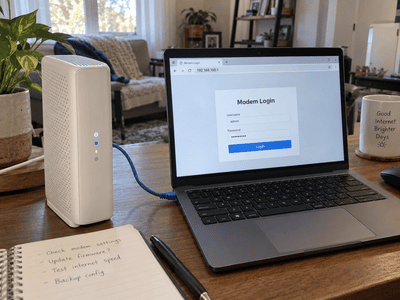
The ARRIS S33 and S34 use 192.168.100.1 for their local Web Manager.
That page lets you check the modem’s connection status, firmware information, cable signal data, event log and other diagnostic information.
The confusing part is the password.
Depending on the firmware installed on the modem, the default password may be password or the last eight digits of the modem’s serial number. That is why older S33 login instructions do not always work on newer units.
How to log in to an ARRIS S33 or S34
Start with a device connected to your home network.
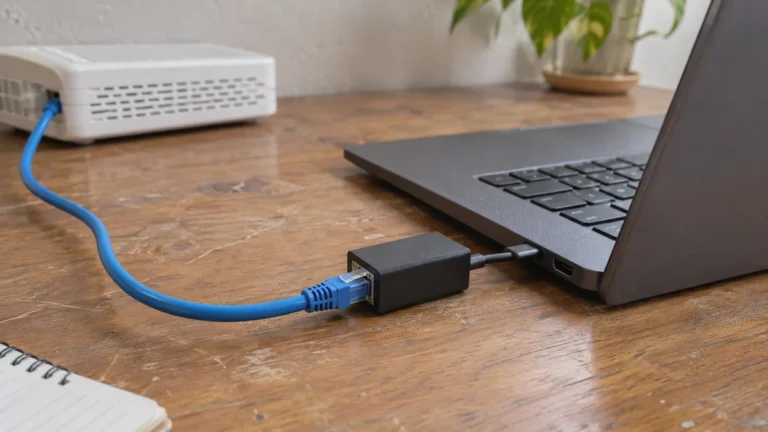
If the page does not work through your router, a direct Ethernet connection to the modem is the better troubleshooting method. ARRIS specifically recommends connecting the S33 or S34 directly to a computer when Web Manager access is giving you trouble.
Then:
- Open Chrome, Edge, Firefox, Safari or another browser.
- Type http://192.168.100.1 directly into the address bar.
- Press Enter.
- Enter admin as the username.
- Enter the correct modem password.
- Click Apply.
Do not search Google for 192.168.100.1. It needs to be typed directly into the browser address bar.
What is the ARRIS S33 default password?
This is where many S33 guides become outdated.
ARRIS currently documents two possible first-login passwords for the S33 and S34:
- password
- the last eight digits of the modem’s serial number
ARRIS states that firmware versions before TB01.02.001.08 use password as the default.
On other firmware versions, the last eight digits of the serial number may be the correct default password.
The serial number is printed on the label on the bottom of the S33 or S34.
The username remains:
admin
If one default does not work, do not spend ten minutes trying random passwords from router-login websites. Check the modem label and consider which firmware behavior applies to your unit.
The S33 may ask you to create a new password
The default password is not meant to remain permanently.
During first login, the S33/S34 Web Manager can ask you to create a custom admin password before continuing.
After that, the original default password will no longer be the password you normally use.
This is important if you bought the modem some time ago and suddenly cannot remember the login.
A password such as password failing does not necessarily mean something is wrong with the modem. A custom admin password may already have been created during the original setup.
What can you do inside the S33 Web Manager?
The S33 Web Manager is mainly a modem monitoring and diagnostic interface.
It can show information such as:
- modem operational status
- firmware version
- downstream connection information
- upstream connection information
- cable signal levels
- system event log
- modem addresses and identification information
- configuration information
- admin login settings
This is different from the administration page of a separate WiFi router.
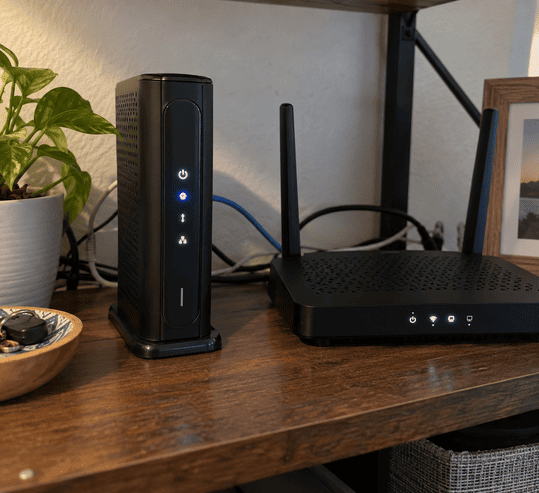
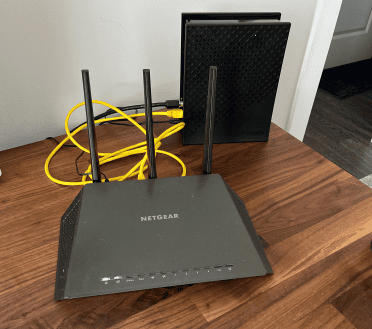
If your S33 is connected to a NETGEAR, TP-Link, ASUS, eero or another router, WiFi names, WiFi passwords, wireless channels and most home-network settings are normally controlled by that router, not the S33 Web Manager.
For a broader explanation of modem diagnostic pages, see our 192.168.100.1 login guide.
192.168.100.1 not opening on the S33
If 192.168.100.1 does not load, first separate an access problem from an internet problem.
You do not need normal internet access to open a local modem page. Your computer does, however, need a working path to the S33.
Work through these checks in order.
Make sure you typed the address correctly
Use:
http://192.168.100.1
Common mistakes include:
192.168.100.l
192.168.100.01
192.168.1.100
192.168.0.1
The last two are valid private addresses, but they are not the S33/S34 Web Manager address documented by ARRIS.
Also try entering the full address with http:// rather than relying on the browser to decide how it should open the page.
Connect directly to the S33 with Ethernet
If the modem is behind a separate router and the page still refuses to load, connect a computer directly to the S33’s Ethernet port.
ARRIS recommends this method when accessing the Web Manager.
Temporarily disconnect the router from the modem and connect the computer instead.
Then try:
http://192.168.100.1
This removes the router from the path and helps determine whether the router is the reason the modem page cannot be reached.
Once testing is finished, reconnect your normal equipment.
Try another browser
The Web Manager is a local page, but browser cache, extensions or previous redirects can sometimes get in the way.
Try:
- a private or incognito window
- another browser
- closing and reopening the browser
If another browser opens the page immediately, the modem itself probably was not the problem.
Why does the browser show a privacy warning?
A privacy or security warning can appear when opening the S33/S34 Web Manager.
ARRIS specifically documents this behavior for the local modem interface.
If you intentionally opened your own modem at:
192.168.100.1
and you are connected to your own S33 or S34, this warning can be part of normal local Web Manager access.
That does not mean every browser security warning should be ignored.
Only continue when you have verified that the address is the local S33/S34 Web Manager and not an unrelated website.
The login page opens but the password does not work
This is a different problem from the page not opening.
Start with the known S33/S34 credential behavior:
Username: admin
For a modem that has never had its admin password changed, try the appropriate documented default:
- password
- last eight digits of the serial number
Remember that ARRIS specifically identifies password for firmware versions before TB01.02.001.08.
If someone has already completed the first-login process, the modem may instead require the custom admin password that was created at that time.
Do not confuse this with:
- your WiFi password
- your ISP account password
- the password for your separate router
- your ARRIS product-registration account
They are different credentials.
Too many failed login attempts
Repeatedly guessing passwords can make the situation worse.
ARRIS documents a temporary login lock after the maximum number of incorrect attempts is reached.
If you see a message saying the maximum number of login attempts has been reached, stop trying passwords.
Wait about 10 minutes, then try again using the correct username and password.
This is much better than immediately factory-resetting a working modem because the login page temporarily locked you out.
How to find the S33 serial number
If your modem requires the serial-number password, turn the S33 or S34 over and look at the label on the bottom.
Find the serial number marked S/N.
Use the final eight digits as the password when that is the default method used by your firmware.
Be careful not to use the modem’s MAC address instead. The serial number and MAC address are different identifiers.
If you can log in but your internet is failing
Once inside the Web Manager, the useful information is not just whether the page works.
The S33 can show cable connection information that can help separate a modem or coax problem from an issue with your router or WiFi.
Two useful areas are the cable signal information and the event log.
The signal page shows downstream and upstream information from the cable connection.
The event log records modem events that can be useful when investigating repeated disconnects or loss of service.
A local modem page loading successfully does not prove that your cable service itself is healthy. It only proves that your device can reach the modem’s local interface.
Likewise, a WiFi problem on a separate router does not automatically mean anything is wrong with the S33.
S33 Web Manager works, but there is no internet
If you can open 192.168.100.1 but websites will not load, the Web Manager login is not the main problem.
Check:
- whether the modem reports an internet connection
- the S33 front status light
- coax connections
- your ISP’s outage status
- cable signal information
- whether the separate router has a working Ethernet connection to the modem
If the S33 itself is online but your router is not, troubleshoot the Ethernet and router side of the network.
If the S33 is not establishing a cable connection, changing the Web Manager password will not fix it.
Forgot the custom S33 admin password?
Do not factory-reset the modem just because the first password you tried failed.
First:
- Make sure you are using admin as the username.
- Check whether a custom password was created previously.
- Try the correct documented default only if the modem has not been customized.
- Wait 10 minutes if login attempts have been temporarily locked.
- Confirm that you are actually accessing your own S33/S34 at 192.168.100.1.
If the custom admin password is genuinely lost, a factory reset becomes an option.
Factory reset the S33 only as a last resort
A factory reset removes configuration changes and returns the modem’s Web Manager login to its default state.
ARRIS documents the physical reset procedure for the S33/S34 as follows:
- Locate the Reset button on the bottom of the modem.
- Use a pen tip or straightened paperclip.
- Press and hold the Reset button for 20 seconds.
- Release it and allow the modem to restart.
Do not confuse this with a normal reboot.
After the factory reset, the admin password returns to the appropriate default behavior for the modem, which can be the last eight digits of the serial number or password, depending on firmware.
A reset should be reserved for a genuinely lost admin password or another situation where simpler access troubleshooting has failed.
Does the ARRIS S34 use the same login?
Yes.
ARRIS currently groups the S33 and S34 together in its Web Manager documentation.
Both use:
http://192.168.100.1
and the same general Web Manager login process.
The same warning about the default password also applies. Do not assume every S33 or S34 uses password simply because an older guide says so.
The firmware and whether a custom admin password has already been created both matter.
Sources
ARRIS Support: S33/S34 Web Manager Access
ARRIS Support: S33/S34 Cable Signal Levels
ARRIS Support: S33/S34 Factory Reset