If your NETGEAR CAX80 WiFi keeps disconnecting but a computer connected by Ethernet stays online, that is an important clue.
The CAX80 combines a cable modem and a WiFi 6 router in one box. That means the cable connection can be completely fine while the wireless side has a problem of its own.
Before resetting anything, find out exactly what is dropping. That usually cuts the troubleshooting time considerably.
First, check whether WiFi is really the part failing
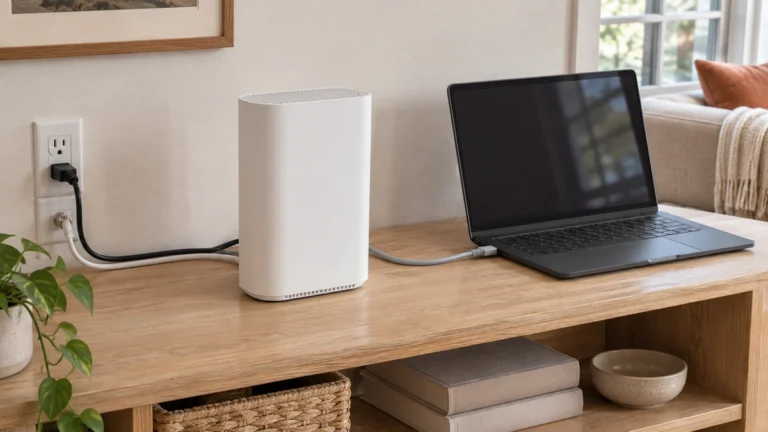
When the connection drops again, try a device connected directly to the CAX80 with Ethernet.
If Ethernet still has internet but phones, tablets or laptops on WiFi do not, the cable modem side is probably still online. Concentrate on the CAX80’s wireless settings, firmware and WiFi radios.
If both Ethernet and WiFi lose internet at the same time, skip down to the cable connection section. That points more toward the modem side, your ISP connection or the CAX80 as a whole.
Also check whether every wireless device is affected.
If one phone keeps disconnecting but everything else stays connected, the CAX80 may not be the problem. Forget the WiFi network on that device, reconnect it and make sure the device itself is updated before changing router settings.
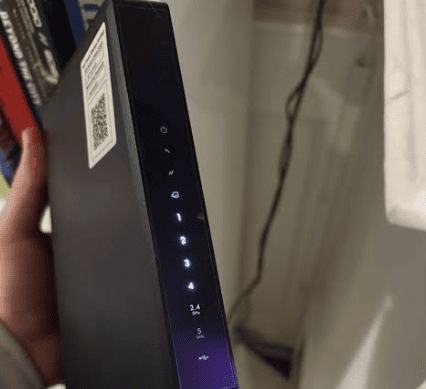
Check whether 2.4 GHz, 5 GHz or both are dropping
This is especially useful on the CAX80.
There have been recent CAX80 reports where the 5 GHz network stopped working while Ethernet and 2.4 GHz continued to work normally. That does not mean every CAX80 has a 5 GHz fault, but it makes testing the two WiFi bands separately worthwhile.
If Smart Connect is enabled, the CAX80 normally handles band selection under a shared WiFi name.
For troubleshooting, temporarily disabling Smart Connect can make the problem easier to see because the 2.4 GHz and 5 GHz networks can be tested separately. NETGEAR allows Smart Connect to be enabled or disabled through the router’s Wireless settings.
Connect one device to 2.4 GHz and another to 5 GHz.
If 2.4 GHz remains stable while 5 GHz repeatedly disappears or stops passing traffic, there is little reason to spend time troubleshooting the coax cable first.
If both bands fail together while Ethernet remains online, look more closely at firmware, Protection Engine and the wireless side of the gateway.
Reboot the CAX80 once, but don’t make rebooting the solution
A normal reboot is worth doing once.
If WiFi immediately returns and stays stable afterward, monitor it.
If you find yourself rebooting the CAX80 every few days or every week just to keep WiFi working, the reboot is hiding the fault rather than fixing it.
Repeated wireless failures deserve a little more diagnosis before setting up timers, smart plugs or scheduled restarts.
Check the CAX80 router firmware
The CAX80 is unusual compared with many ISP cable gateways because its router firmware and cable modem firmware are separate.
NETGEAR allows the CAX-series router firmware to be updated by the owner. The cable firmware is handled by the ISP.
That distinction matters.
A WiFi problem can come from the router side even when the cable modem portion is operating normally.
Use the CAX80’s Router Update function or the Nighthawk app to check for router firmware rather than assuming the firmware number from an old forum post is still current.
If updating through the web interface, using an Ethernet-connected computer is the safer choice. Do not interrupt power while firmware is being installed.
After an update, test the CAX80 before changing several other settings at once. Otherwise it becomes difficult to know what actually fixed the problem.
Test Protection Engine if the problem looks similar
Protection Engine deserves a separate mention because it has specifically appeared in CAX80 WiFi troubleshooting.
In September 2025, a CAX80-specific notice on the NETGEAR Community reported that some users experiencing WiFi connection problems saw improvement after disabling Protection Engine.
There is an important update to that advice.
NETGEAR’s newer Protection Engine guidance says an updated engine has been pushed to routers and should address the earlier internet access issue. So Protection Engine should not automatically be blamed every time a CAX80 drops WiFi.
It is still useful as a temporary diagnostic test if the option appears on your CAX80.
Look under:
Advanced > Security > Protection Engine
Temporarily disable it and use the network normally.
If the random WiFi drops disappear, that is useful evidence.
If nothing changes, turn it back on and continue troubleshooting rather than leaving a security feature disabled for no reason.
Try a different 5 GHz channel
A busy or troublesome WiFi channel can cause connection drops even when the internet service itself is fine.
NETGEAR recommends leaving the normal channel settings alone unless you are actually experiencing interference or lost connections. When 5 GHz connectivity is the problem, NETGEAR specifically suggests experimenting with a lower 5 GHz channel in the 36 to 48 range. Available channels can vary by region.
This is particularly worth trying when:
- Ethernet remains stable
- 2.4 GHz remains stable
- 5 GHz devices disconnect
- the 5 GHz network occasionally disappears
- WiFi works again after restarting the wireless side or rebooting the CAX80
Change only the channel first.
Use the network for a while before changing more settings.
Making five changes at once might appear to fix the problem, but you will not know which one mattered.
Check Smart Connect separately
Smart Connect is convenient because the CAX80 can steer devices between its WiFi bands automatically.
Normally there is no reason to disable it.
For troubleshooting, however, turning it off temporarily can answer an important question: is the CAX80 itself losing WiFi, or is a particular device having trouble when it is moved between bands?
With Smart Connect disabled, test 2.4 GHz and 5 GHz independently.
If both are stable separately but problems return with Smart Connect enabled, you have narrowed the problem considerably.
If one band still fails with Smart Connect off, concentrate on that band instead.
If WiFi and Ethernet both disconnect, check the cable side
The diagnosis changes when Ethernet drops at the same time as WiFi.
Now the problem could be the cable connection rather than simply the wireless radio.
The CAX80 can provide cable modem event information that may help separate a local WiFi issue from an ISP-side problem.
NETGEAR’s cable modem guidance lists the CAX80 among the models that can show modem event logs. Those logs record events related to the connection between the modem and the cable provider.
You can also use NetMovo’s 192.168.100.1 modem page guide if you are having trouble reaching the local modem diagnostics page.
At this point, check a few basic things:
- Make sure the coax connector at the CAX80 has not become loose.
- Check whether your ISP is reporting an outage.
- Look at whether both wired and wireless devices lose internet at exactly the same time.
- Review the modem event log around the time the connection failed.
- If you use coax splitters, remember that a cable-side fault can affect the whole gateway rather than only WiFi.
Do not assume that every entry in the event log means the modem is bad. The useful part is whether the failures line up with the actual internet drops.
What if only one device keeps disconnecting?
If most devices stay connected, changing the CAX80 may create more problems than it solves.
Start with the affected phone, laptop, TV or smart device.
Forget the WiFi network and reconnect.
Restart the device.
Install its current operating system and WiFi adapter updates where applicable.
If possible, test that same device on both 2.4 GHz and 5 GHz.
Older or inexpensive smart-home devices can also behave differently with newer WiFi features. One troublesome client does not prove the CAX80 WiFi itself is unstable.
Don’t disable WiFi 6 unless the evidence points there
The CAX80 supports WiFi 6, and NETGEAR provides an option to disable its AX features.
That can be useful as a compatibility test when an older device is the only thing having trouble. It should not be the first change made when every device on the network is disconnecting.
If disabling WiFi 6 suddenly makes one older client stable, the problem is more likely a compatibility issue involving that client.
If nothing changes, turn WiFi 6 back on.
Factory reset should be near the end
A factory reset can fix corrupted configuration, but it also erases the settings you changed.
Do it after firmware, band testing, channel testing and the other simpler checks have failed.
For the CAX80 and other supported NETGEAR cable modem routers, NETGEAR’s current reset procedure is to press and hold the rear Reset button for about seven seconds, release it, then allow the gateway to reboot.
Before doing that, make sure you know how you are going to set the network back up.
Do not restore an old configuration backup immediately if you are trying to determine whether the configuration itself caused the problem. A clean setup gives you a better test.
When the CAX80 itself starts looking suspicious
Hardware becomes more likely when the same failure keeps returning after the software and configuration causes have been ruled out.
Warning signs include:
- both WiFi bands repeatedly fail across several devices
- Ethernet remains stable every time WiFi dies
- current router firmware does not change the behavior
- channel changes make no difference
- the problem returns after a clean factory setup
- WiFi radios repeatedly stop responding while the modem side remains online
That still does not prove the CAX80 is defective, but replacing hardware starts to make more sense than endlessly changing settings.
If both wired and wireless internet fail together, treat that as a different problem. Check the cable side and ISP connection before replacing the gateway.
The important part with a CAX80 is separating the modem problem from the WiFi problem. Once you know which half is failing, the troubleshooting becomes much more straightforward.
Sources
NETGEAR Support: Updating firmware on CAX-series cable modem routers
NETGEAR Support: Viewing cable modem event logs
NETGEAR Community: CAX80 and Protection Engine notice