If your Motorola MB8611 keeps rebooting several times a day, replacing the modem should not be the first move.
The MB8611 has a history of reboot complaints, including a well-known Xfinity firmware problem several years ago. There are also fresh reports in 2026 from owners seeing repeated restarts. That does not mean firmware is automatically the cause today. Power problems, a bad coax path, signal loss, overheating, ISP provisioning and failing hardware can produce very similar symptoms.
The useful first step is figuring out whether the MB8611 is actually rebooting or simply losing its cable connection.
Is the MB8611 really rebooting?
A full reboot and a temporary internet drop are not quite the same problem.
During a genuine reboot, the modem goes through its startup sequence again. The downstream, upstream and Online lights reconnect in stages, and the system uptime in the modem interface starts over.
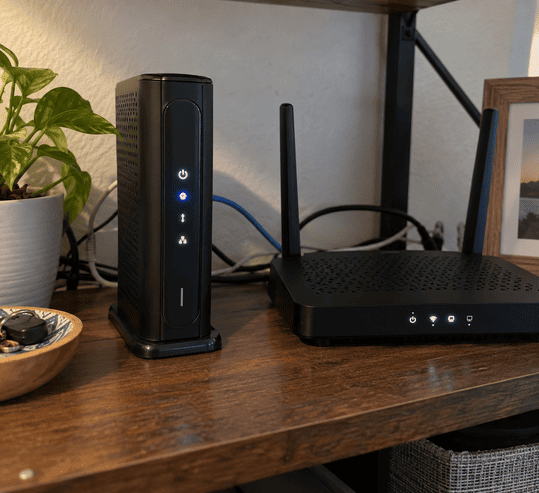
Motorola’s MB8611 documentation says the Online light blinks while the modem is trying to go online, then stays green for DOCSIS 3.0 or blue for DOCSIS 3.1. The downstream and upstream lights also change while channels are being acquired and bonded.
If the modem’s uptime resets to zero, you have strong evidence that it actually restarted.
If the uptime remains intact but the Online light drops and reconnects, the modem may be losing the cable connection rather than rebooting completely.
That distinction saves a lot of wasted troubleshooting.
One important detail: the MB8611 is only a modem
The MB8611 does not contain a Wi-Fi router.
Motorola’s specifications describe it as a DOCSIS 3.1 cable modem with one 2.5 Gigabit Ethernet port and no built-in wireless router.
That matters because a Wi-Fi outage does not automatically mean the MB8611 rebooted.
If your wireless network disappears but the MB8611 remains online with normal lights and its uptime has not reset, check the separate router instead.
If both the router’s WAN connection and the MB8611 go down while the modem starts its light sequence again, continue with the modem checks below.
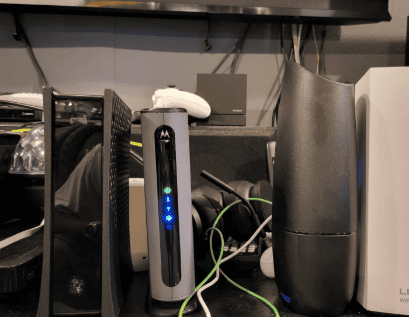
Start with the power connection
Repeated power loss can look exactly like a modem fault.
Motorola specifies a 12V DC, 1.5A power adapter for the MB8611. The modem also has a physical power button on the rear.
Check the simple things first:
- Make sure the MB8611’s power connector is firmly seated.
- Confirm the rear power button is fully on.
- Check that the power adapter is not loose at the wall.
- Temporarily test another reliable wall outlet.
- If it is connected through a questionable power strip, UPS or extension lead, test it directly from a wall outlet.
- Use the correct MB8611 power supply rather than a similar-looking adapter from another device.
Pay attention to the Power light during the next failure.
If the Power light goes completely out and the modem then starts from the beginning, investigate the outlet, adapter and power connection before blaming the coax line or firmware.
If the Power light remains on while downstream, upstream and Online connectivity disappears, the cable side becomes more suspicious.
Check the coax cable and splitters
The MB8611 depends on a stable DOCSIS connection to your cable provider.
A loose connector, damaged coax cable, poor splitter or problem outside the house can cause the modem to lose synchronization and reconnect repeatedly.
Motorola’s installation guide specifically warns that a poorly chosen splitter can reduce performance or prevent the modem from connecting. It also recommends checking the coax, Ethernet and power connections when the modem stops working.
Inspect the coax cable where it enters the MB8611 and where it connects to the wall.
The connector should be secure, but there is no need to attack it with pliers.
If your modem runs through one or more unnecessary splitters, temporarily bypass them if your wiring allows it. This is a useful test, not necessarily a permanent rewiring recommendation.
A modem that becomes stable when a splitter is removed has given you a useful clue.
Open the MB8611 diagnostic page
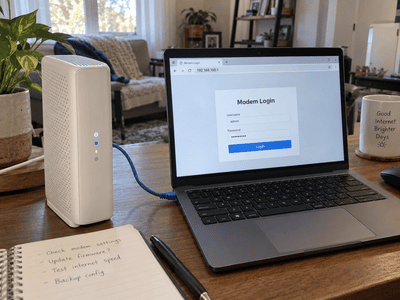
The MB8611 has a local configuration and diagnostic interface at:
192.168.100.1
Motorola’s own MB8611 label documentation identifies that address as the modem’s Configuration Manager.
If you have trouble opening it, NetMovo’s 192.168.100.1 login guide covers local modem-page access in more detail.
The diagnostic page is much more useful than simply rebooting the modem again.
Look for:
- system uptime
- downstream channels
- upstream channels
- corrected and uncorrected errors
- event log entries
- software or firmware version
Take screenshots or save the important readings before power cycling the modem. Once it restarts, some of the useful evidence may disappear.
Check the event log around the reboot time
The event log can help separate a cable-network problem from a sudden power restart.
Motorola’s cable troubleshooting documentation explains that repeated T3 or T4 timeout events can indicate trouble communicating with the cable provider’s CMTS. Motorola specifically points users toward the coax path and ISP when these events repeatedly appear around connection drops.
One T3 entry is not enough to declare your cable line defective.
What matters more is the pattern.
If you repeatedly see T3, T4, synchronization or ranging problems immediately before or during outages, the cable connection deserves attention.
If the modem restarts and there is no useful event immediately before it, power, firmware or hardware becomes more plausible.
The event log is evidence, not a magic error-code decoder.
Watch what the downstream and upstream lights do
The front lights can tell you which part of startup is failing.
On the MB8611:
- a blinking downstream light means the modem is acquiring or bonding downstream channels
- a blinking upstream light means it is ranging or negotiating upstream channels
- a blinking Online light means it is trying to get online
Motorola also notes that a continuously blinking blue downstream or upstream light can indicate partial service because at least one designated channel has not completed bonding.
If the modem repeatedly gets stuck at the same point after each restart, note which light it is.
For example, a modem that powers normally but repeatedly struggles at upstream ranging points you in a different direction from a modem whose Power light disappears completely.
Do not ignore heat and ventilation
The MB8611 is designed to operate between 32°F and 104°F, or 0°C to 40°C, according to Motorola’s specifications.
That does not mean every warm MB8611 has an overheating problem.
Cable modems normally feel warm.
But if yours is inside a closed cabinet, stacked against other hot equipment, sitting directly on another device or surrounded by poor airflow, moving it into open air is an easy diagnostic test.
Keep it upright as intended and leave space around it.
If rebooting becomes much less frequent after moving the modem to a cooler, open location, heat deserves further attention.
If nothing changes, move on rather than assuming temperature was the cause.
What about the famous MB8611 firmware reboot problem?
This is where a lot of older troubleshooting pages become misleading.
There was a real and heavily discussed MB8611 issue around late 2022 and 2023 involving Xfinity firmware changes. Owners reported modems moving between firmware versions and repeatedly restarting.
That history is worth knowing, but it should not be treated as proof that every MB8611 reboot in 2026 is the same bug.
There are still current complaints.
A September 28, 2026 Xfinity Community post describes an owner recording 58 MB8611 restarts in roughly one month while running firmware 8611-19.2.18. That is useful evidence that repeated MB8611 reboot complaints have not completely disappeared. It is still one customer’s case, not proof of a model-wide 2026 firmware defect.
So check the firmware version, but do not stop the diagnosis there.
Can you update the MB8611 firmware yourself?
For Xfinity customers, generally no.
In a May 2026 response about an MB8611 that was regularly rebooting, an official Xfinity employee said customer-owned modem firmware updates are pushed automatically when available and that Xfinity could not manually upgrade that customer’s modem on request.
That means repeatedly searching for a firmware download file to install yourself is usually not the right path.
Record the software version shown in the modem interface.
If the connection is otherwise healthy but the modem repeatedly restarts and you suspect a firmware problem, the useful information includes:
- current software version
- reboot times
- system uptime
- event log
- modem MAC address
- whether the restart happens at regular intervals
- whether signal-related errors appear before the restart
That gives your ISP or modem manufacturer something concrete to investigate.
Restart the modem once, in the correct order
A normal restart is reasonable.
It should not become something you do five times every day.
Motorola’s own troubleshooting guide recommends turning the modem off for at least eight seconds and then powering it back on when it stops working.
After switching it back on, give the modem time to reconnect.
Motorola says initial online synchronization can take up to about 15 minutes in some cases.
Watch the light sequence while it starts.
If the MB8611 becomes stable for several hours and then reboots again, write down the time. Repeated timing patterns can be useful later.
Test without the separate router
Because the MB8611 is a standalone modem, the router can sometimes confuse the diagnosis.
If practical, connect one computer directly to the MB8611’s Ethernet port for a controlled test.
Power the modem off first, connect the computer, then start the modem and allow it to come fully online.
If the MB8611 still genuinely reboots with the router removed, the router is unlikely to be causing the modem reset.
If the modem remains stable directly connected but problems return when the router is reintroduced, investigate the router, Ethernet connection and WAN-side interaction separately.
Do not leave a directly connected computer exposed longer than necessary for troubleshooting.
Check whether the problem is actually an ISP outage
Before replacing hardware, check whether your cable provider is having a service problem.
This matters especially when several homes in the area lose service at the same time.
A local outage can make the modem repeatedly attempt to reconnect, which may look like a modem problem when you only watch the front lights.
The modem diagnostic page is useful here again.
If the system uptime remains high but the DOCSIS connection repeatedly disappears, focus more heavily on the cable service.
When the MB8611 itself becomes the main suspect
Hardware becomes more likely after the easier external causes have been ruled out.
I would become suspicious of the modem itself if several of these are true:
- the Power light drops even on a reliable outlet
- the correct power adapter is being used and connections are secure
- the modem restarts with the router disconnected
- the coax line and ISP service have been checked
- event logs do not show a clear cable-signal failure before each reset
- rebooting continues in a cool, ventilated location
- the modem repeatedly resets its uptime
- the ISP confirms provisioning and service are normal
At that point, replacing the modem becomes more reasonable than endlessly rebooting it.
Should you factory reset the MB8611?
A factory reset belongs near the end, not the beginning.
Before resetting, save screenshots of the connection page, event log, firmware version and anything else that may help diagnose the reboot.
A reset can clear modem configuration and management changes, but it cannot repair damaged coax, a failing power supply, an ISP network fault or defective hardware.
It also is not a reliable cure for a firmware problem.
If you decide to reset the MB8611, follow Motorola’s instructions for the exact model rather than using reset timing copied from a different modem.
A useful order for diagnosing repeated MB8611 reboots
The fastest path is usually:
- Confirm that the system uptime really resets.
- Watch whether the Power light goes out.
- Check the correct power adapter and outlet.
- Inspect the coax connection and temporarily remove unnecessary splitters.
- Open 192.168.100.1.
- Save signal information, firmware version and the event log.
- Look for repeated T3, T4, ranging or synchronization problems.
- Test the modem in open ventilation.
- Check the ISP for outages or line problems.
- Test briefly without the separate router.
- Investigate firmware only after you have ruled out the easier physical causes.
- Consider modem replacement when the evidence consistently points back to the MB8611 itself.
That order prevents an old firmware story from becoming the answer to every new reboot problem.
Official sources
Motorola MB8611 Quick Start Guide
Motorola MB8611 Technical Specifications
Xfinity, MB8611 firmware upgrade discussion, May 2026