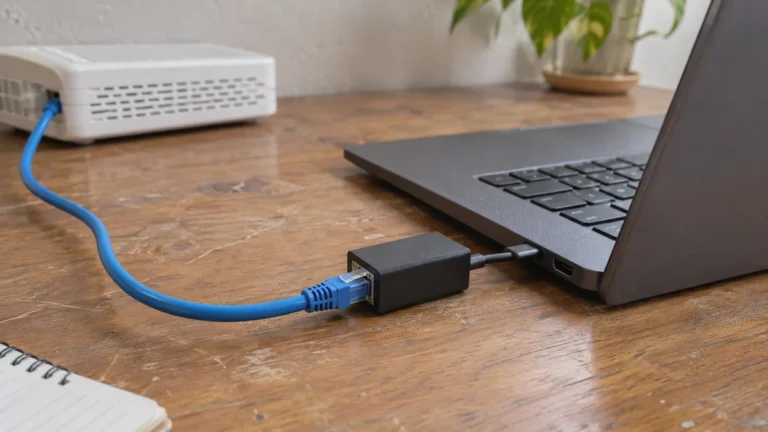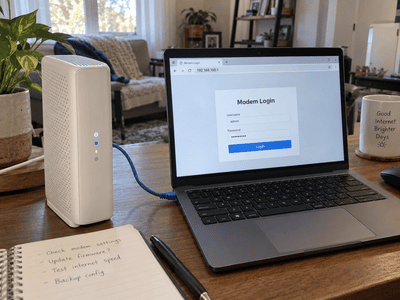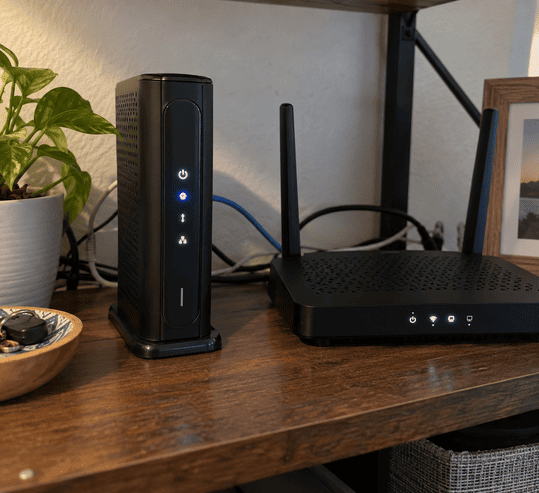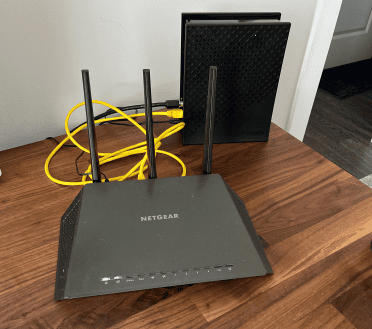
The NETGEAR CM2000 has five front status areas that tell you quite a lot about what is happening before you open a modem status page: Power, Downstream, Upstream, Online and the Multi-Gig Ethernet connection.
For a normally operating CM2000, the important cable-side lights should settle after startup instead of continuing to blink.
A typical healthy state is:
- Power: solid white
- Downstream: solid white
- Upstream: solid white
- Online: solid white
- Multi-Gig Ethernet: blue, white or amber depending on the negotiated Ethernet speed
Blinking during startup is normal. Persistent blinking after the modem has had time to connect is what deserves attention.
NETGEAR’s current LED documentation specifically includes the CM2000 and separates downstream, upstream, Online and Multi-Gig behavior.
CM2000 Power light
The Power LED is the easiest one to read.
Solid white
The modem has power.
This is the normal state once it has started.
Power light off
The CM2000 is not receiving power.
Check:
- the power adapter at the modem
- the wall outlet
- any power strip or surge protector
- whether the outlet itself works
If every LED is completely dark, this is a power problem first, not a coax signal problem.
Solid red Power light
A red Power LED is more serious.
For the CM2000, NETGEAR says red indicates that the modem is too warm and might overheat. NETGEAR recommends disconnecting power, allowing it to cool, keeping it upright and making sure it has good ventilation before reconnecting it.
Do not place the CM2000 flat, inside a closed cabinet, against a heater or packed tightly between other hot networking equipment.
A red Power light is not an ISP outage indicator.
CM2000 Downstream light
The Downstream LED shows whether the modem has locked onto downstream channels coming from the cable provider.
Blinking white
The CM2000 is searching for a downstream channel.
Seeing this briefly during startup is normal.
If it continues blinking and the modem never progresses to a stable state, look at the coax side of the connection.
Check the coax connector at the modem and wall outlet first. It should be finger-tight, not loose.
A damaged cable, poor connector, excessive splitter loss or provider signal problem can prevent downstream lock.
Solid amber
One downstream channel is locked.
That is different from the normal full-bonding indication.
It does not automatically mean the modem is dead, especially while it is still starting, but if the Downstream light remains amber after startup, the modem is not showing the normal two-or-more-channel state documented by NETGEAR.
Solid white
Two or more downstream channels are locked.
This is the normal downstream state you want to see after the modem finishes connecting.
Downstream light off
No downstream channel is locked.
If Power is white but Downstream is completely off, check the coax connection and cable service.
CM2000 Upstream light
The Upstream LED represents the return path from your modem toward the cable network.
A modem can find downstream service and still struggle with upstream communication.
That is why a CM2000 can sometimes move past the Downstream stage but sit blinking on Upstream.
Blinking white
The modem is scanning for an upstream channel.
A short period of blinking during startup is expected.
Persistent upstream blinking is different. It means the modem has not completed the upstream channel lock described by NETGEAR.
This can happen when the return-path signal is poor even if downstream reception is good enough for the modem to detect the network.
Solid amber
One upstream channel is locked.
Again, amber does not mean the same thing as “no connection.”
NETGEAR uses amber here to indicate a single locked upstream channel.
If the modem has just started, give it time.
If it remains amber during normal use, especially with slow uploads, intermittent internet or repeated disconnects, checking the cable signal levels becomes useful.
Solid white
Two or more upstream channels are locked.
This is the normal multi-channel upstream state documented for the CM2000.
Upstream light off
No upstream channel is locked.
If Downstream has locked but Upstream remains off, the modem is not completing the return side of the cable connection.
Why the CM2000 Upstream light keeps blinking
Persistent Upstream blinking is one of the more useful CM2000 symptoms because it points toward the cable connection rather than Wi-Fi.
The CM2000 itself does not provide Wi-Fi. It is a cable modem. Your separate router handles the wireless network.
So changing Wi-Fi channels, moving your router or changing a Wi-Fi password will not fix a CM2000 that cannot acquire an upstream channel.
Start with the cable path:
- Check the coax connection at the CM2000.
- Check the wall connection.
- Remove unnecessary coax splitters where practical.
- Check whether your cable provider has an outage.
- Check the modem’s cable power levels.
- Power cycle the network if the physical connections look normal.
NETGEAR specifically recommends checking activation, cable signal levels, splitters and firmware when troubleshooting cable-modem connectivity.
CM2000 Online light
The Online LED tells you whether the modem has completed its connection to the cable provider.
Blinking white
The modem is synchronizing with the provider’s cable modem termination system, or CMTS.
During startup, this is normal.
The exact CM2000 manual says the modem can take up to about 10 minutes to come online during installation, so a freshly restarted modem should be given time before assuming it has failed.
If the Online light is still blinking long after Downstream and Upstream have settled, check activation or provisioning with the cable provider.
This is particularly important after:
- installing a new CM2000
- moving the modem to another account
- replacing an ISP-supplied modem
- changing cable service
- a provider-side provisioning change
Solid white
The CM2000 is online.
If the Online LED is solid white but you still cannot access the internet through your router, the problem may be between the modem and router rather than between the modem and ISP.
Check the Multi-Gig Ethernet light next.
Online light off
The modem is offline.
NETGEAR’s LED troubleshooting guidance recommends checking the coax connections, confirming that the ISP has provisioned the modem and removing excessive cable splitters.
If the CM2000 has worked for months and suddenly goes offline without anything being changed inside the house, an ISP outage or line problem moves higher on the list.
CM2000 Multi-Gig Ethernet light
The Multi-Gig LED is easy to misread because its color is about Ethernet link speed.
It is not a general internet-status light.
NETGEAR’s current documentation uses:
- blue: 2.5 Gbps Ethernet link
- white: 1 Gbps Ethernet link
- amber: 100 Mbps Ethernet link
A blinking version of the same color means traffic is moving through the port.
Blue Multi-Gig light
A blue light means the CM2000 has negotiated a 2.5 Gbps Ethernet connection with the connected router or device.
Blinking blue is normal when data is moving.
You do not need a blue light for the modem to work correctly.
If your router only has a 1 Gbps WAN port, a white Ethernet light can be completely normal.
The blue LED describes the local Ethernet connection between the modem and whatever is plugged into it. It does not prove that your internet plan is delivering 2.5 Gbps.
White Multi-Gig light
White indicates a 1 Gbps Ethernet link.
For many home routers, this is exactly what you should expect.
Blinking white just means traffic is passing through that 1 Gbps link.
Amber Multi-Gig light
Amber indicates a 100 Mbps Ethernet connection.
The CM2000 can still have internet access in this state, but if you expected a gigabit or 2.5 Gbps connection, something is limiting the Ethernet link.
Check:
- the router’s WAN-port capability
- the Ethernet cable
- whether the cable is fully seated
- whether an intermediate switch or adapter is limited to 100 Mbps
- router port settings if the router provides them
A CM2000 showing solid white Online with an amber Ethernet link is a very different problem from a modem with the Online light blinking.
The cable internet connection may be fine while the local Ethernet link is negotiating at only 100 Mbps.
Multi-Gig light off
If the CM2000 is online but the Ethernet LED is off, the modem is not detecting a working Ethernet link.
Check both ends of the Ethernet cable and make sure the connected router is powered on.
NETGEAR also recommends checking that the correct cable is being used when the Ethernet LED remains off despite a connection.
All CM2000 lights keep cycling after a restart
Do not diagnose individual LEDs too early.
During startup the modem has to:
- power up
- find downstream channels
- acquire upstream channels
- synchronize with the cable network
- establish its Ethernet connection to your router
That naturally causes several lights to blink or change state.
Give the modem time to finish.
If it repeatedly starts the process again from Power and never settles, that is different from one light simply taking a few minutes to lock.
Repeated full restarts can point toward power, overheating, hardware or provider-side issues.
Check the CM2000 signal levels
When Downstream or Upstream problems keep returning, the modem’s cable connection page can provide more useful information than repeatedly rebooting it.
The CM2000 local modem interface is available at 192.168.100.1.
One important CM2000-specific detail: NETGEAR says the CM2000 does not use a universal default modem password. Each unit has a unique password printed on its product label.
If the page itself will not open, see the NetMovo 192.168.100.1 login and modem-status guide. 192.168.100.1 login guide
Inside the modem interface, the Cable Connection section shows downstream and upstream levels.
NETGEAR’s own guideline lists good downstream power as about -7 to +7 dBmV and good upstream power as about 38 to 48 dBmV for the supported cable modems, including CM2000.
Treat those as NETGEAR’s diagnostic guidelines, not a reason to start modifying the cable network yourself.
If levels are clearly outside the recommended range and you are also seeing blinking lights, disconnects or poor performance, the cable line deserves attention.
Splitters can matter more than they look
Cable splitters reduce signal strength.
One splitter may be part of a normal installation, but multiple old or unnecessary splitters between the provider line and modem can make marginal signal problems worse.
If your CM2000 recently started having trouble after cable TV equipment was added or wiring was changed, check whether the modem’s coax path was altered.
Do not remove equipment that is required by your provider or building setup without understanding what it does.
The useful test is simply whether the modem has a cleaner cable path available.
Power cycle the modem and router in the right order
If the lights are abnormal but the coax and power connections look fine, a normal power cycle is reasonable.
For a separate cable modem and router, NETGEAR recommends bringing the modem up before the router.
A practical sequence is:
- Turn off the router.
- Disconnect power from the CM2000.
- Wait about two minutes.
- Power the CM2000 back on.
- Wait for it to reconnect to the cable provider and for its lights to settle.
- Turn the router back on.
- Wait for the router to reconnect to the modem.
NETGEAR’s network power-cycle guidance says to start the modem first and allow it to establish the ISP connection before powering the router.
This is different from a factory reset. Your modem configuration is not being erased.
Do not factory reset the CM2000 first
A factory reset is rarely the first useful response to a blinking Downstream, Upstream or Online light.
A reset cannot repair:
- an ISP outage
- bad coax
- poor cable signal
- a loose connector
- excessive splitter loss
- an unprovisioned modem
- an overheating modem
Start with the light that is failing and work outward from there.
A factory reset becomes more reasonable only after the physical connection, activation, signal and normal restart steps have been ruled out.
NETGEAR does provide a reset procedure for the CM2000, but it should not replace proper cable-line diagnosis.
A fast way to read the CM2000 lights
If Downstream is blinking, the modem is still trying to find the provider’s downstream signal.
If Downstream is solid but Upstream is blinking, the modem can hear the cable network but has not completed its upstream connection.
If Downstream and Upstream are solid but Online keeps blinking, look more closely at provider synchronization, activation or provisioning.
If Online is solid white but there is no Ethernet light, investigate the connection between the CM2000 and your router.
If Online is solid white and Ethernet is amber, internet service may be working while the Ethernet link has negotiated at only 100 Mbps.
If Power is red, stop treating it as a cable signal problem and deal with overheating and ventilation first.
That sequence makes the CM2000 lights much more useful than treating every blinking LED as the same “no internet” fault.
Official sources
NETGEAR: Multi-Gig cable modem LED meanings
NETGEAR: Troubleshooting with cable modem LEDs
NETGEAR: Downstream and upstream power-level guidelines